

Managing Project and Member Privacy
Privacy in a Social System Map is a particular kind of trust. People aren’


1. Scroll to the bottom of the page and click “Manage your subscription”.

2. Click “Cancel subscription”

3. On the ‘Confirm cancellation’ page, click ‘Cancel subscription’.

4. Click “Return to sumApp” to return to your sumApp account.

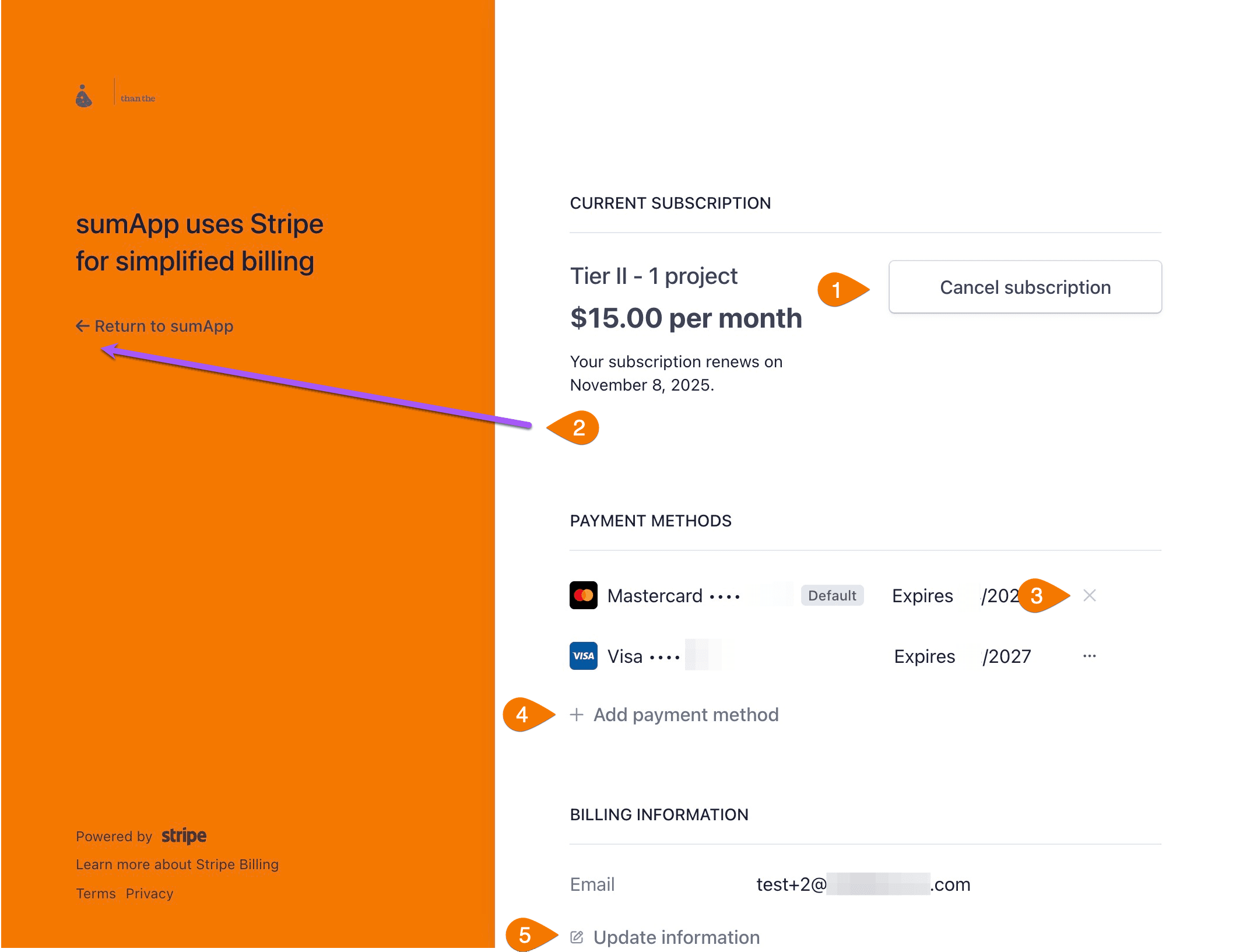
- .
- Return to sumApp.
- Remove a payment method.
- Add a payment method.
- Update your billing information.
1. From the “My Accounts” page, navigate to the bottom of the page to the “Change Subscription Plan” form.

2. Choose the Tier type for your plan.

3. Choose the number of projects you need.

4. Choose “Monthly subscription”

5. Or “Annual subscription”

6. Click “Subscribe for (monthly/annual) for $X” to open the Stripe payment processor.

7. Enter your billing “Email”.


8. And credit card details.

9. Click “Pay $X” to submit payment and subscribe.


All sumApp account set-ups start at Tier II for a free trial month.
No credit card is required for the free trial, so your account will just automatically downgrade to Tier I at the end of the month if you don’t choose to keep it at Tier II or higher.
If you want to downgrade immediately after setting up the account (or any time in the first month), just go to ‘My Account’, select ‘Change Subscription Plan’ at the lower left, and select Tier I.
There is no charge for Tier I.
Downgrading Your Subscription to Tier I
If you would like to cancel your subscription, view the steps for canceling below.
Canceling Your Subscription on sumApp
 And remember – if you have a Tier III or Tier IV account, you cannot downgrade it.
1. Scroll to the bottom of the page and click “Manage your subscription”.
2. Click “Cancel subscription”
3. On the ‘Confirm cancellation’ page, click ‘Cancel subscription’.
4. Click “Return to sumApp” to return to your sumApp account.
Managing your Account Settings and Subscription Plans
The ‘My Account’ tab is where you manage your personal account details and subscription preferences in sumApp.
You’ll use this section when you need to:
- Change the contact name, email address, or password linked to your account.
- Update or switch your subscription plan.
- Access your billing and payment history through the Stripe portal.
This is especially relevant for organizations where team members change over time or when you need to adjust your plan to match evolving project needs.
Accessing the ‘My Accounts’ Page and How to Update Your Account Information
The ‘My Account‘ tab helps you maintain accurate contact information and manage your active subscription without needing to contact support.
Common reasons include:
- Transferring account ownership to a new project lead or staff member.
- Adjusting your subscription plan as your mapping project expands (or contracts).
- Accessing receipts, invoices, and renewal details directly through the .
💡 Tip: Keeping your account information current ensures that important billing and renewal notifications reach the right person.
⚠️ Important Notes:
- . Please make sure you want to stay at that tier before upgrading.
- sumApp uses Stripe for secure payment processing. Stripe does not share your credit card information with sumApp.
When you make a change to an existing paid subscription, Stripe automatically pro-rates your charges based on time remaining in your billing period.
📘 Example:
If you subscribe to Tier II (1 project) for one year on January 1, and later increase to 3 projects on April 1, Stripe calculates the difference between the two plans and bills you accordingly for the remainder of your term (through the next January 1).
Once you have an active subscription, you will see a green ‘Manage your subscription’ button appear on your ‘My Account’ page.

1. From the “My Accounts” page, navigate to the bottom of the page to the “Change Subscription Plan” form.
2. Choose the Tier type for your plan.
3. Choose the number of projects you need.
4. Choose “Monthly subscription”
5. Or “Annual subscription”
6. Click “Subscribe for (monthly/annual) for $X” to open the Stripe payment processor.
7. Enter your billing “Email”.
8. And credit card details.
9. Click “Pay $X” to submit payment and subscribe.
1. From “My Account” scroll down to the bottom of the page to ‘Change subscription plan’.

2. Select the “Tier I” option from the dropdown menu.

3. Click “Subscribe monthly for $0”.
