

Managing Project and Member Privacy
Privacy in a Social System Map is a particular kind of trust. People aren’


Create a New Project

1) Click the green ‘Create’ button above the project list
2) Name the project (will show in member view). You can’t use the same project name twice.
3) Cancel to back out and not create a new project.
4) Click green ‘Create Project’ button to save new project. You’ll be able to access the project from the ‘Manage’ button in the project list.
A project you no longer need can be:
- Deleted completely
- Deletion is not reversible – you should download your data to your desktop if you think you’ll ever want it again.
- Archived
- An archived project stores a project’s data, but the project interface cannot be resurrected. You can return at a later date to access your data. You will not be able to re-open and gather new data in an archived project.
To delete or archive a project:
1) Click the trash can icon at the front of the project you want to remove
2) Select whether you want to delete it (remove everything forever),
3) or archive it (keep the existing data)
4) Cancel to change your mind and leave the deletion dialog box.
5) Enter your account password
Types of fields available in the survey
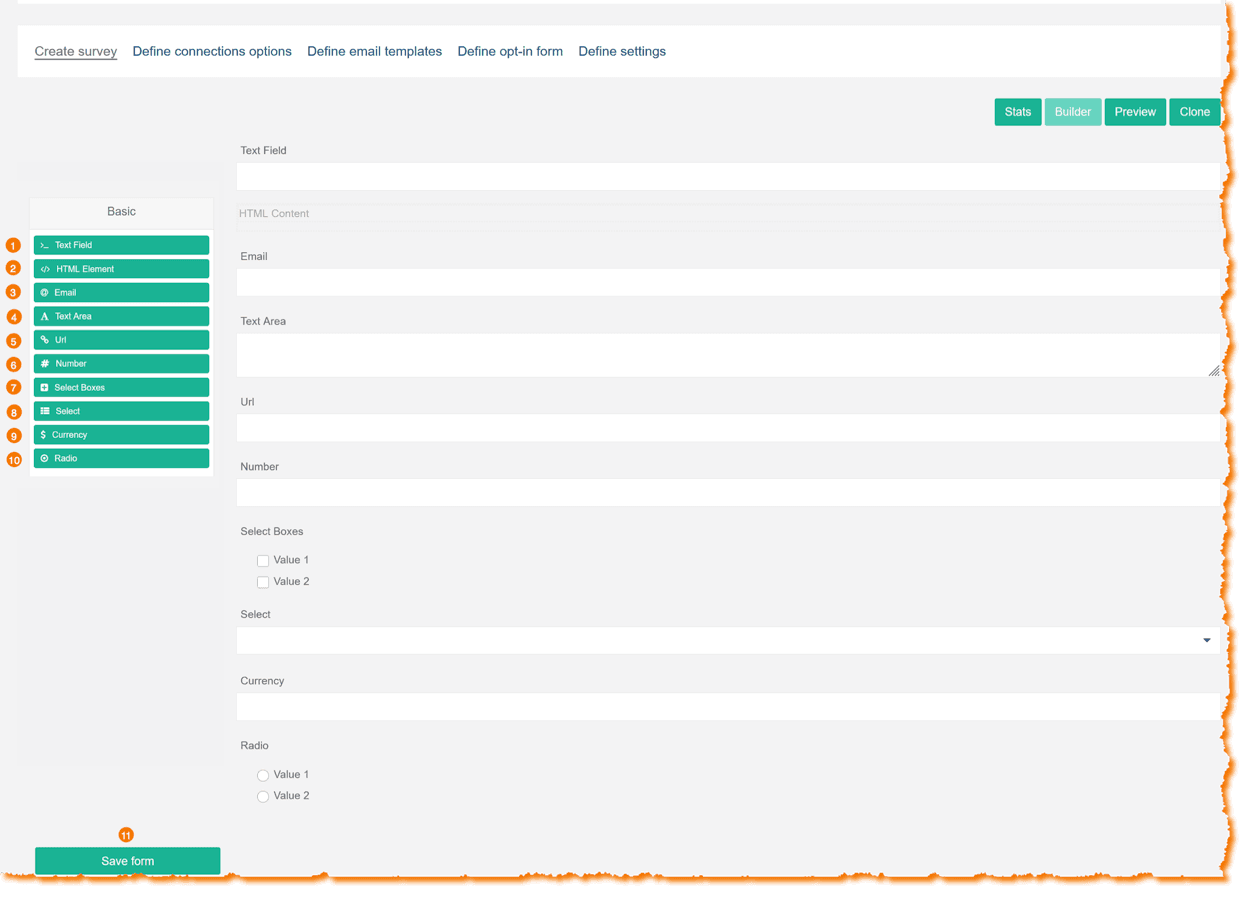
- Text Field. Open ended short text field.
- HTML Element. Add html to your survey.
- Email. Includes option for email validation.
- Text Area. Larger text response field.
- Url. Includes option for url validation.
- Number.
- Select Boxes. You can use as many select box options as you need. Members can select more than one option, but you can set a limit in the field editor. In Tier IV, one of your select box questions can be used as an extra custom filter on the member view connections tab.
- Select. A dropdown, only one option can be selected.
- Currency. Option to select currency formatting.
- Radio. With radio button fields, there will always be one button selected. There can not be NO button selected. Be careful how you use this, because if a member doesn’t complete the survey you will be assigning a default value to the member.
 Placeholders offer a suggestion about what content you’re looking for. It will be replaced as the member types into the field. If you don’t want it there, delete it via the field editor.
Say more about what you’re looking for with the description text. You can delete description text in the field editor, but you can’t relocate it.
 Use required fields sparingly! If unanswered, they prevent members from saving their survey data, which can be frustrating.
The Field Editor Dialog Box
Select box field
The Checkbox field is the most complex – other field editor dialog boxes will have the same fields where relevant, they just won’t have all of them.
1) Question Label. Make sure every question label is unique. Kumu won’t read each instance a field if it is repeated (for example, if you have ‘other’ after more than one checklist – you’ll need to label them something like ‘Other Issues’ ‘Other Genders’, etc.
2) Description. Can be deleted if not useful.
3) Options list. You can add as many options as you need.
4) Delete the option. Be careful with this. If the survey has been open and people have chosen this option, you will get a message saying it has data attached. If you click to delete the option anyway, those specific option-choices will be permanently deleted from the data-set. All other options will remain in the data-set. If you intend to keep the data, and just change the option wording a little, use the pencil instead.
5) Pencil icon. Makes the option box editable. You can make minor changes to the option wording without losing existing data. Be sure to click the checkmark that replaces the pencil when you are done editing.
6) Add button. Use this to add more options.
7) Elevator bar. When you add more options, they’re usually not visible because they’re at the end of list. Use the elevator bar to scroll to the bottom of the list to edit the new option.
8) Required checkbox – makes it so members can’t proceed through the survey without answering this question – use sparingly!
9) Custom filter checkbox – Tier IV only – read more about the custom filter feature.
10) Maximum number of choices – enables you to limit how many responses members can select from a list.
This is a choice with inherent tension – it’s tempting not to limit members (because it feels more liberating, people don’t like limits). However you’ll often find that w/o a limit, many people will chose almost all of the options. When you map that, it becomes meaningless – it looks like everyone is into everything and makes it much harder to identify those for whom any topic is core to their work or being, etc.. A little bit of constraint here increases meaningfulness in the map.
11) Save the changes to this question.
12) Cancel changes to this question.
13) Delete the question.
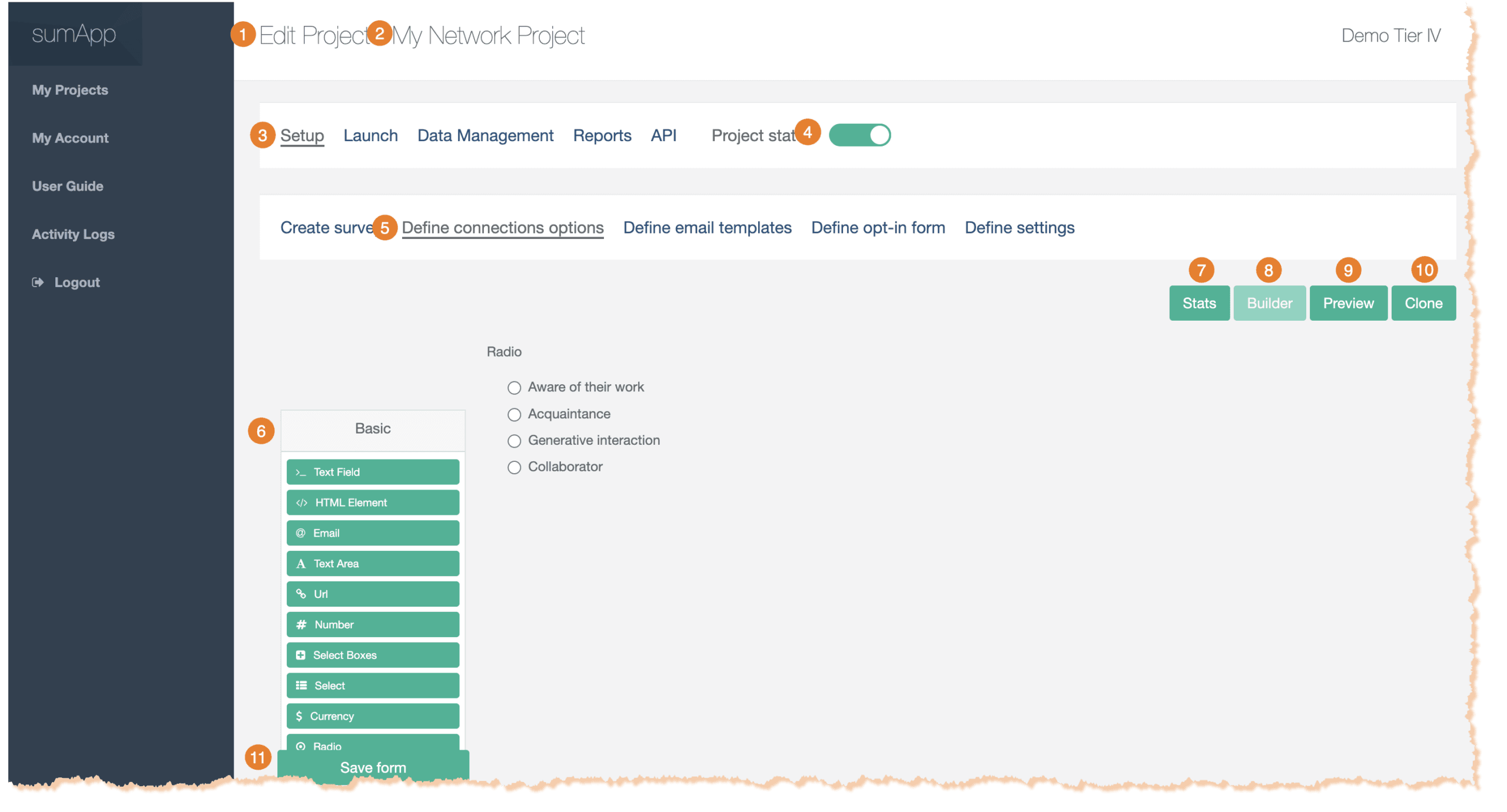
Parts of the Workspace
1) Indicates what page you’re on, within your project.
2) Indicates which project you’re currently working on.
3) Shows you’re in the first tab of the project phases navigation bar – Setup.
4) Shows your project status. Toggle on to enable project members to submit their survey responses.
5) Shows you’re in the ‘Define connection options’ tab of the Setup phase.
6) On the left you can select from your field options to drag onto the Connection options Builder canvas.
7) Use to view the stats on your connection fields, including the number of map members who have submitted a connection to another map member for the field.
8) On the right is the Connection Builder – you’ll drag fields from the left side of the workspace to the right. There you can put them in the order you want and edit the field content.
9) Enables you to preview the connection form.
10) Clone enables you to copy connection options from your account as a starting point. Existing fields will be over-written when you clone as survey.
11) Save the whole survey – don’t forget to save frequently!
Why have three templates?
sumApp was designed to be what we call ‘evergreen’ – in other words, we wanted a tool that didn’t just create a snapshot in time, but could also continue to evolve as the network changes and as their mapping needs become more sophisticated. An important part of that evergreen characteristic means having the ability to add new members to the map’s databases as they join the network and to invite existing members back into sumApp to show their existing relationships to the new members.
On the one hand, doing that that can be as simple as deciding never to close a survey. But if your bulk email invitations don’t differentiate which phase you’re asking members to address, you’ll confuse and annoy people. It would be bad form to ask members to do something they’ve already done, without:
- Explaining that you’re not implying they didn’t do it.
- Making clear that it’s not a re-do – that what they’ve done is safe and intact.
- Making it clear that the reason you’re asking them back is because something has changed and those changes might be relevant for them to address.
- Making sure they know it will be a super-quick thing.
- Such as: “please go take a quick peek at the 10 brand new members at the top of the list, and if you know any, share that – then you’re done!”
So – in another SNA tool, you maybe COULD simply keep the survey open (tho, naaaw, it’d still be messy for other technical reasons, but we’ll ignore those right now . . . ),
but you’d have to revise the email over and over depending on who you’re sending to.
We thought that was dumb. So we make it easier by using three different email templates, each meant to be framed for a different context, depending on what stage your members are at in the evergreen cycle.
- The initial invitation – Frame this text for the brand-new member who has never seen sumApp & has no idea what you’re up to.
- The ‘new faces’ email – Frame this one for the initiated. Those who’ve done sumApp already, or at least have chosen to ignore previous invites (they know it’s been happening whether they’ve engaged or not). Framing in ‘new faces’ should, ideally, include all the bullet points above.
- The ‘reminder’ email – This is a follow-up framed generically for everyone. Use it when you want to address everyone at once.
The email template interface
Features of the email template interface:
1) Shows you’re in the sumApp setup phase.
2) Shows you’re on the ‘define email templates’ page.
3) Input name of sender here. This is a required field. Use a name that is as recognizable as possible for the whole population. All templates will come from this sender.
4) Input email of sender. This is a required field. Can be a different email than that belonging to the ‘from’ person’s name.
5) Deadline. Not required. Will fill into the template where you’ve inserted the {survey_deadline} tag. It has no functional effect (it won’t close your survey on that date). It’s simply there to make it easy to insert a date into your emails and change it in a single place, instead of digging into each email template to change it.
6) Field tags you can use in your email. {url} is required in each email template. No other fields are required. Read more about the curly-bracket tags.
7) The Invitation Email template WYSIWYG. More about the WYSIWYG interface.
8) The New Faces Email template WYSIWYG. More about the WYSIWYG interface.
9) The Reminder Email template WYSIWYG. More about the WYSIWYG interface.
10) Cancel – this will remove all changes you’ve made since your last save.
11) Save – Don’t forget to save when you’ve made changes anywhere on this page!!
Email template tags:
You find these fields at the top of the Email Templates page – they apply to each email type in your project:
1) Input name of sender here. This is a required field. Use a name that is as recognizable as possible for the whole population. All templates will come from this sender.
2) Input email of sender. This is a required field. Can be a different email than that belonging to the ‘from’ person’s name.
3) Deadline. Not required. Will fill into the template where you’ve inserted the {survey_deadline} tag. It has no functional effect (it won’t close your survey on that date). It’s simply there to make it easy to insert a date into your emails and change it in a single place, instead of digging into each email template to change it.
You also have tags that can be used in your email templates. They function as placeholders for inserting data from other fields within sumApp into the emails. They include:
4) {first_name} inserts the first name of the member receiving the email. Not mandatory.
5) {last_name} inserts the last name of the member receiving the email. Not mandatory.
6) {network_name} inserts the project name, which you can see at the top of the page. Not mandatory.
7) {survey_deadline} inserts the date in field #3 ‘Deadline’. Not mandatory.
8) {url} inserts the unique sumApp url belonging to the user receiving the email. This field is mandatory for all three templates.
9) {segment} inserts the segment you’re assigned to the user receiving the email, if you’ve assigned one. Not mandatory.
10 {sender_name} Inserts the name in the 3@ above ‘Sender email’. Not mandatory in the body of the email.
and again – a reminder 11) the {url} tag is mandatory for all email templates. If you’ve removed it, the save button won’t work until you replace it in all 3 templates.
The WYSIWYG
What is a WYSIWYG editor?
HTML markup tells a web browser how to display the text, images and other forms of multimedia on a webpage. A WYSIWYG is an interface designed to editing HTML without having to know or see the underlying code.
It it beyond the scope of this knowledge base to explain all the parts of this particular WYSIWYG interface, but we’ll point out a few basics.
1) Indicates which template you’re working on.
2) Defines the email’s subject line – it can include tags if desired.
3) The body of the email is edited in within the WYSIWYG editor.
A common cause of frustration using WYSIWYG editors:
You’ll often copy text from another editing tool into the email template. For instance if you’ve collaborated on the text in a google doc, or you’re pasting from Word. Each of those tools uses underlying code (such as HTML) to tell the browser or application how to render the content (headers, etc.)
Often when copying and pasting text from one editor into another, you also inadvertently copy over a bunch of hidden code as well. Sometimes that works fine & you get the formatting you want, but often it turns into a challenge. You can prevent this by copying your text into a non-formatting editor, such as NotePad before pasting it into the WYSWYG.
But if you haven’t already stripped the hidden code from your text before inserting it into a WYSIWYG, if the editor starts to behave strangely – such as not implementing changes you’re trying to make, you usually need to either examine the underlying HTML to remove junk code, or simply strip all formatting out of the text and start formatting fresh. You can either ‘view source’ or ‘remove formatting’.
4) The ‘source’ button in the WYSIWYG dashboard enables you to examine and edit the underlying HTML code. Even if you have no idea what HTML is, taking a peek will give you at least a sense of what’s going on.
5) The Tx icon will remove all hidden formatting code from the text so you can start fresh. The text to be cleaned must be selected first. You can double-check that it got removed by looking at the source code under #4.
The other buttons in the WYSWYG dashboard are either self-explanatory or not that relevant in this context.
6) If you want to start over, select ‘Reset Default’
7) The green ‘Preview’ button enables you to preview your content.
Once you’ve edited each template – don’t forget to click ‘save’ at the bottom of the page!
How sending works with each template
You send emails from the Launch > Manage Invitations page in sumApp.
Here is an overview explaining when each type is sent.
Invitation Email
- Is sent when you click the ‘Send Invitation Emails’ button or the ‘Send Invitation & New Faces Emails’ button in Launch > Manage Invitations page. It will only go out to members who have never previously been sent the first invitation.
- You can also send the Invitation Email to anyone, regardless of if they’ve been sent it before, on a case-by-case basis in the member list in Launch > Manage Members.
New Faces Email
- Is sent when you click the ‘Send Invitation & New Faces Emails’ button or the ‘Send New Faces Emails’ button in Launch > Manage Invitations page. It will only go out to members who have ALREADY been sent the first invitation at some point in the past.
- You can also send the New Faces Email to anyone, regardless of what they’ve been sent it before, on a case-by-case basis in the member list in Launch > Manage Members.
Reminder Email
- Is sent when you click the the ‘Send Reminders’ button in Launch > Manage Invitations page. It will go out to everyone in your member list, regardless of what they’ve been sent in the past.
- You can also send the Reminder Email to anyone, regardless of what they’ve been sent it before, on a case-by-case basis in the member list in Launch > Manage Members.
Custom survey filter email template – Tier IV
If you’re using the custom survey filter feature in Tier IV, you have another email template option. You can send a custom email to a sub-set of the population, based on their responses to the custom filter survey question you’re using.
You can access this extra functionality in Launch > Manage Invitations – Under the ‘Actions’ section of the page, find and click on the 5th sending button ‘Custom Filter Email’.
Why have three templates?
sumApp was designed to be what we call ‘evergreen’ – in other words, we wanted a tool that didn’t just create a snapshot in time, but could also continue to evolve as the network changes and as their mapping needs become more sophisticated. An important part of that evergreen characteristic means having the ability to add new members to the map’s databases as they join the network and to invite existing members back into sumApp to show their existing relationships to the new members.
On the one hand, doing that that can be as simple as deciding never to close a survey. But if your bulk email invitations don’t differentiate which phase you’re asking members to address, you’ll confuse and annoy people. It would be bad form to ask members to do something they’ve already done, without:
- Explaining that you’re not implying they didn’t do it.
- Making clear that it’s not a re-do – that what they’ve done is safe and intact.
- Making it clear that the reason you’re asking them back is because something has changed and those changes might be relevant for them to address.
- Making sure they know it will be a super-quick thing.
- Such as: “please go take a quick peek at the 10 brand new members at the top of the list, and if you know any, share that – then you’re done!”
So – in another SNA tool, you maybe COULD simply keep the survey open (tho, naaaw, it’d still be messy for other technical reasons, but we’ll ignore those right now . . . ),
but you’d have to revise the email over and over depending on who you’re sending to.
We thought that was dumb. So we make it easier by using three different email templates, each meant to be framed for a different context, depending on what stage your members are at in the evergreen cycle.
- The initial invitation – Frame this text for the brand-new member who has never seen sumApp & has no idea what you’re up to.
- The ‘new faces’ email – Frame this one for the initiated. Those who’ve done sumApp already, or at least have chosen to ignore previous invites (they know it’s been happening whether they’ve engaged or not). Framing in ‘new faces’ should, ideally, include all the bullet points above.
- The ‘reminder’ email – This is a follow-up framed generically for everyone. Use it when you want to address everyone at once.
The email template interface
Features of the email template interface:
1) Shows you’re in the sumApp setup phase.
2) Shows you’re on the ‘define email templates’ page.
3) Input name of sender here. This is a required field. Use a name that is as recognizable as possible for the whole population. All templates will come from this sender.
4) Input email of sender. This is a required field. Can be a different email than that belonging to the ‘from’ person’s name.
5) Deadline. Not required. Will fill into the template where you’ve inserted the {survey_deadline} tag. It has no functional effect (it won’t close your survey on that date). It’s simply there to make it easy to insert a date into your emails and change it in a single place, instead of digging into each email template to change it.
6) Field tags you can use in your email. {url} is required in each email template. No other fields are required. Read more about the curly-bracket tags.
7) The Invitation Email template WYSIWYG. More about the WYSIWYG interface.
8) The New Faces Email template WYSIWYG. More about the WYSIWYG interface.
9) The Reminder Email template WYSIWYG. More about the WYSIWYG interface.
10) Cancel – this will remove all changes you’ve made since your last save.
11) Save – Don’t forget to save when you’ve made changes anywhere on this page!!
Email template tags:
You find these fields at the top of the Email Templates page – they apply to each email type in your project:
1) Input name of sender here. This is a required field. Use a name that is as recognizable as possible for the whole population. All templates will come from this sender.
2) Input email of sender. This is a required field. Can be a different email than that belonging to the ‘from’ person’s name.
3) Deadline. Not required. Will fill into the template where you’ve inserted the {survey_deadline} tag. It has no functional effect (it won’t close your survey on that date). It’s simply there to make it easy to insert a date into your emails and change it in a single place, instead of digging into each email template to change it.
You also have tags that can be used in your email templates. They function as placeholders for inserting data from other fields within sumApp into the emails. They include:
4) {first_name} inserts the first name of the member receiving the email. Not mandatory.
5) {last_name} inserts the last name of the member receiving the email. Not mandatory.
6) {network_name} inserts the project name, which you can see at the top of the page. Not mandatory.
7) {survey_deadline} inserts the date in field #3 ‘Deadline’. Not mandatory.
8) {url} inserts the unique sumApp url belonging to the user receiving the email. This field is mandatory for all three templates.
9) {segment} inserts the segment you’re assigned to the user receiving the email, if you’ve assigned one. Not mandatory.
10 {sender_name} Inserts the name in the 3@ above ‘Sender email’. Not mandatory in the body of the email.
and again – a reminder 11) the {url} tag is mandatory for all email templates. If you’ve removed it, the save button won’t work until you replace it in all 3 templates.
The WYSIWYG
What is a WYSIWYG editor?
HTML markup tells a web browser how to display the text, images and other forms of multimedia on a webpage. A WYSIWYG is an interface designed to editing HTML without having to know or see the underlying code.
It it beyond the scope of this knowledge base to explain all the parts of this particular WYSIWYG interface, but we’ll point out a few basics.
1) Indicates which template you’re working on.
2) Defines the email’s subject line – it can include tags if desired.
3) The body of the email is edited in within the WYSIWYG editor.
A common cause of frustration using WYSIWYG editors:
You’ll often copy text from another editing tool into the email template. For instance if you’ve collaborated on the text in a google doc, or you’re pasting from Word. Each of those tools uses underlying code (such as HTML) to tell the browser or application how to render the content (headers, etc.)
Often when copying and pasting text from one editor into another, you also inadvertently copy over a bunch of hidden code as well. Sometimes that works fine & you get the formatting you want, but often it turns into a challenge. You can prevent this by copying your text into a non-formatting editor, such as NotePad before pasting it into the WYSWYG.
But if you haven’t already stripped the hidden code from your text before inserting it into a WYSIWYG, if the editor starts to behave strangely – such as not implementing changes you’re trying to make, you usually need to either examine the underlying HTML to remove junk code, or simply strip all formatting out of the text and start formatting fresh. You can either ‘view source’ or ‘remove formatting’.
4) The ‘source’ button in the WYSIWYG dashboard enables you to examine and edit the underlying HTML code. Even if you have no idea what HTML is, taking a peek will give you at least a sense of what’s going on.
5) The Tx icon will remove all hidden formatting code from the text so you can start fresh. The text to be cleaned must be selected first. You can double-check that it got removed by looking at the source code under #4.
The other buttons in the WYSWYG dashboard are either self-explanatory or not that relevant in this context.
6) If you want to start over, select ‘Reset Default’
7) The green ‘Preview’ button enables you to preview your content.
Once you’ve edited each template – don’t forget to click ‘save’ at the bottom of the page!
How sending works with each template
You send emails from the Launch > Manage Invitations page in sumApp.
Here is an overview explaining when each type is sent.
Invitation Email
- Is sent when you click the ‘Send Invitation Emails’ button or the ‘Send Invitation & New Faces Emails’ button in Launch > Manage Invitations page. It will only go out to members who have never previously been sent the first invitation.
- You can also send the Invitation Email to anyone, regardless of if they’ve been sent it before, on a case-by-case basis in the member list in Launch > Manage Members.
New Faces Email
- Is sent when you click the ‘Send Invitation & New Faces Emails’ button or the ‘Send New Faces Emails’ button in Launch > Manage Invitations page. It will only go out to members who have ALREADY been sent the first invitation at some point in the past.
- You can also send the New Faces Email to anyone, regardless of what they’ve been sent it before, on a case-by-case basis in the member list in Launch > Manage Members.
Reminder Email
- Is sent when you click the the ‘Send Reminders’ button in Launch > Manage Invitations page. It will go out to everyone in your member list, regardless of what they’ve been sent in the past.
- You can also send the Reminder Email to anyone, regardless of what they’ve been sent it before, on a case-by-case basis in the member list in Launch > Manage Members.
Custom survey filter email template – Tier IV
If you’re using the custom survey filter feature in Tier IV, you have another email template option. You can send a custom email to a sub-set of the population, based on their responses to the custom filter survey question you’re using.
You can access this extra functionality in Launch > Manage Invitations – Under the ‘Actions’ section of the page, find and click on the 5th sending button ‘Custom Filter Email’.
Why have three templates?
sumApp was designed to be what we call ‘evergreen’ – in other words, we wanted a tool that didn’t just create a snapshot in time, but could also continue to evolve as the network changes and as their mapping needs become more sophisticated. An important part of that evergreen characteristic means having the ability to add new members to the map’s databases as they join the network and to invite existing members back into sumApp to show their existing relationships to the new members.
On the one hand, doing that that can be as simple as deciding never to close a survey. But if your bulk email invitations don’t differentiate which phase you’re asking members to address, you’ll confuse and annoy people. It would be bad form to ask members to do something they’ve already done, without:
- Explaining that you’re not implying they didn’t do it.
- Making clear that it’s not a re-do – that what they’ve done is safe and intact.
- Making it clear that the reason you’re asking them back is because something has changed and those changes might be relevant for them to address.
- Making sure they know it will be a super-quick thing.
- Such as: “please go take a quick peek at the 10 brand new members at the top of the list, and if you know any, share that – then you’re done!”
So – in another SNA tool, you maybe COULD simply keep the survey open (tho, naaaw, it’d still be messy for other technical reasons, but we’ll ignore those right now . . . ),
but you’d have to revise the email over and over depending on who you’re sending to.
We thought that was dumb. So we make it easier by using three different email templates, each meant to be framed for a different context, depending on what stage your members are at in the evergreen cycle.
- The initial invitation – Frame this text for the brand-new member who has never seen sumApp & has no idea what you’re up to.
- The ‘new faces’ email – Frame this one for the initiated. Those who’ve done sumApp already, or at least have chosen to ignore previous invites (they know it’s been happening whether they’ve engaged or not). Framing in ‘new faces’ should, ideally, include all the bullet points above.
- The ‘reminder’ email – This is a follow-up framed generically for everyone. Use it when you want to address everyone at once.
The email template interface
Features of the email template interface:
1) Shows you’re in the sumApp setup phase.
2) Shows you’re on the ‘define email templates’ page.
3) Input name of sender here. This is a required field. Use a name that is as recognizable as possible for the whole population. All templates will come from this sender.
4) Input email of sender. This is a required field. Can be a different email than that belonging to the ‘from’ person’s name.
5) Deadline. Not required. Will fill into the template where you’ve inserted the {survey_deadline} tag. It has no functional effect (it won’t close your survey on that date). It’s simply there to make it easy to insert a date into your emails and change it in a single place, instead of digging into each email template to change it.
6) Field tags you can use in your email. {url} is required in each email template. No other fields are required. Read more about the curly-bracket tags.
7) The Invitation Email template WYSIWYG. More about the WYSIWYG interface.
8) The New Faces Email template WYSIWYG. More about the WYSIWYG interface.
9) The Reminder Email template WYSIWYG. More about the WYSIWYG interface.
10) Cancel – this will remove all changes you’ve made since your last save.
11) Save – Don’t forget to save when you’ve made changes anywhere on this page!!
Email template tags:
You find these fields at the top of the Email Templates page – they apply to each email type in your project:
1) Input name of sender here. This is a required field. Use a name that is as recognizable as possible for the whole population. All templates will come from this sender.
2) Input email of sender. This is a required field. Can be a different email than that belonging to the ‘from’ person’s name.
3) Deadline. Not required. Will fill into the template where you’ve inserted the {survey_deadline} tag. It has no functional effect (it won’t close your survey on that date). It’s simply there to make it easy to insert a date into your emails and change it in a single place, instead of digging into each email template to change it.
You also have tags that can be used in your email templates. They function as placeholders for inserting data from other fields within sumApp into the emails. They include:
4) {first_name} inserts the first name of the member receiving the email. Not mandatory.
5) {last_name} inserts the last name of the member receiving the email. Not mandatory.
6) {network_name} inserts the project name, which you can see at the top of the page. Not mandatory.
7) {survey_deadline} inserts the date in field #3 ‘Deadline’. Not mandatory.
8) {url} inserts the unique sumApp url belonging to the user receiving the email. This field is mandatory for all three templates.
9) {segment} inserts the segment you’re assigned to the user receiving the email, if you’ve assigned one. Not mandatory.
10 {sender_name} Inserts the name in the 3@ above ‘Sender email’. Not mandatory in the body of the email.
and again – a reminder 11) the {url} tag is mandatory for all email templates. If you’ve removed it, the save button won’t work until you replace it in all 3 templates.
The WYSIWYG
What is a WYSIWYG editor?
HTML markup tells a web browser how to display the text, images and other forms of multimedia on a webpage. A WYSIWYG is an interface designed to editing HTML without having to know or see the underlying code.
It it beyond the scope of this knowledge base to explain all the parts of this particular WYSIWYG interface, but we’ll point out a few basics.
1) Indicates which template you’re working on.
2) Defines the email’s subject line – it can include tags if desired.
3) The body of the email is edited in within the WYSIWYG editor.
A common cause of frustration using WYSIWYG editors:
You’ll often copy text from another editing tool into the email template. For instance if you’ve collaborated on the text in a google doc, or you’re pasting from Word. Each of those tools uses underlying code (such as HTML) to tell the browser or application how to render the content (headers, etc.)
Often when copying and pasting text from one editor into another, you also inadvertently copy over a bunch of hidden code as well. Sometimes that works fine & you get the formatting you want, but often it turns into a challenge. You can prevent this by copying your text into a non-formatting editor, such as NotePad before pasting it into the WYSWYG.
But if you haven’t already stripped the hidden code from your text before inserting it into a WYSIWYG, if the editor starts to behave strangely – such as not implementing changes you’re trying to make, you usually need to either examine the underlying HTML to remove junk code, or simply strip all formatting out of the text and start formatting fresh. You can either ‘view source’ or ‘remove formatting’.
4) The ‘source’ button in the WYSIWYG dashboard enables you to examine and edit the underlying HTML code. Even if you have no idea what HTML is, taking a peek will give you at least a sense of what’s going on.
5) The Tx icon will remove all hidden formatting code from the text so you can start fresh. The text to be cleaned must be selected first. You can double-check that it got removed by looking at the source code under #4.
The other buttons in the WYSWYG dashboard are either self-explanatory or not that relevant in this context.
6) If you want to start over, select ‘Reset Default’
7) The green ‘Preview’ button enables you to preview your content.
Once you’ve edited each template – don’t forget to click ‘save’ at the bottom of the page!
How sending works with each template
You send emails from the Launch > Manage Invitations page in sumApp.
Here is an overview explaining when each type is sent.
Invitation Email
- Is sent when you click the ‘Send Invitation Emails’ button or the ‘Send Invitation & New Faces Emails’ button in Launch > Manage Invitations page. It will only go out to members who have never previously been sent the first invitation.
- You can also send the Invitation Email to anyone, regardless of if they’ve been sent it before, on a case-by-case basis in the member list in Launch > Manage Members.
New Faces Email
- Is sent when you click the ‘Send Invitation & New Faces Emails’ button or the ‘Send New Faces Emails’ button in Launch > Manage Invitations page. It will only go out to members who have ALREADY been sent the first invitation at some point in the past.
- You can also send the New Faces Email to anyone, regardless of what they’ve been sent it before, on a case-by-case basis in the member list in Launch > Manage Members.
Reminder Email
- Is sent when you click the the ‘Send Reminders’ button in Launch > Manage Invitations page. It will go out to everyone in your member list, regardless of what they’ve been sent in the past.
- You can also send the Reminder Email to anyone, regardless of what they’ve been sent it before, on a case-by-case basis in the member list in Launch > Manage Members.
Custom survey filter email template – Tier IV
If you’re using the custom survey filter feature in Tier IV, you have another email template option. You can send a custom email to a sub-set of the population, based on their responses to the custom filter survey question you’re using.
You can access this extra functionality in Launch > Manage Invitations – Under the ‘Actions’ section of the page, find and click on the 5th sending button ‘Custom Filter Email’.
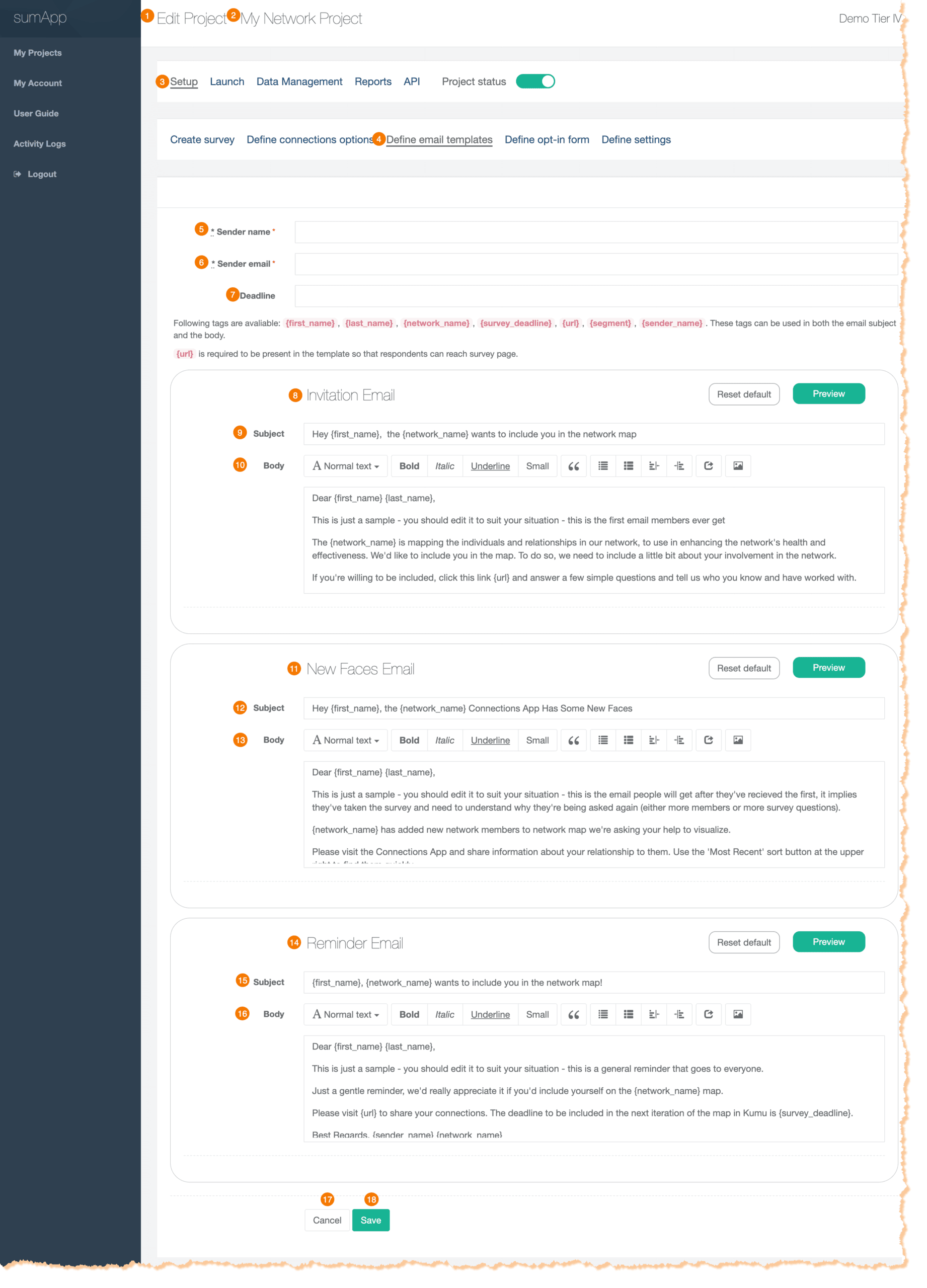
Parts of the Workspace
1) Indicates what page you’re on, within your project.
2) Indicates which project you’re currently working on.
3) Shows you’re in the first tab of the project phases navigation bar – Setup.
4) Shows you’re in the ‘Define email templates’ tab of the Setup phase.
5) Add the sender name you want to appear when map members receive an email from your project.
6) Add the email address you want to appear when map members receive an email from your project.
7) Add a deadline if you would like to include a date for map members to add responses by. Must use {survey_deadline} in your template for the date to appear.
8) The Template.
9) The Invitation Email Customizable Subject Line.
10) The Invitation Email Customizable Body.
11) The Email Template.
12) The New Faces Email Customizable Subject Line.
13) The New Faces Email Customizable Body.
14) The Email Template.
15) The Reminder Email Customizable Subject Line.
16) The Reminder Email Customizable Body.
17) Cancel button. Changes will not be saved!
18) Save button. Be sure to save changes frequently!
Sometimes you want to enable several specific people who are already on the map to go into sumApp.
For instance, you’re doing a presentation and you’re asking them to update their profiles & connections, or to navigate the map from their own sumApp instance.
But you don’t want to send an email blast to the whole network.
You COULD select each one from the member list and send the invite to them manually, and you COULD pull each person’s URL from the status report and put that into, for instance a zoom chat.
But that’s distracting in the middle of a meeting.
The simplest approach would be to put the ‘send me my link form’ into your zoom chat instead.
Or you might want to post the ‘send me my link form’ somewhere anyone on the map can find it, such as an internal map landing page, or in the map sidepanel itself – that way, if a map member loses their personal sumApp link, they can retrieve it themselves.
Why It’s Helpful
- Saves you from digging through the member list or resending invitations.
- Gives access back to the members.
- Helps members remember how they got their link (in case they lose it again).
Important Notes
- 🚫 This form doesn’t ADD people to the member list, it only works for a member who is in the list already, and they need to use the same email that’s already in the list.
- You can use this functionality even if you’re not using your Opt-In form.
✅ How to Share the “Send Me My Link” Form

From the ‘Setup’ menu under the “Define opt-in form” submenu
- Scroll to the ‘Send me my link form’ section.
- Click the 📋 clipboard icon to copy the link.
If it helps to watch a visual walk through, we have a quick TechTalk video demonstrating this feature, here.
What Happens When Members Use This Form

- They’ll be prompted to enter the same email they were added with initially.
- If the email matches, sumApp will automatically send them their unique access link.
- If it doesn’t match, they’ll be prompted to try another email or contact you.
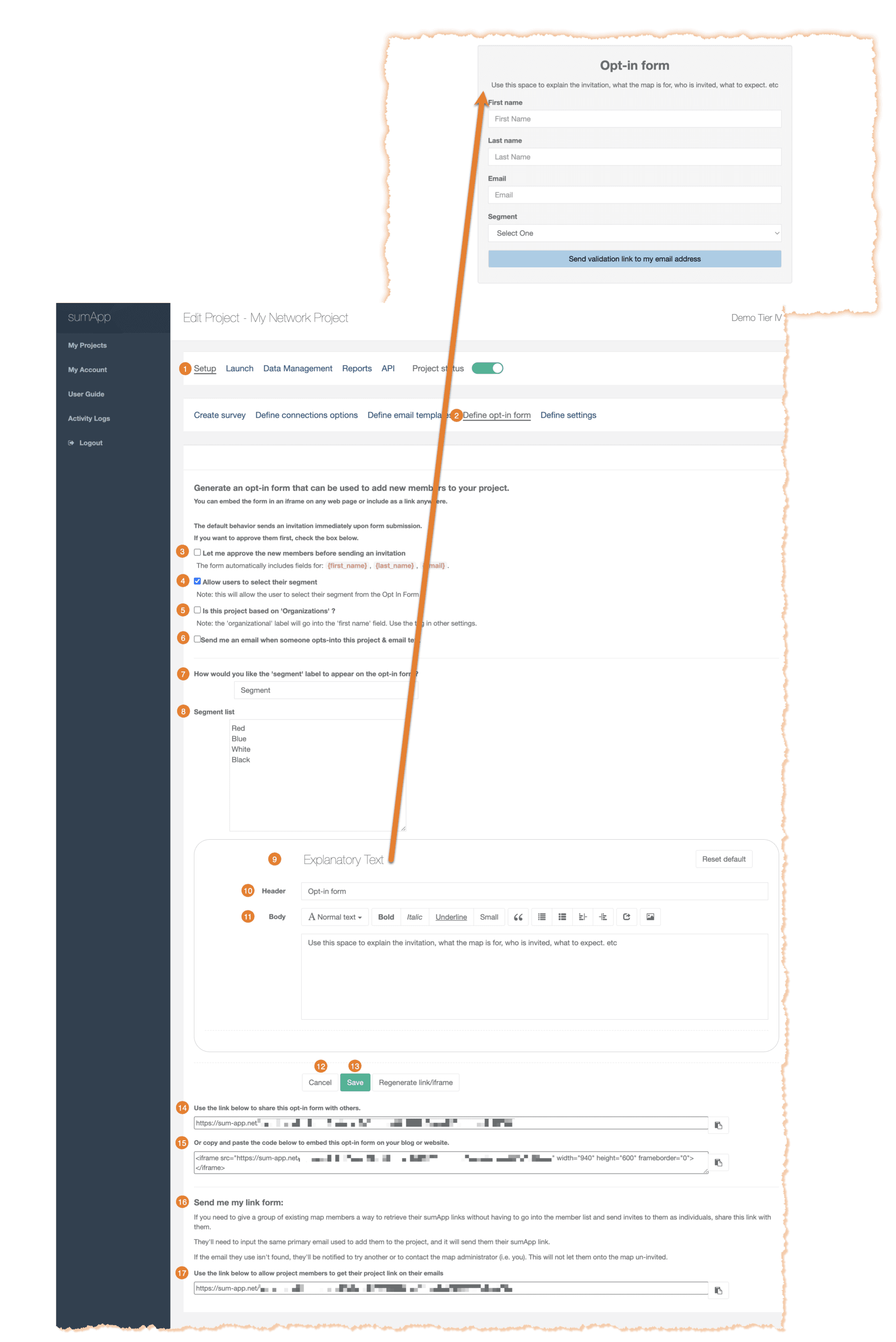
Parts of the Workspace
- Shows you’re in the first tab of the project phases navigation bar – Setup.
- Shows you’re in the ‘Define opt-in form’ tab of the Setup phase.
- Turn on/off member approval by the project admin before adding a new map member.
- Turn on/off allowing users to choose which segment they belong to.
- Turn on/off representing your project members as organizations.
- Sends an email to the project admin when a new project member opts in.
- Customizable ‘‘ label for member opt-in form.
- Segment List. Each unique segment label must be separated by a hard return.
- The Template.
- Customizable header of form.
- Customizable body of form.
- Cancel button. Changes will not be saved!
- Save button. Be sure to save changes frequently!
- Use this custom link to share your opt-in form with project members.
- The can also be embedded into a website.
- The form is used to send existing map members a form to retrieve their custom project link in an email.
- Copy the link to send to an existing map member. When they submit the form, if the email address is a project member’s, they will receive an email with their link.
Tier II
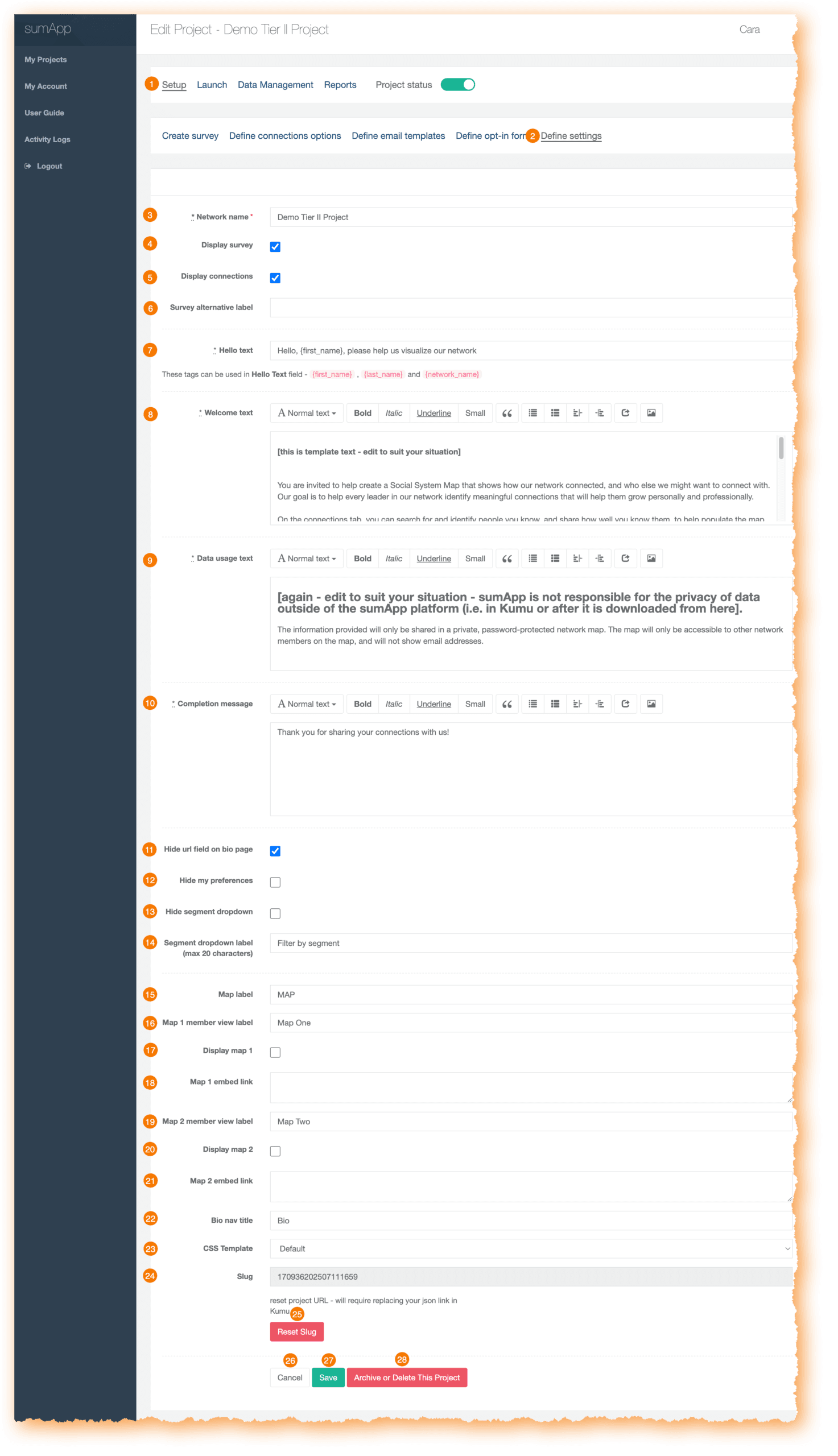
Parts of the Tier II Workspace
- Shows you’re in the first tab of the project phases navigation bar – Setup.
- Shows you’re in the ‘Define settings’ tab of the Setup phase.
- Updates your Network name.
- Turn on/off displaying your survey for map members. Default is on.
- Turn on/off displaying the connection tab of your survey. Default is on.
- Give your survey tab an alternative label.
- Change the hello text for your project member’s profile page.
- Change the Welcome text for your project member’s profile page.
- Change the Data usage text for your project member’s profile page.
- Change the Completion message when a project member submits their survey.
- Turn on/off to Hide the url field on the bio page. Default is on.
- Turn on/off to Hide the my preferences section of the project member profile. Default is off.
- Turn on/off to Hide the segment dropdown. Default is off.
- Change the Segment filter dropdown label on the project member’s connections tab.
- Change the label of your map in a project member’s view. If you only have one map connected, this is the label that will display.
- Change the label of map 1. Only updates if you have two maps connected and displayed.
- Turn on/off to display map 1. Default is off.
- Field to paste your map 1 embed link.
- Change the label of map 2.
- Turn on/off to display map 2. Default is off.
- Field to paste your map 2 embed link.
- Change the label of the Bio tab for project members.
- Change the CSS template of your project. Default is on at the start of a new project.
- Your project slug. This field is uneditable.
- Reset your project slug button. Use extreme caution before using this.
- ‘Cancel’ button.
- ‘Save’ button.
- ‘Archive or Delete This Project’ button.
Tier IV
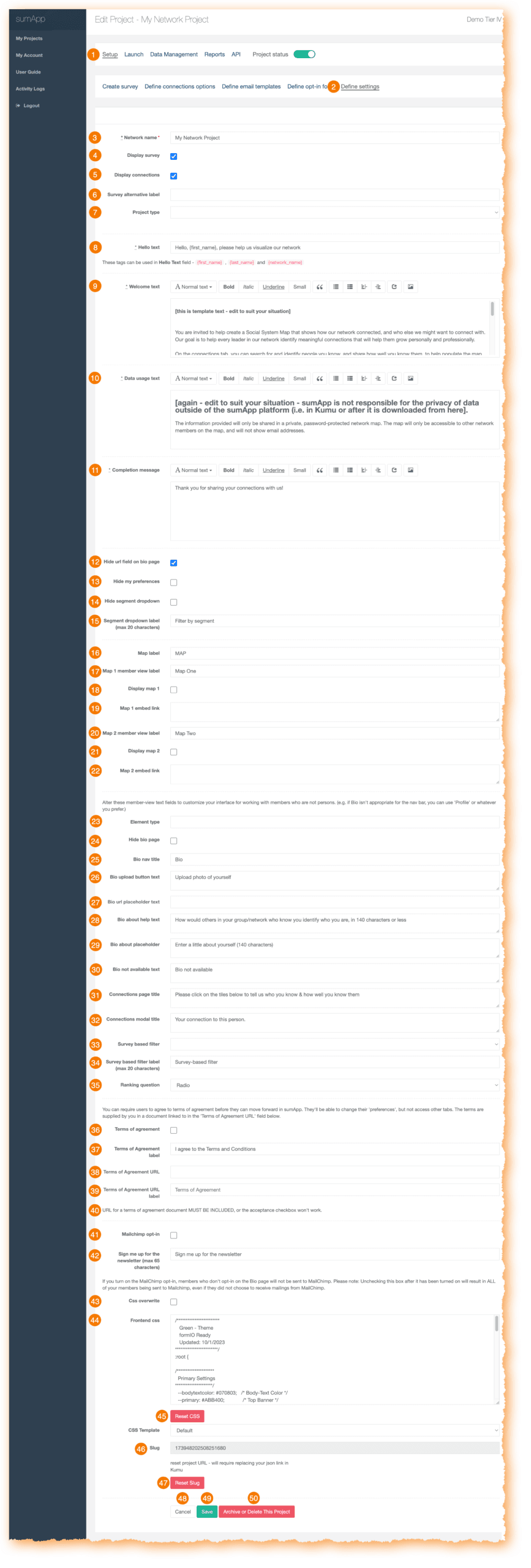
Parts of the Tier IV Workspace
- Shows you’re in the first tab of the project phases navigation bar – Setup.
- Shows you’re in the ‘Define settings’ tab of the Setup phase.
- Updates your Network name.
- Turn on/off displaying your survey for map members. Default is on.
- Turn on/off displaying the connection tab of your survey. Default is on.
- Give your survey tab an alternative label.
- Option to select your project type. Options are persons or organizations. The default project type is unselected.
- Change the hello text for your project member’s profile page.
- Change the Welcome text for your project member’s profile page.
- Change the Data usage text for your project member’s profile page.
- Change the Completion message when a project member submits their survey.
- Turn on/off to Hide the url field on the bio page. Default is on.
- Turn on/off to Hide the my preferences section of the project member profile. Default is off.
- Turn on/off to Hide the segment dropdown. Default is off.
- Updates the Segment filter dropdown label on the project member’s connections tab.
- Updates the label of your map in a project member’s view. If you only have one map connected, this is the label that will display.
- Change the label of map 1. Only updates if you have two maps connected and displayed.
- Turn on/off to display map 1. Default is off.
- Field to paste your map 1 embed link.
- Change the label of map 2.
- Turn on/off to display map 2. Default is off.
- Field to paste your map 2 embed link.
- Field to customize your element label.
- Turn on/off to hide bio page. Default is off.
- Change the label of the Bio tab for project members.
- Change the photo upload button text.
- Change the bio url placeholder text.
- Change the bio about help text.
- Change the bio about placeholder.
- Change the bio not available text.
- Change the connections page title.
- Change the connections modal tile.
- Change the survey-based filter type.
- Change the survey-based filter label.
- Change the survey question used as your ranking question.
- Turn on/off to enable project members to agree to a Terms of Agreement. Default is off.
- Changes the CSS template of your project. Default is on at the start of a new project.
- Your project slug. This field is uneditable.
- Reset your project slug button. Use extreme caution before using this.
- ‘Cancel’ button.
- ‘Save’ button.
- ‘Archive or Delete This Project’ button.
If you have a list of members to add to your sumApp project, follow the steps below.
1. From the ‘Launch’ ‘Add members’ tab, select ‘Choose File’ to attach your CSV file.

Click “Template file” to download the recommended format and update with your member’s data. If you want to include a segment for each of your project members, you can bulk add them using this option.

Select your CSV file containing the member data from your device.
Once your file is attached and appears ready, choose ‘Open’ to close the upload window.
If you have pre-existing survey data and are on a Tier III or Tier IV plan, read How To Load Pre-Existing Data Into sumApp.
If you are running into error messages that are not easily fixed, please reach out to our Slack community. Common error types include missing first name or last name, missing email address, or duplicate email address(es) in CSV file.
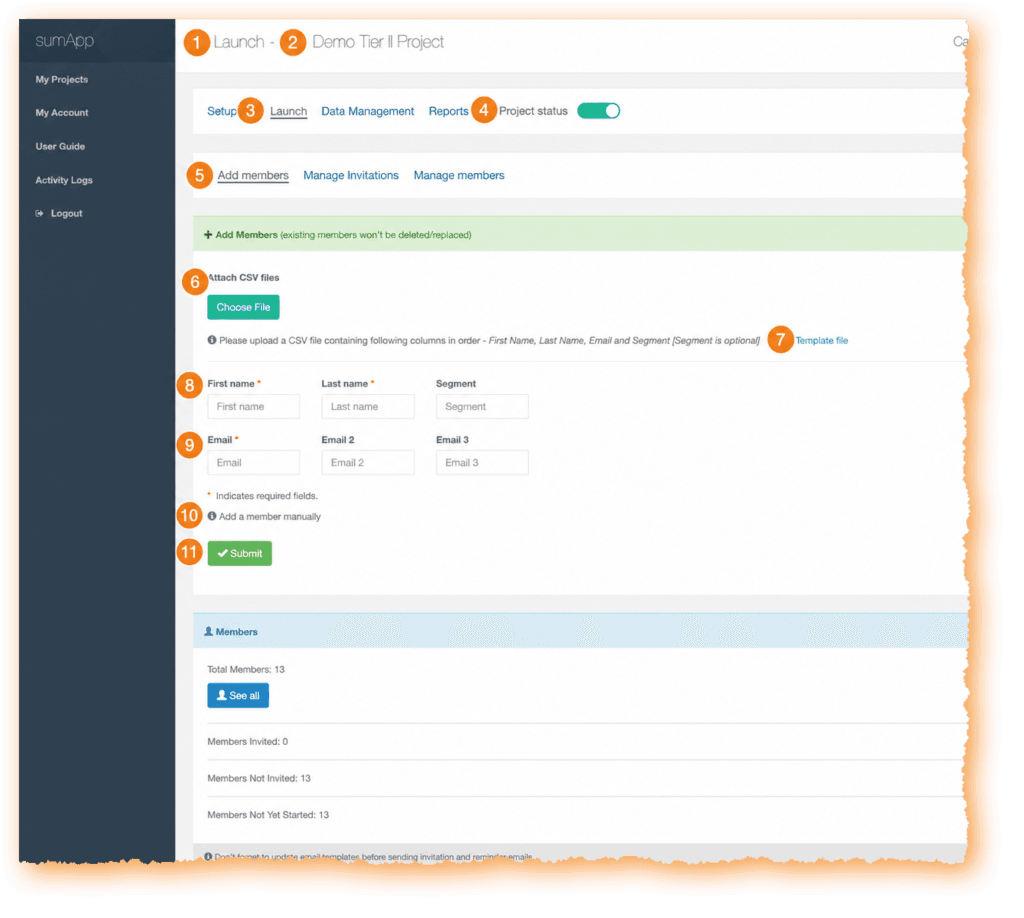
- Indicates what page you’re on, within your project.
- Indicates which project you’re currently working on.
- Shows you’re in the first tab of the project phases navigation bar – Launch.
- Shows your project status. Toggle on to enable project members to submit their survey responses.
- Shows you’re in the ‘add members’ tab of the Launch phase.
- Allows you to attach a with your members basic information. First Name, Last Name, Email, and [optional].
- Click the Template File link to download the template file to upload members by CSV.
- Manually add an individual new member using First Name, Last Name, Segment [optional].
- Add at least one email.
- Indicates you are on the manually add member section.
- Select ‘Submit’ when adding manual members or by CSV upload after attaching your CSV file.
If you have a list of members to add to your sumApp project, follow the steps below.
1. From the ‘Launch’ ‘Add members’ tab, select ‘Choose File’ to attach your CSV file.
Click “Template file” to download the recommended format and update with your member’s data. If you want to include a segment for each of your project members, you can bulk add them using this option.
Select your CSV file containing the member data from your device.
Once your file is attached and appears ready, choose ‘Open’ to close the upload window.
If you have pre-existing survey data and are on a Tier III or Tier IV plan, read How To Load Pre-Existing Data Into sumApp.
If you are running into error messages that are not easily fixed, please reach out to our Slack community. Common error types include missing first name or last name, missing email address, or duplicate email address(es) in CSV file.
To manually add members to your sumApp project, follow the steps below.
1. Choose the ‘Manage’ drop-down for the project to add members to.

2. Click “Add Members”.

3. Fill in your new member’s information.

- Fill in the “First name” field.
- Fill in the “Last name” field.
- (Optional) Enter the “Segment“ to categorize the map member.
- Enter the Member’s Primary Email Address.
- (Optional) Enter the secondary alternate email.
- (Optional) Enter the tertiary alternate email.
- Click the green “Submit” button to add the member.
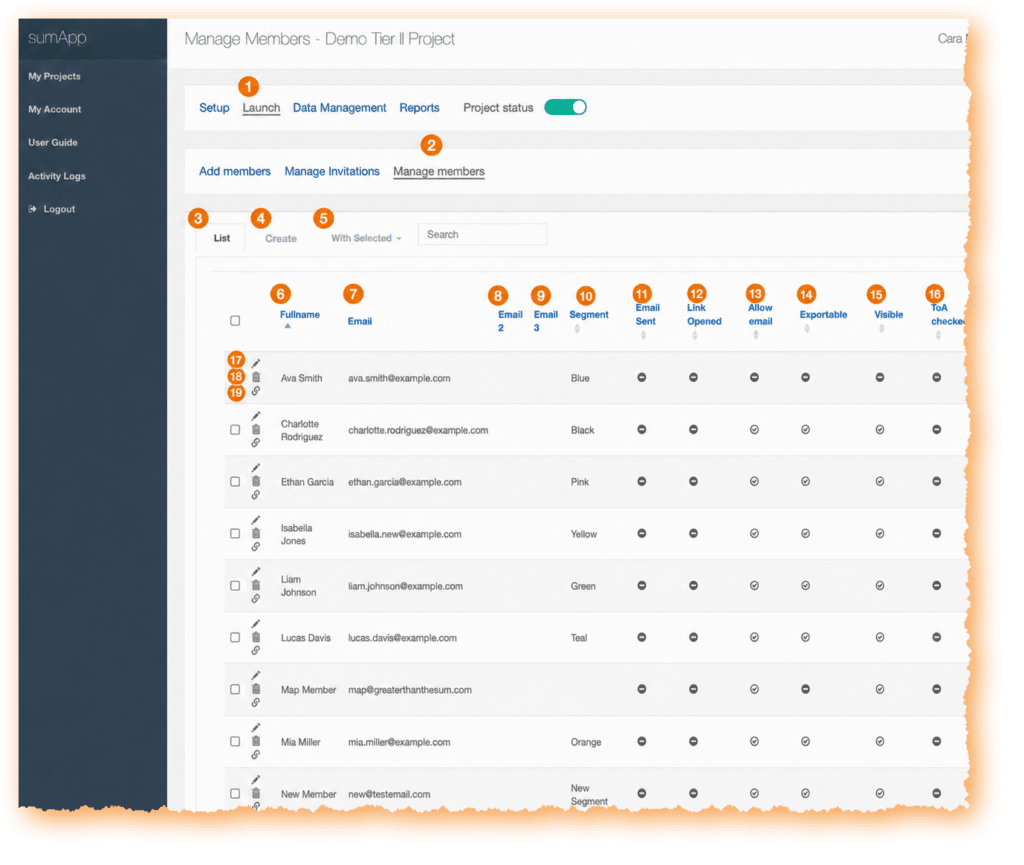
Parts of the Workspace
- Indicates what page you’re on, within your project.
- Shows you’re in the third tab of the launch phases navigation bar – Manage members.
- Shows you’re on the list tab of manage members.
- Click to toggle to the create tab of manage members.
- Choose the carrot drop down to see menu options of within with selected.
- Displays members’ full name.
- Shows members’ primary email.
- Shows members’ secondary email, if provided.
- Shows members’ tertiary email, if provided.
- Shows members’ segment.
- Shows if invite email has been sent.
- Shows if invite link has been opened.
- Shows a checkmark if member has allowed receiving email updates.
- Shows a checkmark if member has allowed their member information to be exported.
- Shows a checkmark if the member has marked themselves as visible in the project map.
- Shows a checkmark if the member has agreed to your Terms of Agreement if required before submitting survey replies.
Why have three templates?
sumApp was designed to be what we call ‘evergreen’ – in other words, we wanted a tool that didn’t just create a snapshot in time, but could also continue to evolve as the network changes and as their mapping needs become more sophisticated. An important part of that evergreen characteristic means having the ability to add new members to the map’s databases as they join the network and to invite existing members back into sumApp to show their existing relationships to the new members.
On the one hand, doing that that can be as simple as deciding never to close a survey. But if your bulk email invitations don’t differentiate which phase you’re asking members to address, you’ll confuse and annoy people. It would be bad form to ask members to do something they’ve already done, without:
- Explaining that you’re not implying they didn’t do it.
- Making clear that it’s not a re-do – that what they’ve done is safe and intact.
- Making it clear that the reason you’re asking them back is because something has changed and those changes might be relevant for them to address.
- Making sure they know it will be a super-quick thing.
- Such as: “please go take a quick peek at the 10 brand new members at the top of the list, and if you know any, share that – then you’re done!”
So – in another SNA tool, you maybe COULD simply keep the survey open (tho, naaaw, it’d still be messy for other technical reasons, but we’ll ignore those right now . . . ),
but you’d have to revise the email over and over depending on who you’re sending to.
We thought that was dumb. So we make it easier by using three different email templates, each meant to be framed for a different context, depending on what stage your members are at in the evergreen cycle.
- The initial invitation – Frame this text for the brand-new member who has never seen sumApp & has no idea what you’re up to.
- The ‘new faces’ email – Frame this one for the initiated. Those who’ve done sumApp already, or at least have chosen to ignore previous invites (they know it’s been happening whether they’ve engaged or not). Framing in ‘new faces’ should, ideally, include all the bullet points above.
- The ‘reminder’ email – This is a follow-up framed generically for everyone. Use it when you want to address everyone at once.
The email template interface
Features of the email template interface:
1) Shows you’re in the sumApp setup phase.
2) Shows you’re on the ‘define email templates’ page.
3) Input name of sender here. This is a required field. Use a name that is as recognizable as possible for the whole population. All templates will come from this sender.
4) Input email of sender. This is a required field. Can be a different email than that belonging to the ‘from’ person’s name.
5) Deadline. Not required. Will fill into the template where you’ve inserted the {survey_deadline} tag. It has no functional effect (it won’t close your survey on that date). It’s simply there to make it easy to insert a date into your emails and change it in a single place, instead of digging into each email template to change it.
6) Field tags you can use in your email. {url} is required in each email template. No other fields are required. Read more about the curly-bracket tags.
7) The Invitation Email template WYSIWYG. More about the WYSIWYG interface.
8) The New Faces Email template WYSIWYG. More about the WYSIWYG interface.
9) The Reminder Email template WYSIWYG. More about the WYSIWYG interface.
10) Cancel – this will remove all changes you’ve made since your last save.
11) Save – Don’t forget to save when you’ve made changes anywhere on this page!!
Email template tags:
You find these fields at the top of the Email Templates page – they apply to each email type in your project:
1) Input name of sender here. This is a required field. Use a name that is as recognizable as possible for the whole population. All templates will come from this sender.
2) Input email of sender. This is a required field. Can be a different email than that belonging to the ‘from’ person’s name.
3) Deadline. Not required. Will fill into the template where you’ve inserted the {survey_deadline} tag. It has no functional effect (it won’t close your survey on that date). It’s simply there to make it easy to insert a date into your emails and change it in a single place, instead of digging into each email template to change it.
You also have tags that can be used in your email templates. They function as placeholders for inserting data from other fields within sumApp into the emails. They include:
4) {first_name} inserts the first name of the member receiving the email. Not mandatory.
5) {last_name} inserts the last name of the member receiving the email. Not mandatory.
6) {network_name} inserts the project name, which you can see at the top of the page. Not mandatory.
7) {survey_deadline} inserts the date in field #3 ‘Deadline’. Not mandatory.
8) {url} inserts the unique sumApp url belonging to the user receiving the email. This field is mandatory for all three templates.
9) {segment} inserts the segment you’re assigned to the user receiving the email, if you’ve assigned one. Not mandatory.
10 {sender_name} Inserts the name in the 3@ above ‘Sender email’. Not mandatory in the body of the email.
and again – a reminder 11) the {url} tag is mandatory for all email templates. If you’ve removed it, the save button won’t work until you replace it in all 3 templates.
The WYSIWYG
What is a WYSIWYG editor?
HTML markup tells a web browser how to display the text, images and other forms of multimedia on a webpage. A WYSIWYG is an interface designed to editing HTML without having to know or see the underlying code.
It it beyond the scope of this knowledge base to explain all the parts of this particular WYSIWYG interface, but we’ll point out a few basics.
1) Indicates which template you’re working on.
2) Defines the email’s subject line – it can include tags if desired.
3) The body of the email is edited in within the WYSIWYG editor.
A common cause of frustration using WYSIWYG editors:
You’ll often copy text from another editing tool into the email template. For instance if you’ve collaborated on the text in a google doc, or you’re pasting from Word. Each of those tools uses underlying code (such as HTML) to tell the browser or application how to render the content (headers, etc.)
Often when copying and pasting text from one editor into another, you also inadvertently copy over a bunch of hidden code as well. Sometimes that works fine & you get the formatting you want, but often it turns into a challenge. You can prevent this by copying your text into a non-formatting editor, such as NotePad before pasting it into the WYSWYG.
But if you haven’t already stripped the hidden code from your text before inserting it into a WYSIWYG, if the editor starts to behave strangely – such as not implementing changes you’re trying to make, you usually need to either examine the underlying HTML to remove junk code, or simply strip all formatting out of the text and start formatting fresh. You can either ‘view source’ or ‘remove formatting’.
4) The ‘source’ button in the WYSIWYG dashboard enables you to examine and edit the underlying HTML code. Even if you have no idea what HTML is, taking a peek will give you at least a sense of what’s going on.
5) The Tx icon will remove all hidden formatting code from the text so you can start fresh. The text to be cleaned must be selected first. You can double-check that it got removed by looking at the source code under #4.
The other buttons in the WYSWYG dashboard are either self-explanatory or not that relevant in this context.
6) If you want to start over, select ‘Reset Default’
7) The green ‘Preview’ button enables you to preview your content.
Once you’ve edited each template – don’t forget to click ‘save’ at the bottom of the page!
How sending works with each template
You send emails from the Launch > Manage Invitations page in sumApp.
Here is an overview explaining when each type is sent.
Invitation Email
- Is sent when you click the ‘Send Invitation Emails’ button or the ‘Send Invitation & New Faces Emails’ button in Launch > Manage Invitations page. It will only go out to members who have never previously been sent the first invitation.
- You can also send the Invitation Email to anyone, regardless of if they’ve been sent it before, on a case-by-case basis in the member list in Launch > Manage Members.
New Faces Email
- Is sent when you click the ‘Send Invitation & New Faces Emails’ button or the ‘Send New Faces Emails’ button in Launch > Manage Invitations page. It will only go out to members who have ALREADY been sent the first invitation at some point in the past.
- You can also send the New Faces Email to anyone, regardless of what they’ve been sent it before, on a case-by-case basis in the member list in Launch > Manage Members.
Reminder Email
- Is sent when you click the the ‘Send Reminders’ button in Launch > Manage Invitations page. It will go out to everyone in your member list, regardless of what they’ve been sent in the past.
- You can also send the Reminder Email to anyone, regardless of what they’ve been sent it before, on a case-by-case basis in the member list in Launch > Manage Members.
Custom survey filter email template – Tier IV
If you’re using the custom survey filter feature in Tier IV, you have another email template option. You can send a custom email to a sub-set of the population, based on their responses to the custom filter survey question you’re using.
You can access this extra functionality in Launch > Manage Invitations – Under the ‘Actions’ section of the page, find and click on the 5th sending button ‘Custom Filter Email’.
Why have three templates?
sumApp was designed to be what we call ‘evergreen’ – in other words, we wanted a tool that didn’t just create a snapshot in time, but could also continue to evolve as the network changes and as their mapping needs become more sophisticated. An important part of that evergreen characteristic means having the ability to add new members to the map’s databases as they join the network and to invite existing members back into sumApp to show their existing relationships to the new members.
On the one hand, doing that that can be as simple as deciding never to close a survey. But if your bulk email invitations don’t differentiate which phase you’re asking members to address, you’ll confuse and annoy people. It would be bad form to ask members to do something they’ve already done, without:
- Explaining that you’re not implying they didn’t do it.
- Making clear that it’s not a re-do – that what they’ve done is safe and intact.
- Making it clear that the reason you’re asking them back is because something has changed and those changes might be relevant for them to address.
- Making sure they know it will be a super-quick thing.
- Such as: “please go take a quick peek at the 10 brand new members at the top of the list, and if you know any, share that – then you’re done!”
So – in another SNA tool, you maybe COULD simply keep the survey open (tho, naaaw, it’d still be messy for other technical reasons, but we’ll ignore those right now . . . ),
but you’d have to revise the email over and over depending on who you’re sending to.
We thought that was dumb. So we make it easier by using three different email templates, each meant to be framed for a different context, depending on what stage your members are at in the evergreen cycle.
- The initial invitation – Frame this text for the brand-new member who has never seen sumApp & has no idea what you’re up to.
- The ‘new faces’ email – Frame this one for the initiated. Those who’ve done sumApp already, or at least have chosen to ignore previous invites (they know it’s been happening whether they’ve engaged or not). Framing in ‘new faces’ should, ideally, include all the bullet points above.
- The ‘reminder’ email – This is a follow-up framed generically for everyone. Use it when you want to address everyone at once.
The email template interface
Features of the email template interface:
1) Shows you’re in the sumApp setup phase.
2) Shows you’re on the ‘define email templates’ page.
3) Input name of sender here. This is a required field. Use a name that is as recognizable as possible for the whole population. All templates will come from this sender.
4) Input email of sender. This is a required field. Can be a different email than that belonging to the ‘from’ person’s name.
5) Deadline. Not required. Will fill into the template where you’ve inserted the {survey_deadline} tag. It has no functional effect (it won’t close your survey on that date). It’s simply there to make it easy to insert a date into your emails and change it in a single place, instead of digging into each email template to change it.
6) Field tags you can use in your email. {url} is required in each email template. No other fields are required. Read more about the curly-bracket tags.
7) The Invitation Email template WYSIWYG. More about the WYSIWYG interface.
8) The New Faces Email template WYSIWYG. More about the WYSIWYG interface.
9) The Reminder Email template WYSIWYG. More about the WYSIWYG interface.
10) Cancel – this will remove all changes you’ve made since your last save.
11) Save – Don’t forget to save when you’ve made changes anywhere on this page!!
Email template tags:
You find these fields at the top of the Email Templates page – they apply to each email type in your project:
1) Input name of sender here. This is a required field. Use a name that is as recognizable as possible for the whole population. All templates will come from this sender.
2) Input email of sender. This is a required field. Can be a different email than that belonging to the ‘from’ person’s name.
3) Deadline. Not required. Will fill into the template where you’ve inserted the {survey_deadline} tag. It has no functional effect (it won’t close your survey on that date). It’s simply there to make it easy to insert a date into your emails and change it in a single place, instead of digging into each email template to change it.
You also have tags that can be used in your email templates. They function as placeholders for inserting data from other fields within sumApp into the emails. They include:
4) {first_name} inserts the first name of the member receiving the email. Not mandatory.
5) {last_name} inserts the last name of the member receiving the email. Not mandatory.
6) {network_name} inserts the project name, which you can see at the top of the page. Not mandatory.
7) {survey_deadline} inserts the date in field #3 ‘Deadline’. Not mandatory.
8) {url} inserts the unique sumApp url belonging to the user receiving the email. This field is mandatory for all three templates.
9) {segment} inserts the segment you’re assigned to the user receiving the email, if you’ve assigned one. Not mandatory.
10 {sender_name} Inserts the name in the 3@ above ‘Sender email’. Not mandatory in the body of the email.
and again – a reminder 11) the {url} tag is mandatory for all email templates. If you’ve removed it, the save button won’t work until you replace it in all 3 templates.
The WYSIWYG
What is a WYSIWYG editor?
HTML markup tells a web browser how to display the text, images and other forms of multimedia on a webpage. A WYSIWYG is an interface designed to editing HTML without having to know or see the underlying code.
It it beyond the scope of this knowledge base to explain all the parts of this particular WYSIWYG interface, but we’ll point out a few basics.
1) Indicates which template you’re working on.
2) Defines the email’s subject line – it can include tags if desired.
3) The body of the email is edited in within the WYSIWYG editor.
A common cause of frustration using WYSIWYG editors:
You’ll often copy text from another editing tool into the email template. For instance if you’ve collaborated on the text in a google doc, or you’re pasting from Word. Each of those tools uses underlying code (such as HTML) to tell the browser or application how to render the content (headers, etc.)
Often when copying and pasting text from one editor into another, you also inadvertently copy over a bunch of hidden code as well. Sometimes that works fine & you get the formatting you want, but often it turns into a challenge. You can prevent this by copying your text into a non-formatting editor, such as NotePad before pasting it into the WYSWYG.
But if you haven’t already stripped the hidden code from your text before inserting it into a WYSIWYG, if the editor starts to behave strangely – such as not implementing changes you’re trying to make, you usually need to either examine the underlying HTML to remove junk code, or simply strip all formatting out of the text and start formatting fresh. You can either ‘view source’ or ‘remove formatting’.
4) The ‘source’ button in the WYSIWYG dashboard enables you to examine and edit the underlying HTML code. Even if you have no idea what HTML is, taking a peek will give you at least a sense of what’s going on.
5) The Tx icon will remove all hidden formatting code from the text so you can start fresh. The text to be cleaned must be selected first. You can double-check that it got removed by looking at the source code under #4.
The other buttons in the WYSWYG dashboard are either self-explanatory or not that relevant in this context.
6) If you want to start over, select ‘Reset Default’
7) The green ‘Preview’ button enables you to preview your content.
Once you’ve edited each template – don’t forget to click ‘save’ at the bottom of the page!
How sending works with each template
You send emails from the Launch > Manage Invitations page in sumApp.
Here is an overview explaining when each type is sent.
Invitation Email
- Is sent when you click the ‘Send Invitation Emails’ button or the ‘Send Invitation & New Faces Emails’ button in Launch > Manage Invitations page. It will only go out to members who have never previously been sent the first invitation.
- You can also send the Invitation Email to anyone, regardless of if they’ve been sent it before, on a case-by-case basis in the member list in Launch > Manage Members.
New Faces Email
- Is sent when you click the ‘Send Invitation & New Faces Emails’ button or the ‘Send New Faces Emails’ button in Launch > Manage Invitations page. It will only go out to members who have ALREADY been sent the first invitation at some point in the past.
- You can also send the New Faces Email to anyone, regardless of what they’ve been sent it before, on a case-by-case basis in the member list in Launch > Manage Members.
Reminder Email
- Is sent when you click the the ‘Send Reminders’ button in Launch > Manage Invitations page. It will go out to everyone in your member list, regardless of what they’ve been sent in the past.
- You can also send the Reminder Email to anyone, regardless of what they’ve been sent it before, on a case-by-case basis in the member list in Launch > Manage Members.
Custom survey filter email template – Tier IV
If you’re using the custom survey filter feature in Tier IV, you have another email template option. You can send a custom email to a sub-set of the population, based on their responses to the custom filter survey question you’re using.
You can access this extra functionality in Launch > Manage Invitations – Under the ‘Actions’ section of the page, find and click on the 5th sending button ‘Custom Filter Email’.
Why have three templates?
sumApp was designed to be what we call ‘evergreen’ – in other words, we wanted a tool that didn’t just create a snapshot in time, but could also continue to evolve as the network changes and as their mapping needs become more sophisticated. An important part of that evergreen characteristic means having the ability to add new members to the map’s databases as they join the network and to invite existing members back into sumApp to show their existing relationships to the new members.
On the one hand, doing that that can be as simple as deciding never to close a survey. But if your bulk email invitations don’t differentiate which phase you’re asking members to address, you’ll confuse and annoy people. It would be bad form to ask members to do something they’ve already done, without:
- Explaining that you’re not implying they didn’t do it.
- Making clear that it’s not a re-do – that what they’ve done is safe and intact.
- Making it clear that the reason you’re asking them back is because something has changed and those changes might be relevant for them to address.
- Making sure they know it will be a super-quick thing.
- Such as: “please go take a quick peek at the 10 brand new members at the top of the list, and if you know any, share that – then you’re done!”
So – in another SNA tool, you maybe COULD simply keep the survey open (tho, naaaw, it’d still be messy for other technical reasons, but we’ll ignore those right now . . . ),
but you’d have to revise the email over and over depending on who you’re sending to.
We thought that was dumb. So we make it easier by using three different email templates, each meant to be framed for a different context, depending on what stage your members are at in the evergreen cycle.
- The initial invitation – Frame this text for the brand-new member who has never seen sumApp & has no idea what you’re up to.
- The ‘new faces’ email – Frame this one for the initiated. Those who’ve done sumApp already, or at least have chosen to ignore previous invites (they know it’s been happening whether they’ve engaged or not). Framing in ‘new faces’ should, ideally, include all the bullet points above.
- The ‘reminder’ email – This is a follow-up framed generically for everyone. Use it when you want to address everyone at once.
The email template interface
Features of the email template interface:
1) Shows you’re in the sumApp setup phase.
2) Shows you’re on the ‘define email templates’ page.
3) Input name of sender here. This is a required field. Use a name that is as recognizable as possible for the whole population. All templates will come from this sender.
4) Input email of sender. This is a required field. Can be a different email than that belonging to the ‘from’ person’s name.
5) Deadline. Not required. Will fill into the template where you’ve inserted the {survey_deadline} tag. It has no functional effect (it won’t close your survey on that date). It’s simply there to make it easy to insert a date into your emails and change it in a single place, instead of digging into each email template to change it.
6) Field tags you can use in your email. {url} is required in each email template. No other fields are required. Read more about the curly-bracket tags.
7) The Invitation Email template WYSIWYG. More about the WYSIWYG interface.
8) The New Faces Email template WYSIWYG. More about the WYSIWYG interface.
9) The Reminder Email template WYSIWYG. More about the WYSIWYG interface.
10) Cancel – this will remove all changes you’ve made since your last save.
11) Save – Don’t forget to save when you’ve made changes anywhere on this page!!
Email template tags:
You find these fields at the top of the Email Templates page – they apply to each email type in your project:
1) Input name of sender here. This is a required field. Use a name that is as recognizable as possible for the whole population. All templates will come from this sender.
2) Input email of sender. This is a required field. Can be a different email than that belonging to the ‘from’ person’s name.
3) Deadline. Not required. Will fill into the template where you’ve inserted the {survey_deadline} tag. It has no functional effect (it won’t close your survey on that date). It’s simply there to make it easy to insert a date into your emails and change it in a single place, instead of digging into each email template to change it.
You also have tags that can be used in your email templates. They function as placeholders for inserting data from other fields within sumApp into the emails. They include:
4) {first_name} inserts the first name of the member receiving the email. Not mandatory.
5) {last_name} inserts the last name of the member receiving the email. Not mandatory.
6) {network_name} inserts the project name, which you can see at the top of the page. Not mandatory.
7) {survey_deadline} inserts the date in field #3 ‘Deadline’. Not mandatory.
8) {url} inserts the unique sumApp url belonging to the user receiving the email. This field is mandatory for all three templates.
9) {segment} inserts the segment you’re assigned to the user receiving the email, if you’ve assigned one. Not mandatory.
10 {sender_name} Inserts the name in the 3@ above ‘Sender email’. Not mandatory in the body of the email.
and again – a reminder 11) the {url} tag is mandatory for all email templates. If you’ve removed it, the save button won’t work until you replace it in all 3 templates.
The WYSIWYG
What is a WYSIWYG editor?
HTML markup tells a web browser how to display the text, images and other forms of multimedia on a webpage. A WYSIWYG is an interface designed to editing HTML without having to know or see the underlying code.
It it beyond the scope of this knowledge base to explain all the parts of this particular WYSIWYG interface, but we’ll point out a few basics.
1) Indicates which template you’re working on.
2) Defines the email’s subject line – it can include tags if desired.
3) The body of the email is edited in within the WYSIWYG editor.
A common cause of frustration using WYSIWYG editors:
You’ll often copy text from another editing tool into the email template. For instance if you’ve collaborated on the text in a google doc, or you’re pasting from Word. Each of those tools uses underlying code (such as HTML) to tell the browser or application how to render the content (headers, etc.)
Often when copying and pasting text from one editor into another, you also inadvertently copy over a bunch of hidden code as well. Sometimes that works fine & you get the formatting you want, but often it turns into a challenge. You can prevent this by copying your text into a non-formatting editor, such as NotePad before pasting it into the WYSWYG.
But if you haven’t already stripped the hidden code from your text before inserting it into a WYSIWYG, if the editor starts to behave strangely – such as not implementing changes you’re trying to make, you usually need to either examine the underlying HTML to remove junk code, or simply strip all formatting out of the text and start formatting fresh. You can either ‘view source’ or ‘remove formatting’.
4) The ‘source’ button in the WYSIWYG dashboard enables you to examine and edit the underlying HTML code. Even if you have no idea what HTML is, taking a peek will give you at least a sense of what’s going on.
5) The Tx icon will remove all hidden formatting code from the text so you can start fresh. The text to be cleaned must be selected first. You can double-check that it got removed by looking at the source code under #4.
The other buttons in the WYSWYG dashboard are either self-explanatory or not that relevant in this context.
6) If you want to start over, select ‘Reset Default’
7) The green ‘Preview’ button enables you to preview your content.
Once you’ve edited each template – don’t forget to click ‘save’ at the bottom of the page!
How sending works with each template
You send emails from the Launch > Manage Invitations page in sumApp.
Here is an overview explaining when each type is sent.
Invitation Email
- Is sent when you click the ‘Send Invitation Emails’ button or the ‘Send Invitation & New Faces Emails’ button in Launch > Manage Invitations page. It will only go out to members who have never previously been sent the first invitation.
- You can also send the Invitation Email to anyone, regardless of if they’ve been sent it before, on a case-by-case basis in the member list in Launch > Manage Members.
New Faces Email
- Is sent when you click the ‘Send Invitation & New Faces Emails’ button or the ‘Send New Faces Emails’ button in Launch > Manage Invitations page. It will only go out to members who have ALREADY been sent the first invitation at some point in the past.
- You can also send the New Faces Email to anyone, regardless of what they’ve been sent it before, on a case-by-case basis in the member list in Launch > Manage Members.
Reminder Email
- Is sent when you click the the ‘Send Reminders’ button in Launch > Manage Invitations page. It will go out to everyone in your member list, regardless of what they’ve been sent in the past.
- You can also send the Reminder Email to anyone, regardless of what they’ve been sent it before, on a case-by-case basis in the member list in Launch > Manage Members.
Custom survey filter email template – Tier IV
If you’re using the custom survey filter feature in Tier IV, you have another email template option. You can send a custom email to a sub-set of the population, based on their responses to the custom filter survey question you’re using.
You can access this extra functionality in Launch > Manage Invitations – Under the ‘Actions’ section of the page, find and click on the 5th sending button ‘Custom Filter Email’.
Why have three templates?
sumApp was designed to be what we call ‘evergreen’ – in other words, we wanted a tool that didn’t just create a snapshot in time, but could also continue to evolve as the network changes and as their mapping needs become more sophisticated. An important part of that evergreen characteristic means having the ability to add new members to the map’s databases as they join the network and to invite existing members back into sumApp to show their existing relationships to the new members.
On the one hand, doing that that can be as simple as deciding never to close a survey. But if your bulk email invitations don’t differentiate which phase you’re asking members to address, you’ll confuse and annoy people. It would be bad form to ask members to do something they’ve already done, without:
- Explaining that you’re not implying they didn’t do it.
- Making clear that it’s not a re-do – that what they’ve done is safe and intact.
- Making it clear that the reason you’re asking them back is because something has changed and those changes might be relevant for them to address.
- Making sure they know it will be a super-quick thing.
- Such as: “please go take a quick peek at the 10 brand new members at the top of the list, and if you know any, share that – then you’re done!”
So – in another SNA tool, you maybe COULD simply keep the survey open (tho, naaaw, it’d still be messy for other technical reasons, but we’ll ignore those right now . . . ),
but you’d have to revise the email over and over depending on who you’re sending to.
We thought that was dumb. So we make it easier by using three different email templates, each meant to be framed for a different context, depending on what stage your members are at in the evergreen cycle.
- The initial invitation – Frame this text for the brand-new member who has never seen sumApp & has no idea what you’re up to.
- The ‘new faces’ email – Frame this one for the initiated. Those who’ve done sumApp already, or at least have chosen to ignore previous invites (they know it’s been happening whether they’ve engaged or not). Framing in ‘new faces’ should, ideally, include all the bullet points above.
- The ‘reminder’ email – This is a follow-up framed generically for everyone. Use it when you want to address everyone at once.
The email template interface
Features of the email template interface:
1) Shows you’re in the sumApp setup phase.
2) Shows you’re on the ‘define email templates’ page.
3) Input name of sender here. This is a required field. Use a name that is as recognizable as possible for the whole population. All templates will come from this sender.
4) Input email of sender. This is a required field. Can be a different email than that belonging to the ‘from’ person’s name.
5) Deadline. Not required. Will fill into the template where you’ve inserted the {survey_deadline} tag. It has no functional effect (it won’t close your survey on that date). It’s simply there to make it easy to insert a date into your emails and change it in a single place, instead of digging into each email template to change it.
6) Field tags you can use in your email. {url} is required in each email template. No other fields are required. Read more about the curly-bracket tags.
7) The Invitation Email template WYSIWYG. More about the WYSIWYG interface.
8) The New Faces Email template WYSIWYG. More about the WYSIWYG interface.
9) The Reminder Email template WYSIWYG. More about the WYSIWYG interface.
10) Cancel – this will remove all changes you’ve made since your last save.
11) Save – Don’t forget to save when you’ve made changes anywhere on this page!!
Email template tags:
You find these fields at the top of the Email Templates page – they apply to each email type in your project:
1) Input name of sender here. This is a required field. Use a name that is as recognizable as possible for the whole population. All templates will come from this sender.
2) Input email of sender. This is a required field. Can be a different email than that belonging to the ‘from’ person’s name.
3) Deadline. Not required. Will fill into the template where you’ve inserted the {survey_deadline} tag. It has no functional effect (it won’t close your survey on that date). It’s simply there to make it easy to insert a date into your emails and change it in a single place, instead of digging into each email template to change it.
You also have tags that can be used in your email templates. They function as placeholders for inserting data from other fields within sumApp into the emails. They include:
4) {first_name} inserts the first name of the member receiving the email. Not mandatory.
5) {last_name} inserts the last name of the member receiving the email. Not mandatory.
6) {network_name} inserts the project name, which you can see at the top of the page. Not mandatory.
7) {survey_deadline} inserts the date in field #3 ‘Deadline’. Not mandatory.
8) {url} inserts the unique sumApp url belonging to the user receiving the email. This field is mandatory for all three templates.
9) {segment} inserts the segment you’re assigned to the user receiving the email, if you’ve assigned one. Not mandatory.
10 {sender_name} Inserts the name in the 3@ above ‘Sender email’. Not mandatory in the body of the email.
and again – a reminder 11) the {url} tag is mandatory for all email templates. If you’ve removed it, the save button won’t work until you replace it in all 3 templates.
The WYSIWYG
What is a WYSIWYG editor?
HTML markup tells a web browser how to display the text, images and other forms of multimedia on a webpage. A WYSIWYG is an interface designed to editing HTML without having to know or see the underlying code.
It it beyond the scope of this knowledge base to explain all the parts of this particular WYSIWYG interface, but we’ll point out a few basics.
1) Indicates which template you’re working on.
2) Defines the email’s subject line – it can include tags if desired.
3) The body of the email is edited in within the WYSIWYG editor.
A common cause of frustration using WYSIWYG editors:
You’ll often copy text from another editing tool into the email template. For instance if you’ve collaborated on the text in a google doc, or you’re pasting from Word. Each of those tools uses underlying code (such as HTML) to tell the browser or application how to render the content (headers, etc.)
Often when copying and pasting text from one editor into another, you also inadvertently copy over a bunch of hidden code as well. Sometimes that works fine & you get the formatting you want, but often it turns into a challenge. You can prevent this by copying your text into a non-formatting editor, such as NotePad before pasting it into the WYSWYG.
But if you haven’t already stripped the hidden code from your text before inserting it into a WYSIWYG, if the editor starts to behave strangely – such as not implementing changes you’re trying to make, you usually need to either examine the underlying HTML to remove junk code, or simply strip all formatting out of the text and start formatting fresh. You can either ‘view source’ or ‘remove formatting’.
4) The ‘source’ button in the WYSIWYG dashboard enables you to examine and edit the underlying HTML code. Even if you have no idea what HTML is, taking a peek will give you at least a sense of what’s going on.
5) The Tx icon will remove all hidden formatting code from the text so you can start fresh. The text to be cleaned must be selected first. You can double-check that it got removed by looking at the source code under #4.
The other buttons in the WYSWYG dashboard are either self-explanatory or not that relevant in this context.
6) If you want to start over, select ‘Reset Default’
7) The green ‘Preview’ button enables you to preview your content.
Once you’ve edited each template – don’t forget to click ‘save’ at the bottom of the page!
How sending works with each template
You send emails from the Launch > Manage Invitations page in sumApp.
Here is an overview explaining when each type is sent.
Invitation Email
- Is sent when you click the ‘Send Invitation Emails’ button or the ‘Send Invitation & New Faces Emails’ button in Launch > Manage Invitations page. It will only go out to members who have never previously been sent the first invitation.
- You can also send the Invitation Email to anyone, regardless of if they’ve been sent it before, on a case-by-case basis in the member list in Launch > Manage Members.
New Faces Email
- Is sent when you click the ‘Send Invitation & New Faces Emails’ button or the ‘Send New Faces Emails’ button in Launch > Manage Invitations page. It will only go out to members who have ALREADY been sent the first invitation at some point in the past.
- You can also send the New Faces Email to anyone, regardless of what they’ve been sent it before, on a case-by-case basis in the member list in Launch > Manage Members.
Reminder Email
- Is sent when you click the the ‘Send Reminders’ button in Launch > Manage Invitations page. It will go out to everyone in your member list, regardless of what they’ve been sent in the past.
- You can also send the Reminder Email to anyone, regardless of what they’ve been sent it before, on a case-by-case basis in the member list in Launch > Manage Members.
Custom survey filter email template – Tier IV
If you’re using the custom survey filter feature in Tier IV, you have another email template option. You can send a custom email to a sub-set of the population, based on their responses to the custom filter survey question you’re using.
You can access this extra functionality in Launch > Manage Invitations – Under the ‘Actions’ section of the page, find and click on the 5th sending button ‘Custom Filter Email’.
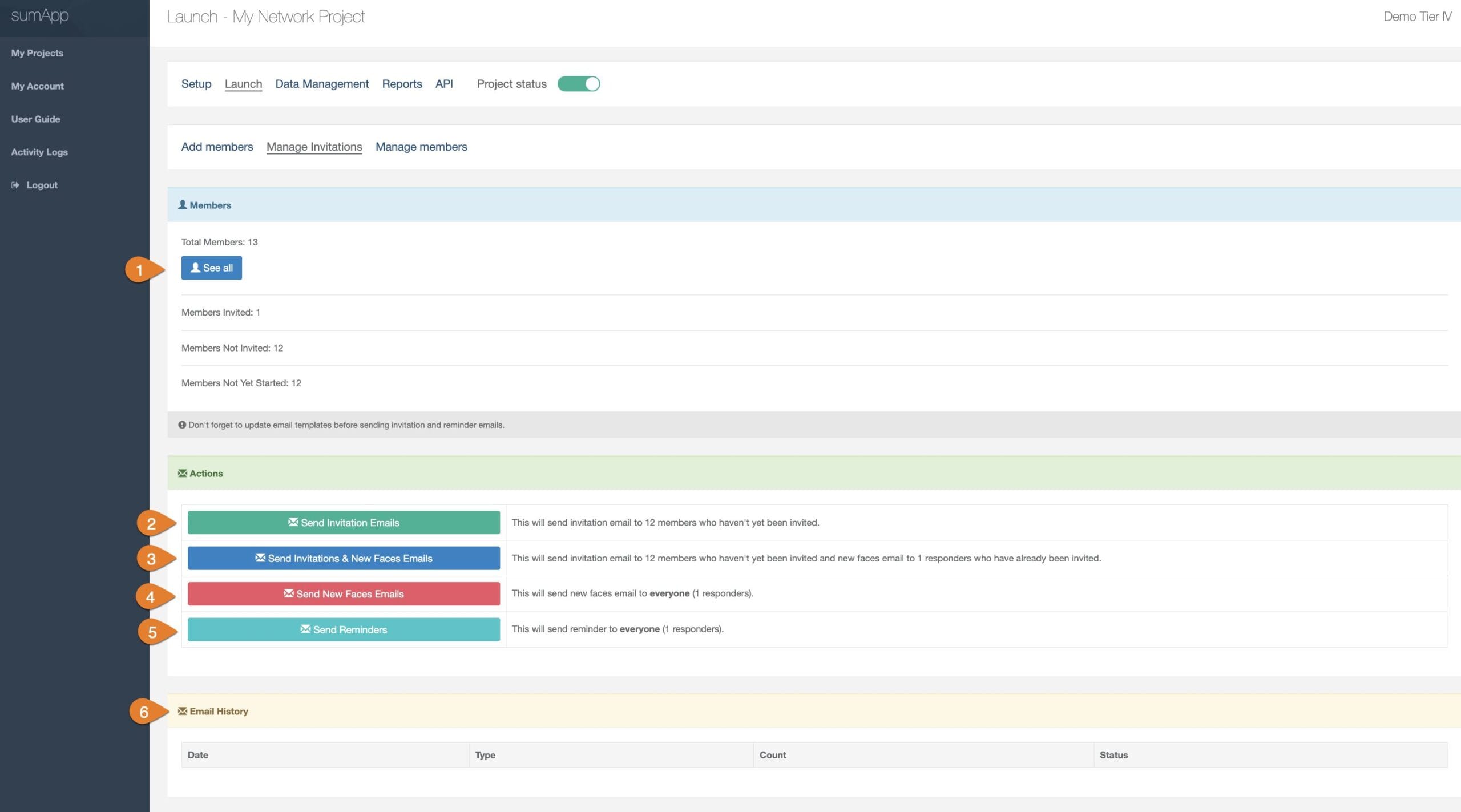
- See a in your project.
- Send an to your member list.
- Send an to members who haven’t been invited and send am email to current members of who is new in your project.
- Send email to everyone in your project.
- Send a to your project members.
Parts of the Workspace
- Indicates what page you’re on, within your project.
- Shows you’re in the third tab of the launch phases navigation bar – Manage members.
- Shows you’re on the list tab of manage members.
- Click to toggle to the create tab of manage members.
- Choose the carrot drop down to see menu options of within with selected.
- Displays members’ full name.
- Shows members’ primary email.
- Shows members’ secondary email, if provided.
- Shows members’ tertiary email, if provided.
- Shows members’ segment.
- Shows if invite email has been sent.
- Shows if invite link has been opened.
- Shows a checkmark if member has allowed receiving email updates.
- Shows a checkmark if member has allowed their member information to be exported.
- Shows a checkmark if the member has marked themselves as visible in the project map.
- Shows a checkmark if the member has agreed to your Terms of Agreement if required before submitting survey replies.
sumApp now works with both Kumu AND Graph Commons!
Graph Commons is an Open Source graph visualization platform that does most things differently from Kumu, and it does some things much better. So to give our sumApp users the best of both worlds, we now have two separate sets of data-output:
- One designed explicitly to work with Kumu.
- Another designed explicitly to work with Graph Commons.
Using your Graph Commons data in sumApp is pretty simple.
Just go to your project’s ‘Data Management’ area, select ‘GraphCom Download’ and select the dataset you want.
Graph Commons doesn’t allow for ‘live linking’ like Kumu does, so updating your data will have to be manual until that changes.

Once you’ve downloaded both the ‘Nodes’ file and the ‘Edges’ file, go to your Graph Commons project. Click the pencil icon

Then ‘IMPORT’

Then ‘EXCEL CSV’

Import your two files one at a time, taking care with node & connection ‘type’ spelling and capitalization.

Voila! Now you have a map!

Some caveats:
Graph Commons is different from Kumu.
We enable you to export all the project data, but don’t expect to be able to use it the same ways you can in Kumu.
For instance, at this point, we haven’t found a way to use time-tagging in Graph Commons, so you probably won’t want that data-set (especially since it dramatically alters the number of connections and will skew your maps drastically).
It’s your data & you might find a way to use it, so we make it available. But that doesn’t mean that each field will be useful in Graph Commons. If there are fields that you don’t want in your map, you can always delete those columns from the .csv file before you import it into Graph Commons
Related posts:
Many of our customers work with different networks that have overlapping members. It is usually the case that each network will be managed in a separate sumApp project, be shown in it’s own Kumu map and have different kinds of questions. But in a Tier IV account, where there is an overlap of members between two or more of the projects within a single account, you can import the rank-able question connections from the population of one project into another – thereby reducing the ‘ask’ of those overlapping members.
Facts about the connection import:
- It will not move members between projects.
- You will not see this option for a project if you don’t have other projects with connections.
- It’s only available if there are connections existing somewhere that could be imported.
- Even if the feature shows – it only means there are other projects with connections. It doesn’t mean there WILL BE members who overlap and have connections. You have run the feature to discover that.
- When running this feature, it first selects all the members who exist in both projects.
- Once it has selected the members in both projects, it looks for the connections between those specific members.
- If it finds connections, you can ‘map’ the rank-able question options from one project to the rank-able question options in another project. Read more about mapping options below.
- It ONLY imports one rank-able question.
- If you have many questions in a tile, the members will still have to manually respond to the extra questions. But at least they’ll be able to sort on ‘connected’ to find which to add more information to.
- Running the connection import is a one-time event – it will not continually feed changes from Project #1 into Project #2.
- However, you can re-run the connection import as often as you want.
- If you have data continuing to come into either project, and will want to re-run the import regularly, you can save the ‘mapped’ options.
- You can also import connections from as many projects as you want, into one project.
- When importing connections, the feature honors and doesn’t over-write the most-recent change.
- For instance, say you have project #1 that’s a year old. Member A said they knew Member B by a rank of 2.
- Then you set up and start to run project #2, and you run the import where A said the knew B by rank 2.
- Then Member A goes into sumApp and says that now they know Member B by rank 4. The member changes the data in Project #2, but not in Project #1 because #1 is inactive.
- If you re-run the import, the old data in Project #1 will not overwrite Member A’s change of connection rank to Member B – because the most recent change is kept, regardless of which project it came from.
How to access the connection import interface
- It will only be available in Tier IV
- Select the project you want to import connections INTO (the ‘receiving’ project)
- Click on #2 ‘Import Connections’
- The option will only show if:
- There are other projects in the account
- Those other projects have connections (see #2 the ‘Connections Made’ column)
 Note: This feature will move very slowly when your project has a large number of connections (such as in some of the projects in the image above)
Working with the connection import interface
Step 1 – Selecting the import process
The first screen you’ll see:
1) Shows you’re in the Data Management phase.
2) Shows you’re on the Import Connects page.
3) Select if you are starting fresh with a new import.
4) Select if you have previously defined an import and saved the option mapping – and you want to re-use that mapping. (greyed-out in this instance because no prior mappings have been saved)
Step 2 – Selecting the ‘sending’ project
After you’ve opted to define a new import,
- You’ll be given a dropdown of the project/network names. #1.
- You’ll only see projects that HAVE connections. #2
- If you have projects in your account where no members have made any connections to other members yet, those projects won’t show up in the dropdown.
- #2 Select the ‘sending’ project i.e. the project you want to import connects FROM, into the current project.
- #3 Click the ‘Import’ button.
Step 3 – Mapping your connection options
Mapping options is necessary because your ranking question options may be different in the two projects, and you may need to make some decisions about how and what to move over.
Once you’ve selected the receiving project and the sending project, and clicked on ‘import’, you’ll be taken to the option-mapping page.
1) On the left is the option list from the rank-able question in the sending project.
2) On the right is a series of drop-downs.
Each dropdown contains all the rank-able question options in the receiving project.
Each dropdown on the right corresponds to the same-place option on the left. You select the appropriate option to map the response on the left into the response on the right.
3) Back – return to the sending project selection list
4) Run the import matching function based on the mapping indicated. Takes you to the next import step.
5) Store the mapping for future use.
Understanding option mapping
When mapping options, you are defining how to translate the selections in one dataset into the, potentially different, options in another datasest.
So, in the example above:
- First note that in this instance, the sending project (#1) and the receiving project (#2) have the same number of options. It could also be that you have more options on either side than the other.
- In this instance, the option language is very similar, so we can just select the corresponding option on the right side for each option on the left.
- It will end up looking like the image below.
It won’t always be that simple a correspondence. You may even choose not to import some responses because there simply isn’t a good option to map it to in the receiving project.
- For instance, suppose you have ‘I know of this person’ on the left, but on the right, you only have options for actual relationships, not just ‘knowing of’. In that case, you shouldn’t map the connection. You’d select ‘None’ from the drop-down list on the right.
- Or perhaps you have 4 options on the left, to move into just 2 options on the right. You might end up with something like the image below.
The bottom line is – be sure to think through your option mapping carefully!
Step 4 – Saving the mapping
If you know you plan to repeat this exact import again, in exactly the same way, it will save a little time if you save what you just mapped out.
To do that, click ‘Store mapping’.
1) Name the mapping set – keeping in mind that each stored mapping has to have a different name, so be as specific as possible.
2) Click on ‘Save mapping’
Step 5 – Review list of possible imports and select whose connections to import
Once you have run your option mapping by clicking on the ‘Map Connections’ button on the mapping page, you will see the import list.
1) It lists everyone who a) exists in both projects and b) had connections to others in both projects
2) It lists how many connections each person has that can be imported – note that it only shows if there are NEW connections to import, it doesn’t count connections imported previously. (in this case, there are only a couple new members in the receiving list for connections to be imported for)
3) Select which members connections to import. You may have some reason not to import someone’s connections – this enables you to leave those individuals not selected.
4) Back – takes you back to the import mapping page.
5) Import – runs the import and takes you to the connections list – which is sorted on the most recent – so you can see the connections that came over.
Why It’s Helpful
Use the Member Activity Log when you want to understand:
- Whether members are interacting with the map after a workshop, convening, or network activity.
- How often members are adding new connections.
- Which members are submitting or updating survey responses.
- Overall engagement levels during a specific phase of your project.
This tool is designed for map project administrators who need visibility into participation patterns across their network.
What Problem It Solves
Map administrators often want to know:
“Who is engaging with the map?”
Before this feature, it was difficult to track member activity without reaching out manually or making assumptions. The Member Activity Log eliminates this uncertainty by providing:
- A central, up-to-date record of member engagement actions.
- Insight into whether communications or events are driving participation.
- A quick way to identify who is taking meaningful steps (sharing answers, viewing maps, making connections).
⚠️ Important Notes:
- Admins do not appear in the activity list.
- This is a new feature, launched on August 30th, 2025.
- The main Activity Log view displays only the X most recent entries.
- To see all activity since the feature launch, you can download the All Member Activity file as a .csv.
How to View the ‘Member Activity Log’
1. Navigate to ‘My Projects’.

2. Click the project ‘Manage’ drop-down for the Activity Logs you want to view.

3. Select ‘Activity Logs’ toward the bottom.

4. This shows who has clicked their sumApp link, what pages they visited, and the date and time. This is a new feature added August 30th, 2025 – the logs only go back to that date.

5. Entries with no name are hits to the Kumu website.

6. To view the entire activity log history (From 8/30/25), download ‘All Member Activity CSV’ for a .csv file.

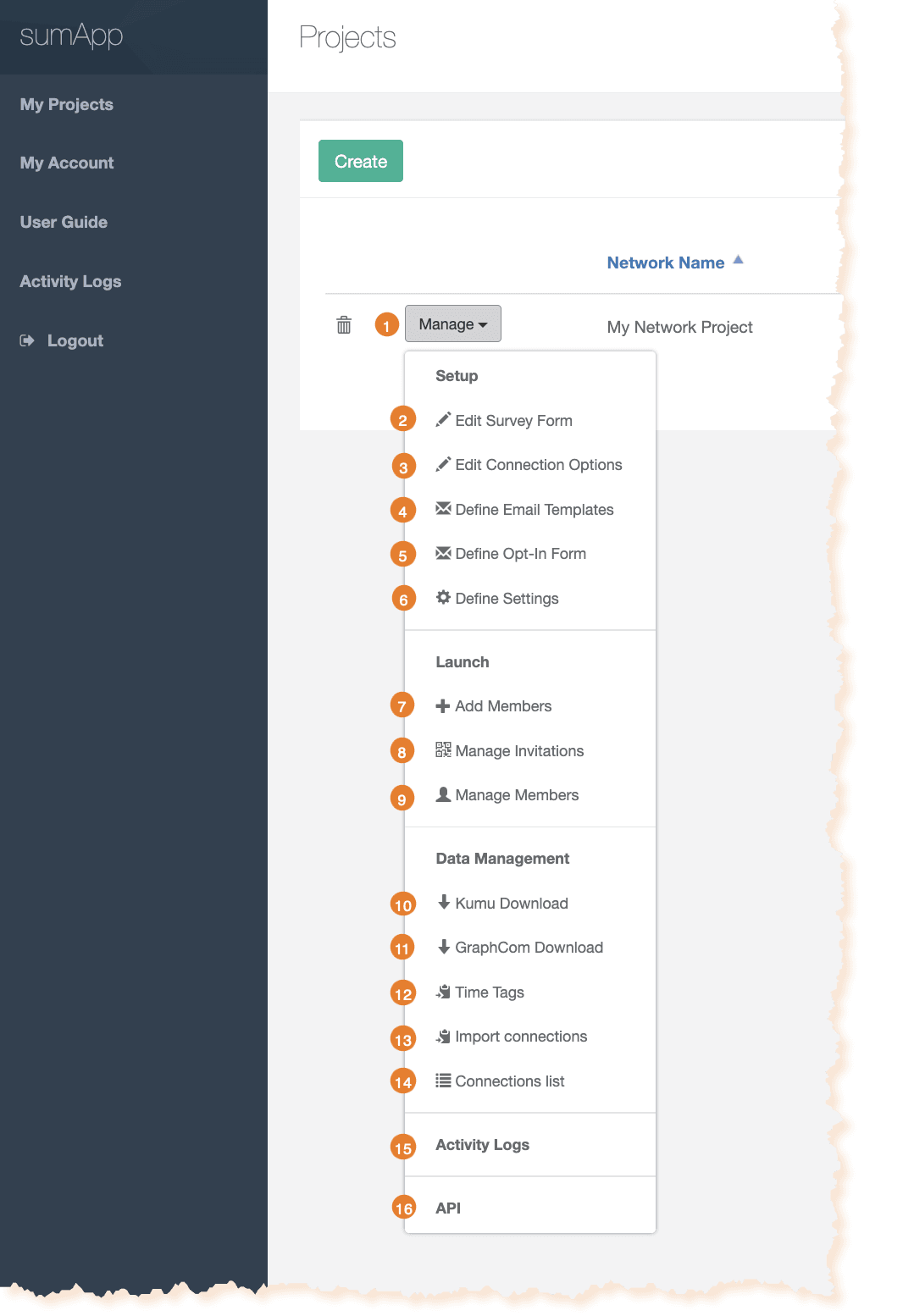
- Click ‘Manage’ button to access your project management pages.
- . Create your survey/profile questions and options.
- Edit . Create the relationship-type options that enable members to define how they are connected to one another.
- . Create and save the email text for each of up to 4 types of email invitations. Includes ‘from email’ ‘from name’ and deadline fields.
- .
- . Includes various in-app texts, survey show/don’t show toggle, and map tab embed code input.
- . or .
- . Send one or more of the 4 invitation types to all members, depending on what they’ve been sent in the past.
- . Access your member list. Edit, delete, send one-off emails, add new member manually, and check status of all members.
- .
- .
- . Define timeframes for tracking network changes over time.
- . TIER IV only. Import connections from one project into another (from same account) – where there is member overlap between the projects.
- Connections List. TIER IV only. View connections after imported. Can delete if needed.
- .
- API.
Why have three templates?
sumApp was designed to be what we call ‘evergreen’ – in other words, we wanted a tool that didn’t just create a snapshot in time, but could also continue to evolve as the network changes and as their mapping needs become more sophisticated. An important part of that evergreen characteristic means having the ability to add new members to the map’s databases as they join the network and to invite existing members back into sumApp to show their existing relationships to the new members.
On the one hand, doing that that can be as simple as deciding never to close a survey. But if your bulk email invitations don’t differentiate which phase you’re asking members to address, you’ll confuse and annoy people. It would be bad form to ask members to do something they’ve already done, without:
- Explaining that you’re not implying they didn’t do it.
- Making clear that it’s not a re-do – that what they’ve done is safe and intact.
- Making it clear that the reason you’re asking them back is because something has changed and those changes might be relevant for them to address.
- Making sure they know it will be a super-quick thing.
- Such as: “please go take a quick peek at the 10 brand new members at the top of the list, and if you know any, share that – then you’re done!”
So – in another SNA tool, you maybe COULD simply keep the survey open (tho, naaaw, it’d still be messy for other technical reasons, but we’ll ignore those right now . . . ),
but you’d have to revise the email over and over depending on who you’re sending to.
We thought that was dumb. So we make it easier by using three different email templates, each meant to be framed for a different context, depending on what stage your members are at in the evergreen cycle.
- The initial invitation – Frame this text for the brand-new member who has never seen sumApp & has no idea what you’re up to.
- The ‘new faces’ email – Frame this one for the initiated. Those who’ve done sumApp already, or at least have chosen to ignore previous invites (they know it’s been happening whether they’ve engaged or not). Framing in ‘new faces’ should, ideally, include all the bullet points above.
- The ‘reminder’ email – This is a follow-up framed generically for everyone. Use it when you want to address everyone at once.
The email template interface
Features of the email template interface:
1) Shows you’re in the sumApp setup phase.
2) Shows you’re on the ‘define email templates’ page.
3) Input name of sender here. This is a required field. Use a name that is as recognizable as possible for the whole population. All templates will come from this sender.
4) Input email of sender. This is a required field. Can be a different email than that belonging to the ‘from’ person’s name.
5) Deadline. Not required. Will fill into the template where you’ve inserted the {survey_deadline} tag. It has no functional effect (it won’t close your survey on that date). It’s simply there to make it easy to insert a date into your emails and change it in a single place, instead of digging into each email template to change it.
6) Field tags you can use in your email. {url} is required in each email template. No other fields are required. Read more about the curly-bracket tags.
7) The Invitation Email template WYSIWYG. More about the WYSIWYG interface.
8) The New Faces Email template WYSIWYG. More about the WYSIWYG interface.
9) The Reminder Email template WYSIWYG. More about the WYSIWYG interface.
10) Cancel – this will remove all changes you’ve made since your last save.
11) Save – Don’t forget to save when you’ve made changes anywhere on this page!!
Email template tags:
You find these fields at the top of the Email Templates page – they apply to each email type in your project:
1) Input name of sender here. This is a required field. Use a name that is as recognizable as possible for the whole population. All templates will come from this sender.
2) Input email of sender. This is a required field. Can be a different email than that belonging to the ‘from’ person’s name.
3) Deadline. Not required. Will fill into the template where you’ve inserted the {survey_deadline} tag. It has no functional effect (it won’t close your survey on that date). It’s simply there to make it easy to insert a date into your emails and change it in a single place, instead of digging into each email template to change it.
You also have tags that can be used in your email templates. They function as placeholders for inserting data from other fields within sumApp into the emails. They include:
4) {first_name} inserts the first name of the member receiving the email. Not mandatory.
5) {last_name} inserts the last name of the member receiving the email. Not mandatory.
6) {network_name} inserts the project name, which you can see at the top of the page. Not mandatory.
7) {survey_deadline} inserts the date in field #3 ‘Deadline’. Not mandatory.
8) {url} inserts the unique sumApp url belonging to the user receiving the email. This field is mandatory for all three templates.
9) {segment} inserts the segment you’re assigned to the user receiving the email, if you’ve assigned one. Not mandatory.
10 {sender_name} Inserts the name in the 3@ above ‘Sender email’. Not mandatory in the body of the email.
and again – a reminder 11) the {url} tag is mandatory for all email templates. If you’ve removed it, the save button won’t work until you replace it in all 3 templates.
The WYSIWYG
What is a WYSIWYG editor?
HTML markup tells a web browser how to display the text, images and other forms of multimedia on a webpage. A WYSIWYG is an interface designed to editing HTML without having to know or see the underlying code.
It it beyond the scope of this knowledge base to explain all the parts of this particular WYSIWYG interface, but we’ll point out a few basics.
1) Indicates which template you’re working on.
2) Defines the email’s subject line – it can include tags if desired.
3) The body of the email is edited in within the WYSIWYG editor.
A common cause of frustration using WYSIWYG editors:
You’ll often copy text from another editing tool into the email template. For instance if you’ve collaborated on the text in a google doc, or you’re pasting from Word. Each of those tools uses underlying code (such as HTML) to tell the browser or application how to render the content (headers, etc.)
Often when copying and pasting text from one editor into another, you also inadvertently copy over a bunch of hidden code as well. Sometimes that works fine & you get the formatting you want, but often it turns into a challenge. You can prevent this by copying your text into a non-formatting editor, such as NotePad before pasting it into the WYSWYG.
But if you haven’t already stripped the hidden code from your text before inserting it into a WYSIWYG, if the editor starts to behave strangely – such as not implementing changes you’re trying to make, you usually need to either examine the underlying HTML to remove junk code, or simply strip all formatting out of the text and start formatting fresh. You can either ‘view source’ or ‘remove formatting’.
4) The ‘source’ button in the WYSIWYG dashboard enables you to examine and edit the underlying HTML code. Even if you have no idea what HTML is, taking a peek will give you at least a sense of what’s going on.
5) The Tx icon will remove all hidden formatting code from the text so you can start fresh. The text to be cleaned must be selected first. You can double-check that it got removed by looking at the source code under #4.
The other buttons in the WYSWYG dashboard are either self-explanatory or not that relevant in this context.
6) If you want to start over, select ‘Reset Default’
7) The green ‘Preview’ button enables you to preview your content.
Once you’ve edited each template – don’t forget to click ‘save’ at the bottom of the page!
How sending works with each template
You send emails from the Launch > Manage Invitations page in sumApp.
Here is an overview explaining when each type is sent.
Invitation Email
- Is sent when you click the ‘Send Invitation Emails’ button or the ‘Send Invitation & New Faces Emails’ button in Launch > Manage Invitations page. It will only go out to members who have never previously been sent the first invitation.
- You can also send the Invitation Email to anyone, regardless of if they’ve been sent it before, on a case-by-case basis in the member list in Launch > Manage Members.
New Faces Email
- Is sent when you click the ‘Send Invitation & New Faces Emails’ button or the ‘Send New Faces Emails’ button in Launch > Manage Invitations page. It will only go out to members who have ALREADY been sent the first invitation at some point in the past.
- You can also send the New Faces Email to anyone, regardless of what they’ve been sent it before, on a case-by-case basis in the member list in Launch > Manage Members.
Reminder Email
- Is sent when you click the the ‘Send Reminders’ button in Launch > Manage Invitations page. It will go out to everyone in your member list, regardless of what they’ve been sent in the past.
- You can also send the Reminder Email to anyone, regardless of what they’ve been sent it before, on a case-by-case basis in the member list in Launch > Manage Members.
Custom survey filter email template – Tier IV
If you’re using the custom survey filter feature in Tier IV, you have another email template option. You can send a custom email to a sub-set of the population, based on their responses to the custom filter survey question you’re using.
You can access this extra functionality in Launch > Manage Invitations – Under the ‘Actions’ section of the page, find and click on the 5th sending button ‘Custom Filter Email’.
Why have three templates?
sumApp was designed to be what we call ‘evergreen’ – in other words, we wanted a tool that didn’t just create a snapshot in time, but could also continue to evolve as the network changes and as their mapping needs become more sophisticated. An important part of that evergreen characteristic means having the ability to add new members to the map’s databases as they join the network and to invite existing members back into sumApp to show their existing relationships to the new members.
On the one hand, doing that that can be as simple as deciding never to close a survey. But if your bulk email invitations don’t differentiate which phase you’re asking members to address, you’ll confuse and annoy people. It would be bad form to ask members to do something they’ve already done, without:
- Explaining that you’re not implying they didn’t do it.
- Making clear that it’s not a re-do – that what they’ve done is safe and intact.
- Making it clear that the reason you’re asking them back is because something has changed and those changes might be relevant for them to address.
- Making sure they know it will be a super-quick thing.
- Such as: “please go take a quick peek at the 10 brand new members at the top of the list, and if you know any, share that – then you’re done!”
So – in another SNA tool, you maybe COULD simply keep the survey open (tho, naaaw, it’d still be messy for other technical reasons, but we’ll ignore those right now . . . ),
but you’d have to revise the email over and over depending on who you’re sending to.
We thought that was dumb. So we make it easier by using three different email templates, each meant to be framed for a different context, depending on what stage your members are at in the evergreen cycle.
- The initial invitation – Frame this text for the brand-new member who has never seen sumApp & has no idea what you’re up to.
- The ‘new faces’ email – Frame this one for the initiated. Those who’ve done sumApp already, or at least have chosen to ignore previous invites (they know it’s been happening whether they’ve engaged or not). Framing in ‘new faces’ should, ideally, include all the bullet points above.
- The ‘reminder’ email – This is a follow-up framed generically for everyone. Use it when you want to address everyone at once.
The email template interface
Features of the email template interface:
1) Shows you’re in the sumApp setup phase.
2) Shows you’re on the ‘define email templates’ page.
3) Input name of sender here. This is a required field. Use a name that is as recognizable as possible for the whole population. All templates will come from this sender.
4) Input email of sender. This is a required field. Can be a different email than that belonging to the ‘from’ person’s name.
5) Deadline. Not required. Will fill into the template where you’ve inserted the {survey_deadline} tag. It has no functional effect (it won’t close your survey on that date). It’s simply there to make it easy to insert a date into your emails and change it in a single place, instead of digging into each email template to change it.
6) Field tags you can use in your email. {url} is required in each email template. No other fields are required. Read more about the curly-bracket tags.
7) The Invitation Email template WYSIWYG. More about the WYSIWYG interface.
8) The New Faces Email template WYSIWYG. More about the WYSIWYG interface.
9) The Reminder Email template WYSIWYG. More about the WYSIWYG interface.
10) Cancel – this will remove all changes you’ve made since your last save.
11) Save – Don’t forget to save when you’ve made changes anywhere on this page!!
Email template tags:
You find these fields at the top of the Email Templates page – they apply to each email type in your project:
1) Input name of sender here. This is a required field. Use a name that is as recognizable as possible for the whole population. All templates will come from this sender.
2) Input email of sender. This is a required field. Can be a different email than that belonging to the ‘from’ person’s name.
3) Deadline. Not required. Will fill into the template where you’ve inserted the {survey_deadline} tag. It has no functional effect (it won’t close your survey on that date). It’s simply there to make it easy to insert a date into your emails and change it in a single place, instead of digging into each email template to change it.
You also have tags that can be used in your email templates. They function as placeholders for inserting data from other fields within sumApp into the emails. They include:
4) {first_name} inserts the first name of the member receiving the email. Not mandatory.
5) {last_name} inserts the last name of the member receiving the email. Not mandatory.
6) {network_name} inserts the project name, which you can see at the top of the page. Not mandatory.
7) {survey_deadline} inserts the date in field #3 ‘Deadline’. Not mandatory.
8) {url} inserts the unique sumApp url belonging to the user receiving the email. This field is mandatory for all three templates.
9) {segment} inserts the segment you’re assigned to the user receiving the email, if you’ve assigned one. Not mandatory.
10 {sender_name} Inserts the name in the 3@ above ‘Sender email’. Not mandatory in the body of the email.
and again – a reminder 11) the {url} tag is mandatory for all email templates. If you’ve removed it, the save button won’t work until you replace it in all 3 templates.
The WYSIWYG
What is a WYSIWYG editor?
HTML markup tells a web browser how to display the text, images and other forms of multimedia on a webpage. A WYSIWYG is an interface designed to editing HTML without having to know or see the underlying code.
It it beyond the scope of this knowledge base to explain all the parts of this particular WYSIWYG interface, but we’ll point out a few basics.
1) Indicates which template you’re working on.
2) Defines the email’s subject line – it can include tags if desired.
3) The body of the email is edited in within the WYSIWYG editor.
A common cause of frustration using WYSIWYG editors:
You’ll often copy text from another editing tool into the email template. For instance if you’ve collaborated on the text in a google doc, or you’re pasting from Word. Each of those tools uses underlying code (such as HTML) to tell the browser or application how to render the content (headers, etc.)
Often when copying and pasting text from one editor into another, you also inadvertently copy over a bunch of hidden code as well. Sometimes that works fine & you get the formatting you want, but often it turns into a challenge. You can prevent this by copying your text into a non-formatting editor, such as NotePad before pasting it into the WYSWYG.
But if you haven’t already stripped the hidden code from your text before inserting it into a WYSIWYG, if the editor starts to behave strangely – such as not implementing changes you’re trying to make, you usually need to either examine the underlying HTML to remove junk code, or simply strip all formatting out of the text and start formatting fresh. You can either ‘view source’ or ‘remove formatting’.
4) The ‘source’ button in the WYSIWYG dashboard enables you to examine and edit the underlying HTML code. Even if you have no idea what HTML is, taking a peek will give you at least a sense of what’s going on.
5) The Tx icon will remove all hidden formatting code from the text so you can start fresh. The text to be cleaned must be selected first. You can double-check that it got removed by looking at the source code under #4.
The other buttons in the WYSWYG dashboard are either self-explanatory or not that relevant in this context.
6) If you want to start over, select ‘Reset Default’
7) The green ‘Preview’ button enables you to preview your content.
Once you’ve edited each template – don’t forget to click ‘save’ at the bottom of the page!
How sending works with each template
You send emails from the Launch > Manage Invitations page in sumApp.
Here is an overview explaining when each type is sent.
Invitation Email
- Is sent when you click the ‘Send Invitation Emails’ button or the ‘Send Invitation & New Faces Emails’ button in Launch > Manage Invitations page. It will only go out to members who have never previously been sent the first invitation.
- You can also send the Invitation Email to anyone, regardless of if they’ve been sent it before, on a case-by-case basis in the member list in Launch > Manage Members.
New Faces Email
- Is sent when you click the ‘Send Invitation & New Faces Emails’ button or the ‘Send New Faces Emails’ button in Launch > Manage Invitations page. It will only go out to members who have ALREADY been sent the first invitation at some point in the past.
- You can also send the New Faces Email to anyone, regardless of what they’ve been sent it before, on a case-by-case basis in the member list in Launch > Manage Members.
Reminder Email
- Is sent when you click the the ‘Send Reminders’ button in Launch > Manage Invitations page. It will go out to everyone in your member list, regardless of what they’ve been sent in the past.
- You can also send the Reminder Email to anyone, regardless of what they’ve been sent it before, on a case-by-case basis in the member list in Launch > Manage Members.
Custom survey filter email template – Tier IV
If you’re using the custom survey filter feature in Tier IV, you have another email template option. You can send a custom email to a sub-set of the population, based on their responses to the custom filter survey question you’re using.
You can access this extra functionality in Launch > Manage Invitations – Under the ‘Actions’ section of the page, find and click on the 5th sending button ‘Custom Filter Email’.
Why have three templates?
sumApp was designed to be what we call ‘evergreen’ – in other words, we wanted a tool that didn’t just create a snapshot in time, but could also continue to evolve as the network changes and as their mapping needs become more sophisticated. An important part of that evergreen characteristic means having the ability to add new members to the map’s databases as they join the network and to invite existing members back into sumApp to show their existing relationships to the new members.
On the one hand, doing that that can be as simple as deciding never to close a survey. But if your bulk email invitations don’t differentiate which phase you’re asking members to address, you’ll confuse and annoy people. It would be bad form to ask members to do something they’ve already done, without:
- Explaining that you’re not implying they didn’t do it.
- Making clear that it’s not a re-do – that what they’ve done is safe and intact.
- Making it clear that the reason you’re asking them back is because something has changed and those changes might be relevant for them to address.
- Making sure they know it will be a super-quick thing.
- Such as: “please go take a quick peek at the 10 brand new members at the top of the list, and if you know any, share that – then you’re done!”
So – in another SNA tool, you maybe COULD simply keep the survey open (tho, naaaw, it’d still be messy for other technical reasons, but we’ll ignore those right now . . . ),
but you’d have to revise the email over and over depending on who you’re sending to.
We thought that was dumb. So we make it easier by using three different email templates, each meant to be framed for a different context, depending on what stage your members are at in the evergreen cycle.
- The initial invitation – Frame this text for the brand-new member who has never seen sumApp & has no idea what you’re up to.
- The ‘new faces’ email – Frame this one for the initiated. Those who’ve done sumApp already, or at least have chosen to ignore previous invites (they know it’s been happening whether they’ve engaged or not). Framing in ‘new faces’ should, ideally, include all the bullet points above.
- The ‘reminder’ email – This is a follow-up framed generically for everyone. Use it when you want to address everyone at once.
The email template interface
Features of the email template interface:
1) Shows you’re in the sumApp setup phase.
2) Shows you’re on the ‘define email templates’ page.
3) Input name of sender here. This is a required field. Use a name that is as recognizable as possible for the whole population. All templates will come from this sender.
4) Input email of sender. This is a required field. Can be a different email than that belonging to the ‘from’ person’s name.
5) Deadline. Not required. Will fill into the template where you’ve inserted the {survey_deadline} tag. It has no functional effect (it won’t close your survey on that date). It’s simply there to make it easy to insert a date into your emails and change it in a single place, instead of digging into each email template to change it.
6) Field tags you can use in your email. {url} is required in each email template. No other fields are required. Read more about the curly-bracket tags.
7) The Invitation Email template WYSIWYG. More about the WYSIWYG interface.
8) The New Faces Email template WYSIWYG. More about the WYSIWYG interface.
9) The Reminder Email template WYSIWYG. More about the WYSIWYG interface.
10) Cancel – this will remove all changes you’ve made since your last save.
11) Save – Don’t forget to save when you’ve made changes anywhere on this page!!
Email template tags:
You find these fields at the top of the Email Templates page – they apply to each email type in your project:
1) Input name of sender here. This is a required field. Use a name that is as recognizable as possible for the whole population. All templates will come from this sender.
2) Input email of sender. This is a required field. Can be a different email than that belonging to the ‘from’ person’s name.
3) Deadline. Not required. Will fill into the template where you’ve inserted the {survey_deadline} tag. It has no functional effect (it won’t close your survey on that date). It’s simply there to make it easy to insert a date into your emails and change it in a single place, instead of digging into each email template to change it.
You also have tags that can be used in your email templates. They function as placeholders for inserting data from other fields within sumApp into the emails. They include:
4) {first_name} inserts the first name of the member receiving the email. Not mandatory.
5) {last_name} inserts the last name of the member receiving the email. Not mandatory.
6) {network_name} inserts the project name, which you can see at the top of the page. Not mandatory.
7) {survey_deadline} inserts the date in field #3 ‘Deadline’. Not mandatory.
8) {url} inserts the unique sumApp url belonging to the user receiving the email. This field is mandatory for all three templates.
9) {segment} inserts the segment you’re assigned to the user receiving the email, if you’ve assigned one. Not mandatory.
10 {sender_name} Inserts the name in the 3@ above ‘Sender email’. Not mandatory in the body of the email.
and again – a reminder 11) the {url} tag is mandatory for all email templates. If you’ve removed it, the save button won’t work until you replace it in all 3 templates.
The WYSIWYG
What is a WYSIWYG editor?
HTML markup tells a web browser how to display the text, images and other forms of multimedia on a webpage. A WYSIWYG is an interface designed to editing HTML without having to know or see the underlying code.
It it beyond the scope of this knowledge base to explain all the parts of this particular WYSIWYG interface, but we’ll point out a few basics.
1) Indicates which template you’re working on.
2) Defines the email’s subject line – it can include tags if desired.
3) The body of the email is edited in within the WYSIWYG editor.
A common cause of frustration using WYSIWYG editors:
You’ll often copy text from another editing tool into the email template. For instance if you’ve collaborated on the text in a google doc, or you’re pasting from Word. Each of those tools uses underlying code (such as HTML) to tell the browser or application how to render the content (headers, etc.)
Often when copying and pasting text from one editor into another, you also inadvertently copy over a bunch of hidden code as well. Sometimes that works fine & you get the formatting you want, but often it turns into a challenge. You can prevent this by copying your text into a non-formatting editor, such as NotePad before pasting it into the WYSWYG.
But if you haven’t already stripped the hidden code from your text before inserting it into a WYSIWYG, if the editor starts to behave strangely – such as not implementing changes you’re trying to make, you usually need to either examine the underlying HTML to remove junk code, or simply strip all formatting out of the text and start formatting fresh. You can either ‘view source’ or ‘remove formatting’.
4) The ‘source’ button in the WYSIWYG dashboard enables you to examine and edit the underlying HTML code. Even if you have no idea what HTML is, taking a peek will give you at least a sense of what’s going on.
5) The Tx icon will remove all hidden formatting code from the text so you can start fresh. The text to be cleaned must be selected first. You can double-check that it got removed by looking at the source code under #4.
The other buttons in the WYSWYG dashboard are either self-explanatory or not that relevant in this context.
6) If you want to start over, select ‘Reset Default’
7) The green ‘Preview’ button enables you to preview your content.
Once you’ve edited each template – don’t forget to click ‘save’ at the bottom of the page!
How sending works with each template
You send emails from the Launch > Manage Invitations page in sumApp.
Here is an overview explaining when each type is sent.
Invitation Email
- Is sent when you click the ‘Send Invitation Emails’ button or the ‘Send Invitation & New Faces Emails’ button in Launch > Manage Invitations page. It will only go out to members who have never previously been sent the first invitation.
- You can also send the Invitation Email to anyone, regardless of if they’ve been sent it before, on a case-by-case basis in the member list in Launch > Manage Members.
New Faces Email
- Is sent when you click the ‘Send Invitation & New Faces Emails’ button or the ‘Send New Faces Emails’ button in Launch > Manage Invitations page. It will only go out to members who have ALREADY been sent the first invitation at some point in the past.
- You can also send the New Faces Email to anyone, regardless of what they’ve been sent it before, on a case-by-case basis in the member list in Launch > Manage Members.
Reminder Email
- Is sent when you click the the ‘Send Reminders’ button in Launch > Manage Invitations page. It will go out to everyone in your member list, regardless of what they’ve been sent in the past.
- You can also send the Reminder Email to anyone, regardless of what they’ve been sent it before, on a case-by-case basis in the member list in Launch > Manage Members.
Custom survey filter email template – Tier IV
If you’re using the custom survey filter feature in Tier IV, you have another email template option. You can send a custom email to a sub-set of the population, based on their responses to the custom filter survey question you’re using.
You can access this extra functionality in Launch > Manage Invitations – Under the ‘Actions’ section of the page, find and click on the 5th sending button ‘Custom Filter Email’.
Parts of the Workspace
1) Indicates what page you’re on, within your project.
2) Indicates which project you’re currently working on.
3) Shows you’re in the first tab of the project phases navigation bar – Setup.
4) Shows you’re in the ‘Define email templates’ tab of the Setup phase.
5) Add the sender name you want to appear when map members receive an email from your project.
6) Add the email address you want to appear when map members receive an email from your project.
7) Add a deadline if you would like to include a date for map members to add responses by. Must use {survey_deadline} in your template for the date to appear.
8) The Template.
9) The Invitation Email Customizable Subject Line.
10) The Invitation Email Customizable Body.
11) The Email Template.
12) The New Faces Email Customizable Subject Line.
13) The New Faces Email Customizable Body.
14) The Email Template.
15) The Reminder Email Customizable Subject Line.
16) The Reminder Email Customizable Body.
17) Cancel button. Changes will not be saved!
18) Save button. Be sure to save changes frequently!
1. From ‘My Projects’, select the ‘Manage’ drop-down field from the project a member record you want to edit is in.

2. Click ‘Manage Members’.

3. Click the edit pencil for the member record you want to edit.

4. Edit the fields you want to make changes to.

5. Click ‘Save’ when you are finished.

Settings for all Tiers
The aspects of the Member Views (outside of the survey and the connection options) that can be edited are managed in Setup > Settings:
Features of the settings page are:
1) Indicates you’re in the ‘Setup’ phase of sumApp.
2) Shows you’re on the ‘Define Settings’ page.
3) Network name – shows at top of all member view pages, in ‘network_name’ tags, and on your project list. Originally defined when creating the project, it can be changed here. Each project name must be unique.
4) Tiers II, III & IV include the survey. It can be toggled off and on, depending on your context. Checking the checkbox will show the survey in the member view, unchecking it will hide it from the member view.
5) The ‘Hello Text’ shows at the top of the member view bio page and connections page – you edit to suit your situation and can use tags to personalize the page.
6) List of tags available in the hello text
7) Welcome text – shows in body of the member view bio page. Use it to invite, orient and direct your members in the use and purpose of sumApp and your mapping project.
8) Data usage text – shows right under the welcome text on the member view bio page. Use this to be explicit about how member’s data will be used.
9) Completion message – shows when members click on ‘Finish’ at the bottom of the member view connections page. Use it to thank members and suggest/link to next steps if appropriate.
10) When checked, shows the map page option in the member view. Use this once you have at least a prototype map started in Kumu to embed the prototype into sumApp. Helps members understand why you’re collecting this data from them, enables them to start to engage with the map and to offer feedback into the map design.
11) Insert the map embed code from Kumu here so that map shows up in the map tab. How to add the embed.
12) Cancel changes made above.
13) Save changes made above.
14) Archive or delete this project. Requires account password.
Extra settings in Tier IV
Tier IV was originally created because we needed to be able to change the member view language in places to accommodate projects that looked at connections between organizations as opposed to individuals. The settings page reflects that additional needed flexibility.
You’ll see these additional fields in your settings page if you have a Tier IV account.
Tier IV Settings:
1) Element type – this doesn’t show anywhere in the sumApp interface, but it is exported with your dataset, so that if you’re merging data-sets you can specify what kinds of elements sumApp is generating. Can be whatever makes sense, such as ‘organization’, ‘team’, ‘project’ – What kind of entity are you surveying, if not persons?
2) Bio nav title – if you’re surveying organizations, ‘bio’ doesn’t make a lot of sense. You can change it to something like ‘Profile’ – shows on member view navigation bar.
3) Bio upload button text. Can change the button text on the member view bio page to something more appropriate for the entity you are surveying – such as ‘logo’.
4) Bio about help text. Shows underneath the bio field on the member view bio page. Can be edited to suit your type of entity.
5) Bio about placeholder. The text in the member view bio page bio field can be edited to suit your type of entity.
6) Bio not available. This text shows up in the member tiles on the member view connections page when a member has not yet input anything into their bio field. Can be edited to suit the entity type you’re dealing with.
7) Connections page title. Shows just above the sorting buttons on the member view connections page. Can be edited to suit the type of entity you are dealing with.
8) Connections modal title. Shows in the popped-open member tile, below the image and bio, above the connection questions. Can be edited to suit the type of entity you are dealing with.
Settings for all Tiers
The aspects of the Member Views (outside of the survey and the connection options) that can be edited are managed in Setup > Settings:
Features of the settings page are:
1) Indicates you’re in the ‘Setup’ phase of sumApp.
2) Shows you’re on the ‘Define Settings’ page.
3) Network name – shows at top of all member view pages, in ‘network_name’ tags, and on your project list. Originally defined when creating the project, it can be changed here. Each project name must be unique.
4) Tiers II, III & IV include the survey. It can be toggled off and on, depending on your context. Checking the checkbox will show the survey in the member view, unchecking it will hide it from the member view.
5) The ‘Hello Text’ shows at the top of the member view bio page and connections page – you edit to suit your situation and can use tags to personalize the page.
6) List of tags available in the hello text
7) Welcome text – shows in body of the member view bio page. Use it to invite, orient and direct your members in the use and purpose of sumApp and your mapping project.
8) Data usage text – shows right under the welcome text on the member view bio page. Use this to be explicit about how member’s data will be used.
9) Completion message – shows when members click on ‘Finish’ at the bottom of the member view connections page. Use it to thank members and suggest/link to next steps if appropriate.
10) When checked, shows the map page option in the member view. Use this once you have at least a prototype map started in Kumu to embed the prototype into sumApp. Helps members understand why you’re collecting this data from them, enables them to start to engage with the map and to offer feedback into the map design.
11) Insert the map embed code from Kumu here so that map shows up in the map tab. How to add the embed.
12) Cancel changes made above.
13) Save changes made above.
14) Archive or delete this project. Requires account password.
Extra settings in Tier IV
Tier IV was originally created because we needed to be able to change the member view language in places to accommodate projects that looked at connections between organizations as opposed to individuals. The settings page reflects that additional needed flexibility.
You’ll see these additional fields in your settings page if you have a Tier IV account.
Tier IV Settings:
1) Element type – this doesn’t show anywhere in the sumApp interface, but it is exported with your dataset, so that if you’re merging data-sets you can specify what kinds of elements sumApp is generating. Can be whatever makes sense, such as ‘organization’, ‘team’, ‘project’ – What kind of entity are you surveying, if not persons?
2) Bio nav title – if you’re surveying organizations, ‘bio’ doesn’t make a lot of sense. You can change it to something like ‘Profile’ – shows on member view navigation bar.
3) Bio upload button text. Can change the button text on the member view bio page to something more appropriate for the entity you are surveying – such as ‘logo’.
4) Bio about help text. Shows underneath the bio field on the member view bio page. Can be edited to suit your type of entity.
5) Bio about placeholder. The text in the member view bio page bio field can be edited to suit your type of entity.
6) Bio not available. This text shows up in the member tiles on the member view connections page when a member has not yet input anything into their bio field. Can be edited to suit the entity type you’re dealing with.
7) Connections page title. Shows just above the sorting buttons on the member view connections page. Can be edited to suit the type of entity you are dealing with.
8) Connections modal title. Shows in the popped-open member tile, below the image and bio, above the connection questions. Can be edited to suit the type of entity you are dealing with.
Settings for all Tiers
The aspects of the Member Views (outside of the survey and the connection options) that can be edited are managed in Setup > Settings:
Features of the settings page are:
1) Indicates you’re in the ‘Setup’ phase of sumApp.
2) Shows you’re on the ‘Define Settings’ page.
3) Network name – shows at top of all member view pages, in ‘network_name’ tags, and on your project list. Originally defined when creating the project, it can be changed here. Each project name must be unique.
4) Tiers II, III & IV include the survey. It can be toggled off and on, depending on your context. Checking the checkbox will show the survey in the member view, unchecking it will hide it from the member view.
5) The ‘Hello Text’ shows at the top of the member view bio page and connections page – you edit to suit your situation and can use tags to personalize the page.
6) List of tags available in the hello text
7) Welcome text – shows in body of the member view bio page. Use it to invite, orient and direct your members in the use and purpose of sumApp and your mapping project.
8) Data usage text – shows right under the welcome text on the member view bio page. Use this to be explicit about how member’s data will be used.
9) Completion message – shows when members click on ‘Finish’ at the bottom of the member view connections page. Use it to thank members and suggest/link to next steps if appropriate.
10) When checked, shows the map page option in the member view. Use this once you have at least a prototype map started in Kumu to embed the prototype into sumApp. Helps members understand why you’re collecting this data from them, enables them to start to engage with the map and to offer feedback into the map design.
11) Insert the map embed code from Kumu here so that map shows up in the map tab. How to add the embed.
12) Cancel changes made above.
13) Save changes made above.
14) Archive or delete this project. Requires account password.
Extra settings in Tier IV
Tier IV was originally created because we needed to be able to change the member view language in places to accommodate projects that looked at connections between organizations as opposed to individuals. The settings page reflects that additional needed flexibility.
You’ll see these additional fields in your settings page if you have a Tier IV account.
Tier IV Settings:
1) Element type – this doesn’t show anywhere in the sumApp interface, but it is exported with your dataset, so that if you’re merging data-sets you can specify what kinds of elements sumApp is generating. Can be whatever makes sense, such as ‘organization’, ‘team’, ‘project’ – What kind of entity are you surveying, if not persons?
2) Bio nav title – if you’re surveying organizations, ‘bio’ doesn’t make a lot of sense. You can change it to something like ‘Profile’ – shows on member view navigation bar.
3) Bio upload button text. Can change the button text on the member view bio page to something more appropriate for the entity you are surveying – such as ‘logo’.
4) Bio about help text. Shows underneath the bio field on the member view bio page. Can be edited to suit your type of entity.
5) Bio about placeholder. The text in the member view bio page bio field can be edited to suit your type of entity.
6) Bio not available. This text shows up in the member tiles on the member view connections page when a member has not yet input anything into their bio field. Can be edited to suit the entity type you’re dealing with.
7) Connections page title. Shows just above the sorting buttons on the member view connections page. Can be edited to suit the type of entity you are dealing with.
8) Connections modal title. Shows in the popped-open member tile, below the image and bio, above the connection questions. Can be edited to suit the type of entity you are dealing with.
Settings for all Tiers
The aspects of the Member Views (outside of the survey and the connection options) that can be edited are managed in Setup > Settings:
Features of the settings page are:
1) Indicates you’re in the ‘Setup’ phase of sumApp.
2) Shows you’re on the ‘Define Settings’ page.
3) Network name – shows at top of all member view pages, in ‘network_name’ tags, and on your project list. Originally defined when creating the project, it can be changed here. Each project name must be unique.
4) Tiers II, III & IV include the survey. It can be toggled off and on, depending on your context. Checking the checkbox will show the survey in the member view, unchecking it will hide it from the member view.
5) The ‘Hello Text’ shows at the top of the member view bio page and connections page – you edit to suit your situation and can use tags to personalize the page.
6) List of tags available in the hello text
7) Welcome text – shows in body of the member view bio page. Use it to invite, orient and direct your members in the use and purpose of sumApp and your mapping project.
8) Data usage text – shows right under the welcome text on the member view bio page. Use this to be explicit about how member’s data will be used.
9) Completion message – shows when members click on ‘Finish’ at the bottom of the member view connections page. Use it to thank members and suggest/link to next steps if appropriate.
10) When checked, shows the map page option in the member view. Use this once you have at least a prototype map started in Kumu to embed the prototype into sumApp. Helps members understand why you’re collecting this data from them, enables them to start to engage with the map and to offer feedback into the map design.
11) Insert the map embed code from Kumu here so that map shows up in the map tab. How to add the embed.
12) Cancel changes made above.
13) Save changes made above.
14) Archive or delete this project. Requires account password.
Extra settings in Tier IV
Tier IV was originally created because we needed to be able to change the member view language in places to accommodate projects that looked at connections between organizations as opposed to individuals. The settings page reflects that additional needed flexibility.
You’ll see these additional fields in your settings page if you have a Tier IV account.
Tier IV Settings:
1) Element type – this doesn’t show anywhere in the sumApp interface, but it is exported with your dataset, so that if you’re merging data-sets you can specify what kinds of elements sumApp is generating. Can be whatever makes sense, such as ‘organization’, ‘team’, ‘project’ – What kind of entity are you surveying, if not persons?
2) Bio nav title – if you’re surveying organizations, ‘bio’ doesn’t make a lot of sense. You can change it to something like ‘Profile’ – shows on member view navigation bar.
3) Bio upload button text. Can change the button text on the member view bio page to something more appropriate for the entity you are surveying – such as ‘logo’.
4) Bio about help text. Shows underneath the bio field on the member view bio page. Can be edited to suit your type of entity.
5) Bio about placeholder. The text in the member view bio page bio field can be edited to suit your type of entity.
6) Bio not available. This text shows up in the member tiles on the member view connections page when a member has not yet input anything into their bio field. Can be edited to suit the entity type you’re dealing with.
7) Connections page title. Shows just above the sorting buttons on the member view connections page. Can be edited to suit the type of entity you are dealing with.
8) Connections modal title. Shows in the popped-open member tile, below the image and bio, above the connection questions. Can be edited to suit the type of entity you are dealing with.
Settings for all Tiers
The aspects of the Member Views (outside of the survey and the connection options) that can be edited are managed in Setup > Settings:
Features of the settings page are:
1) Indicates you’re in the ‘Setup’ phase of sumApp.
2) Shows you’re on the ‘Define Settings’ page.
3) Network name – shows at top of all member view pages, in ‘network_name’ tags, and on your project list. Originally defined when creating the project, it can be changed here. Each project name must be unique.
4) Tiers II, III & IV include the survey. It can be toggled off and on, depending on your context. Checking the checkbox will show the survey in the member view, unchecking it will hide it from the member view.
5) The ‘Hello Text’ shows at the top of the member view bio page and connections page – you edit to suit your situation and can use tags to personalize the page.
6) List of tags available in the hello text
7) Welcome text – shows in body of the member view bio page. Use it to invite, orient and direct your members in the use and purpose of sumApp and your mapping project.
8) Data usage text – shows right under the welcome text on the member view bio page. Use this to be explicit about how member’s data will be used.
9) Completion message – shows when members click on ‘Finish’ at the bottom of the member view connections page. Use it to thank members and suggest/link to next steps if appropriate.
10) When checked, shows the map page option in the member view. Use this once you have at least a prototype map started in Kumu to embed the prototype into sumApp. Helps members understand why you’re collecting this data from them, enables them to start to engage with the map and to offer feedback into the map design.
11) Insert the map embed code from Kumu here so that map shows up in the map tab. How to add the embed.
12) Cancel changes made above.
13) Save changes made above.
14) Archive or delete this project. Requires account password.
Extra settings in Tier IV
Tier IV was originally created because we needed to be able to change the member view language in places to accommodate projects that looked at connections between organizations as opposed to individuals. The settings page reflects that additional needed flexibility.
You’ll see these additional fields in your settings page if you have a Tier IV account.
Tier IV Settings:
1) Element type – this doesn’t show anywhere in the sumApp interface, but it is exported with your dataset, so that if you’re merging data-sets you can specify what kinds of elements sumApp is generating. Can be whatever makes sense, such as ‘organization’, ‘team’, ‘project’ – What kind of entity are you surveying, if not persons?
2) Bio nav title – if you’re surveying organizations, ‘bio’ doesn’t make a lot of sense. You can change it to something like ‘Profile’ – shows on member view navigation bar.
3) Bio upload button text. Can change the button text on the member view bio page to something more appropriate for the entity you are surveying – such as ‘logo’.
4) Bio about help text. Shows underneath the bio field on the member view bio page. Can be edited to suit your type of entity.
5) Bio about placeholder. The text in the member view bio page bio field can be edited to suit your type of entity.
6) Bio not available. This text shows up in the member tiles on the member view connections page when a member has not yet input anything into their bio field. Can be edited to suit the entity type you’re dealing with.
7) Connections page title. Shows just above the sorting buttons on the member view connections page. Can be edited to suit the type of entity you are dealing with.
8) Connections modal title. Shows in the popped-open member tile, below the image and bio, above the connection questions. Can be edited to suit the type of entity you are dealing with.
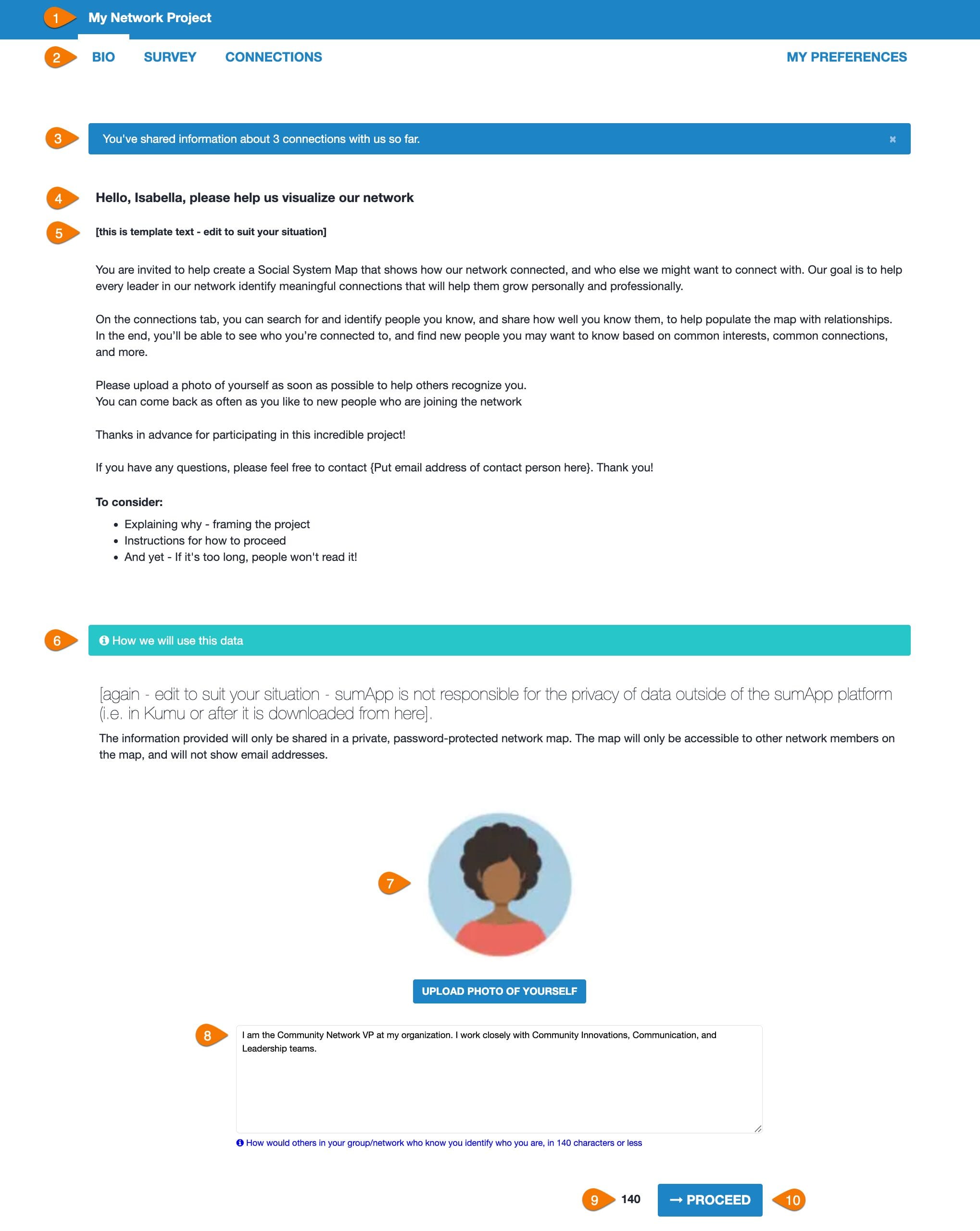
The Bio page is the first page your members will see when they click on the link included in their sumApp invitation email. It is meant to help orient your members to the project’s process and purpose and give each member the opportunity to help others in the network identify them easily on the Connections page.
Features of the Bio page
1) Project name – defined when the project was created. Can be changed in
2) Member View Navigation Bar. Members can skip forward through the app to whichever page they want to see. The Bio tab is editable in Tier IV, in
3) If the member has already shared connections in the connections page, the blue info bar at the top tells them how many they’ve shared.
4) ‘Hello Text’. Editable in all Tiers,
5) ‘Welcome Text’. Editable in all Tiers,
6) ‘Data Usage Text’. Editable in all Tiers, Make sure you are clear and accurate about how private or public the map and the data in it will be.
7) The profile picture upload. Members who have a Gravitar account associated with the email address you are using, their ‘gravitar’ will be pulled in automatically. They can replace it using the upload function if desired. Helps members easily identify one another on the connections page and you can show the picture in the member nodes in the Kumu map. The text on the blue button is editable in Tier IV, in Settings.
8) An (old-school) tweet-sized space for member to share a little info about themselves to help others in the network identify them easily. Limit is 140 characters (not words!). The light blue description text below the field is editable in Tier IV, in Settings.
9) Character countdown showing how many unused characters remain in the field (in #8).
10) Proceed button – saves bio text and proceeds to the survey page.
You can change your options in Setup > Define connection options – #1 & #2 in image below.
Tiers I & II have a simple, single-question interface – #3 in image below.
- Edit the options in #3 in the image above.
- You can use as few or as many options as you like, but don’t use so many it becomes hard for your members to decide.
- Only one option can be selected from the list.
- The options should be general enough to encompass the range of possible connections without making an exhaustive list.
- Don’t include ‘don’t know’ as an option – that will require everyone in the network to reply regarding everyone else in the network, and it will generate a whole lot of unnecessary data.
- Set your options to be ranked with increasing strength.
- You can preview the options in the preview panel below the editor.
- Don’t forget to save! #5 in image.
- Options show up on the member view connections page in the member tiles when they are clicked open.
Settings for all Tiers
The aspects of the Member Views (outside of the survey and the connection options) that can be edited are managed in Setup > Settings:
Features of the settings page are:
1) Indicates you’re in the ‘Setup’ phase of sumApp.
2) Shows you’re on the ‘Define Settings’ page.
3) Network name – shows at top of all member view pages, in ‘network_name’ tags, and on your project list. Originally defined when creating the project, it can be changed here. Each project name must be unique.
4) Tiers II, III & IV include the survey. It can be toggled off and on, depending on your context. Checking the checkbox will show the survey in the member view, unchecking it will hide it from the member view.
5) The ‘Hello Text’ shows at the top of the member view bio page and connections page – you edit to suit your situation and can use tags to personalize the page.
6) List of tags available in the hello text
7) Welcome text – shows in body of the member view bio page. Use it to invite, orient and direct your members in the use and purpose of sumApp and your mapping project.
8) Data usage text – shows right under the welcome text on the member view bio page. Use this to be explicit about how member’s data will be used.
9) Completion message – shows when members click on ‘Finish’ at the bottom of the member view connections page. Use it to thank members and suggest/link to next steps if appropriate.
10) When checked, shows the map page option in the member view. Use this once you have at least a prototype map started in Kumu to embed the prototype into sumApp. Helps members understand why you’re collecting this data from them, enables them to start to engage with the map and to offer feedback into the map design.
11) Insert the map embed code from Kumu here so that map shows up in the map tab. How to add the embed.
12) Cancel changes made above.
13) Save changes made above.
14) Archive or delete this project. Requires account password.
Extra settings in Tier IV
Tier IV was originally created because we needed to be able to change the member view language in places to accommodate projects that looked at connections between organizations as opposed to individuals. The settings page reflects that additional needed flexibility.
You’ll see these additional fields in your settings page if you have a Tier IV account.
Tier IV Settings:
1) Element type – this doesn’t show anywhere in the sumApp interface, but it is exported with your dataset, so that if you’re merging data-sets you can specify what kinds of elements sumApp is generating. Can be whatever makes sense, such as ‘organization’, ‘team’, ‘project’ – What kind of entity are you surveying, if not persons?
2) Bio nav title – if you’re surveying organizations, ‘bio’ doesn’t make a lot of sense. You can change it to something like ‘Profile’ – shows on member view navigation bar.
3) Bio upload button text. Can change the button text on the member view bio page to something more appropriate for the entity you are surveying – such as ‘logo’.
4) Bio about help text. Shows underneath the bio field on the member view bio page. Can be edited to suit your type of entity.
5) Bio about placeholder. The text in the member view bio page bio field can be edited to suit your type of entity.
6) Bio not available. This text shows up in the member tiles on the member view connections page when a member has not yet input anything into their bio field. Can be edited to suit the entity type you’re dealing with.
7) Connections page title. Shows just above the sorting buttons on the member view connections page. Can be edited to suit the type of entity you are dealing with.
8) Connections modal title. Shows in the popped-open member tile, below the image and bio, above the connection questions. Can be edited to suit the type of entity you are dealing with.
You customize your survey to suit your network in the Survey Editor Workspace: 

Parts of the Workspace
- Indicates what page you’re on, within your project.
- Indicates which project you’re currently working on.
- Shows you’re in the first tab of the project phases navigation bar – Setup
- Shows your project status. Toggle on to enable project members to submit their survey responses.
- Shows you’re in the ‘create survey’ tab of the Setup phase
- On the left you can select from your field options to drag onto the Survey Builder canvas.
- Use to view the stats on your survey fields, including the number of map members who have submitted an answer for the field.
- On the right is the Survey Builder – you’ll drag fields from the left side of the workspace to the right. There you can put them in the order you want and edit the field content.
- Enables you to preview the form.
- Clone enables you to copy another survey from your account as a starting point. Existing fields will be over-written when you clone as survey.
- Save the whole survey – don’t forget to save frequently!
Settings for all Tiers
The aspects of the Member Views (outside of the survey and the connection options) that can be edited are managed in Setup > Settings:
Features of the settings page are:
1) Indicates you’re in the ‘Setup’ phase of sumApp.
2) Shows you’re on the ‘Define Settings’ page.
3) Network name – shows at top of all member view pages, in ‘network_name’ tags, and on your project list. Originally defined when creating the project, it can be changed here. Each project name must be unique.
4) Tiers II, III & IV include the survey. It can be toggled off and on, depending on your context. Checking the checkbox will show the survey in the member view, unchecking it will hide it from the member view.
5) The ‘Hello Text’ shows at the top of the member view bio page and connections page – you edit to suit your situation and can use tags to personalize the page.
6) List of tags available in the hello text
7) Welcome text – shows in body of the member view bio page. Use it to invite, orient and direct your members in the use and purpose of sumApp and your mapping project.
8) Data usage text – shows right under the welcome text on the member view bio page. Use this to be explicit about how member’s data will be used.
9) Completion message – shows when members click on ‘Finish’ at the bottom of the member view connections page. Use it to thank members and suggest/link to next steps if appropriate.
10) When checked, shows the map page option in the member view. Use this once you have at least a prototype map started in Kumu to embed the prototype into sumApp. Helps members understand why you’re collecting this data from them, enables them to start to engage with the map and to offer feedback into the map design.
11) Insert the map embed code from Kumu here so that map shows up in the map tab. How to add the embed.
12) Cancel changes made above.
13) Save changes made above.
14) Archive or delete this project. Requires account password.
Extra settings in Tier IV
Tier IV was originally created because we needed to be able to change the member view language in places to accommodate projects that looked at connections between organizations as opposed to individuals. The settings page reflects that additional needed flexibility.
You’ll see these additional fields in your settings page if you have a Tier IV account.
Tier IV Settings:
1) Element type – this doesn’t show anywhere in the sumApp interface, but it is exported with your dataset, so that if you’re merging data-sets you can specify what kinds of elements sumApp is generating. Can be whatever makes sense, such as ‘organization’, ‘team’, ‘project’ – What kind of entity are you surveying, if not persons?
2) Bio nav title – if you’re surveying organizations, ‘bio’ doesn’t make a lot of sense. You can change it to something like ‘Profile’ – shows on member view navigation bar.
3) Bio upload button text. Can change the button text on the member view bio page to something more appropriate for the entity you are surveying – such as ‘logo’.
4) Bio about help text. Shows underneath the bio field on the member view bio page. Can be edited to suit your type of entity.
5) Bio about placeholder. The text in the member view bio page bio field can be edited to suit your type of entity.
6) Bio not available. This text shows up in the member tiles on the member view connections page when a member has not yet input anything into their bio field. Can be edited to suit the entity type you’re dealing with.
7) Connections page title. Shows just above the sorting buttons on the member view connections page. Can be edited to suit the type of entity you are dealing with.
8) Connections modal title. Shows in the popped-open member tile, below the image and bio, above the connection questions. Can be edited to suit the type of entity you are dealing with.
Settings for all Tiers
The aspects of the Member Views (outside of the survey and the connection options) that can be edited are managed in Setup > Settings:
Features of the settings page are:
1) Indicates you’re in the ‘Setup’ phase of sumApp.
2) Shows you’re on the ‘Define Settings’ page.
3) Network name – shows at top of all member view pages, in ‘network_name’ tags, and on your project list. Originally defined when creating the project, it can be changed here. Each project name must be unique.
4) Tiers II, III & IV include the survey. It can be toggled off and on, depending on your context. Checking the checkbox will show the survey in the member view, unchecking it will hide it from the member view.
5) The ‘Hello Text’ shows at the top of the member view bio page and connections page – you edit to suit your situation and can use tags to personalize the page.
6) List of tags available in the hello text
7) Welcome text – shows in body of the member view bio page. Use it to invite, orient and direct your members in the use and purpose of sumApp and your mapping project.
8) Data usage text – shows right under the welcome text on the member view bio page. Use this to be explicit about how member’s data will be used.
9) Completion message – shows when members click on ‘Finish’ at the bottom of the member view connections page. Use it to thank members and suggest/link to next steps if appropriate.
10) When checked, shows the map page option in the member view. Use this once you have at least a prototype map started in Kumu to embed the prototype into sumApp. Helps members understand why you’re collecting this data from them, enables them to start to engage with the map and to offer feedback into the map design.
11) Insert the map embed code from Kumu here so that map shows up in the map tab. How to add the embed.
12) Cancel changes made above.
13) Save changes made above.
14) Archive or delete this project. Requires account password.
Extra settings in Tier IV
Tier IV was originally created because we needed to be able to change the member view language in places to accommodate projects that looked at connections between organizations as opposed to individuals. The settings page reflects that additional needed flexibility.
You’ll see these additional fields in your settings page if you have a Tier IV account.
Tier IV Settings:
1) Element type – this doesn’t show anywhere in the sumApp interface, but it is exported with your dataset, so that if you’re merging data-sets you can specify what kinds of elements sumApp is generating. Can be whatever makes sense, such as ‘organization’, ‘team’, ‘project’ – What kind of entity are you surveying, if not persons?
2) Bio nav title – if you’re surveying organizations, ‘bio’ doesn’t make a lot of sense. You can change it to something like ‘Profile’ – shows on member view navigation bar.
3) Bio upload button text. Can change the button text on the member view bio page to something more appropriate for the entity you are surveying – such as ‘logo’.
4) Bio about help text. Shows underneath the bio field on the member view bio page. Can be edited to suit your type of entity.
5) Bio about placeholder. The text in the member view bio page bio field can be edited to suit your type of entity.
6) Bio not available. This text shows up in the member tiles on the member view connections page when a member has not yet input anything into their bio field. Can be edited to suit the entity type you’re dealing with.
7) Connections page title. Shows just above the sorting buttons on the member view connections page. Can be edited to suit the type of entity you are dealing with.
8) Connections modal title. Shows in the popped-open member tile, below the image and bio, above the connection questions. Can be edited to suit the type of entity you are dealing with.
Settings for all Tiers
The aspects of the Member Views (outside of the survey and the connection options) that can be edited are managed in Setup > Settings:
Features of the settings page are:
1) Indicates you’re in the ‘Setup’ phase of sumApp.
2) Shows you’re on the ‘Define Settings’ page.
3) Network name – shows at top of all member view pages, in ‘network_name’ tags, and on your project list. Originally defined when creating the project, it can be changed here. Each project name must be unique.
4) Tiers II, III & IV include the survey. It can be toggled off and on, depending on your context. Checking the checkbox will show the survey in the member view, unchecking it will hide it from the member view.
5) The ‘Hello Text’ shows at the top of the member view bio page and connections page – you edit to suit your situation and can use tags to personalize the page.
6) List of tags available in the hello text
7) Welcome text – shows in body of the member view bio page. Use it to invite, orient and direct your members in the use and purpose of sumApp and your mapping project.
8) Data usage text – shows right under the welcome text on the member view bio page. Use this to be explicit about how member’s data will be used.
9) Completion message – shows when members click on ‘Finish’ at the bottom of the member view connections page. Use it to thank members and suggest/link to next steps if appropriate.
10) When checked, shows the map page option in the member view. Use this once you have at least a prototype map started in Kumu to embed the prototype into sumApp. Helps members understand why you’re collecting this data from them, enables them to start to engage with the map and to offer feedback into the map design.
11) Insert the map embed code from Kumu here so that map shows up in the map tab. How to add the embed.
12) Cancel changes made above.
13) Save changes made above.
14) Archive or delete this project. Requires account password.
Extra settings in Tier IV
Tier IV was originally created because we needed to be able to change the member view language in places to accommodate projects that looked at connections between organizations as opposed to individuals. The settings page reflects that additional needed flexibility.
You’ll see these additional fields in your settings page if you have a Tier IV account.
Tier IV Settings:
1) Element type – this doesn’t show anywhere in the sumApp interface, but it is exported with your dataset, so that if you’re merging data-sets you can specify what kinds of elements sumApp is generating. Can be whatever makes sense, such as ‘organization’, ‘team’, ‘project’ – What kind of entity are you surveying, if not persons?
2) Bio nav title – if you’re surveying organizations, ‘bio’ doesn’t make a lot of sense. You can change it to something like ‘Profile’ – shows on member view navigation bar.
3) Bio upload button text. Can change the button text on the member view bio page to something more appropriate for the entity you are surveying – such as ‘logo’.
4) Bio about help text. Shows underneath the bio field on the member view bio page. Can be edited to suit your type of entity.
5) Bio about placeholder. The text in the member view bio page bio field can be edited to suit your type of entity.
6) Bio not available. This text shows up in the member tiles on the member view connections page when a member has not yet input anything into their bio field. Can be edited to suit the entity type you’re dealing with.
7) Connections page title. Shows just above the sorting buttons on the member view connections page. Can be edited to suit the type of entity you are dealing with.
8) Connections modal title. Shows in the popped-open member tile, below the image and bio, above the connection questions. Can be edited to suit the type of entity you are dealing with.
Sometimes the segment filter on the connections page just isn’t enough. Your population is huge and you need another variable to help members filter the whole list down to a manageable number.
In that case – in a Tier IV account – you can use the Custom Survey Filter feature. If you have a Tier IV account, when you click on any list-type (checkbox, select, radio button) field on your survey canvas (on the left side of the workspace) to open the field editor, you’ll see the custom filter checkbox below the option list (at #2 in the image below).
Facts about the custom survey filter feature
- You can only use one question field as a custom filter.
- Select a field where it’s most likely that people who have selected the same response have a greater likelihood of knowing one another than people who didn’t. As in #1 in the image below.
- When the custom filter checkbox for a specific question is checked off, the responses to that question will become a filter on the connections page of the member view. When an option is selected (from the list under #3 above), everyone who selected that option will show in the member list, and everyone who didn’t select it will be removed from the list.
- The member can select multiple options.
- The member can combine the segment filter with the custom survey filter to further narrow the list.
- The numbers listed to the right of the question options indicate how many people in the network have chosen that option.
- Don’t forget to save the whole page (upper right green ‘save’ button) after closing the field editor pop-up!
1. Click “Connections” to find members you want to add a connection to.
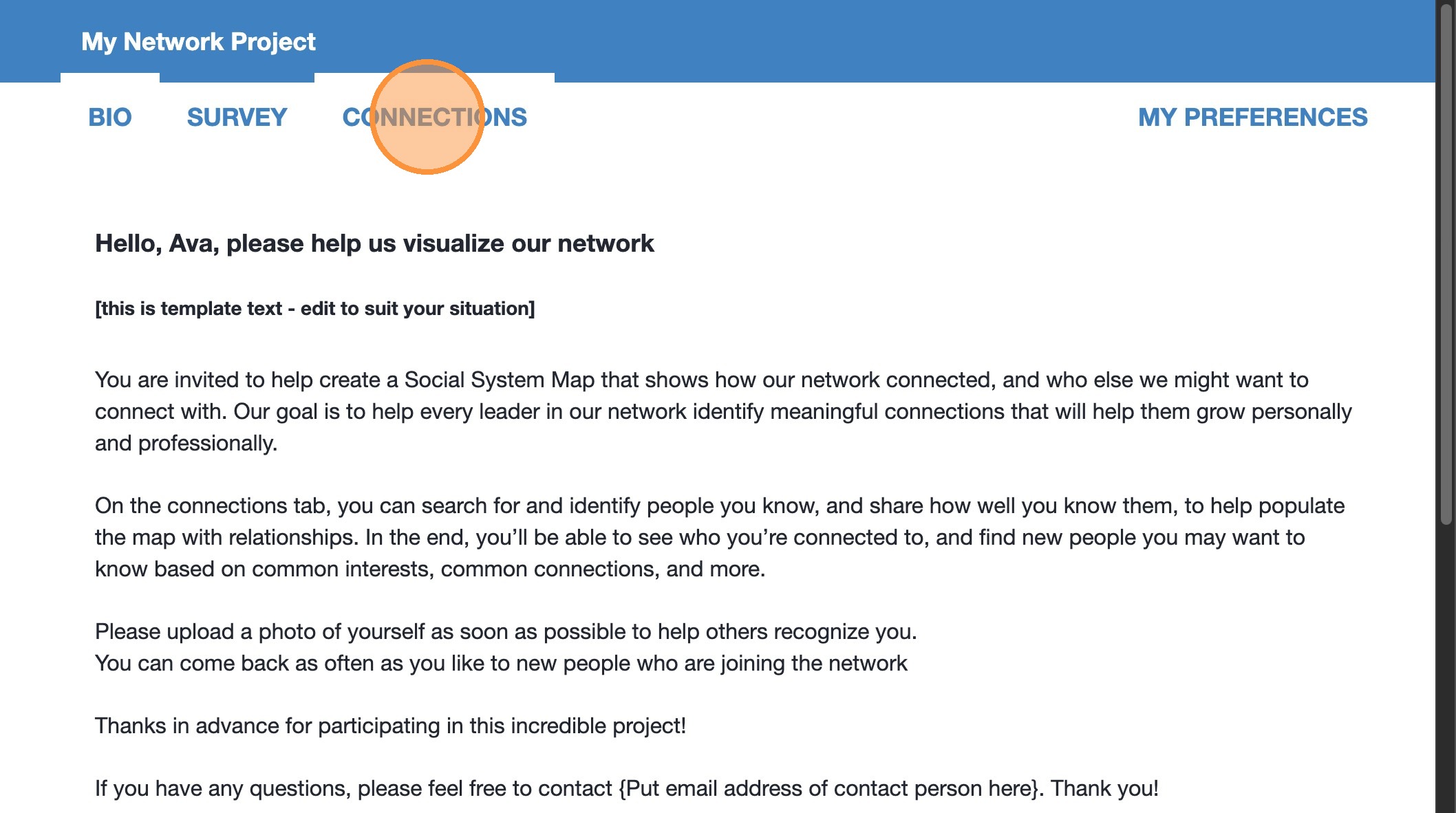
2. Select “Filter by segment” to view the segments in your network.
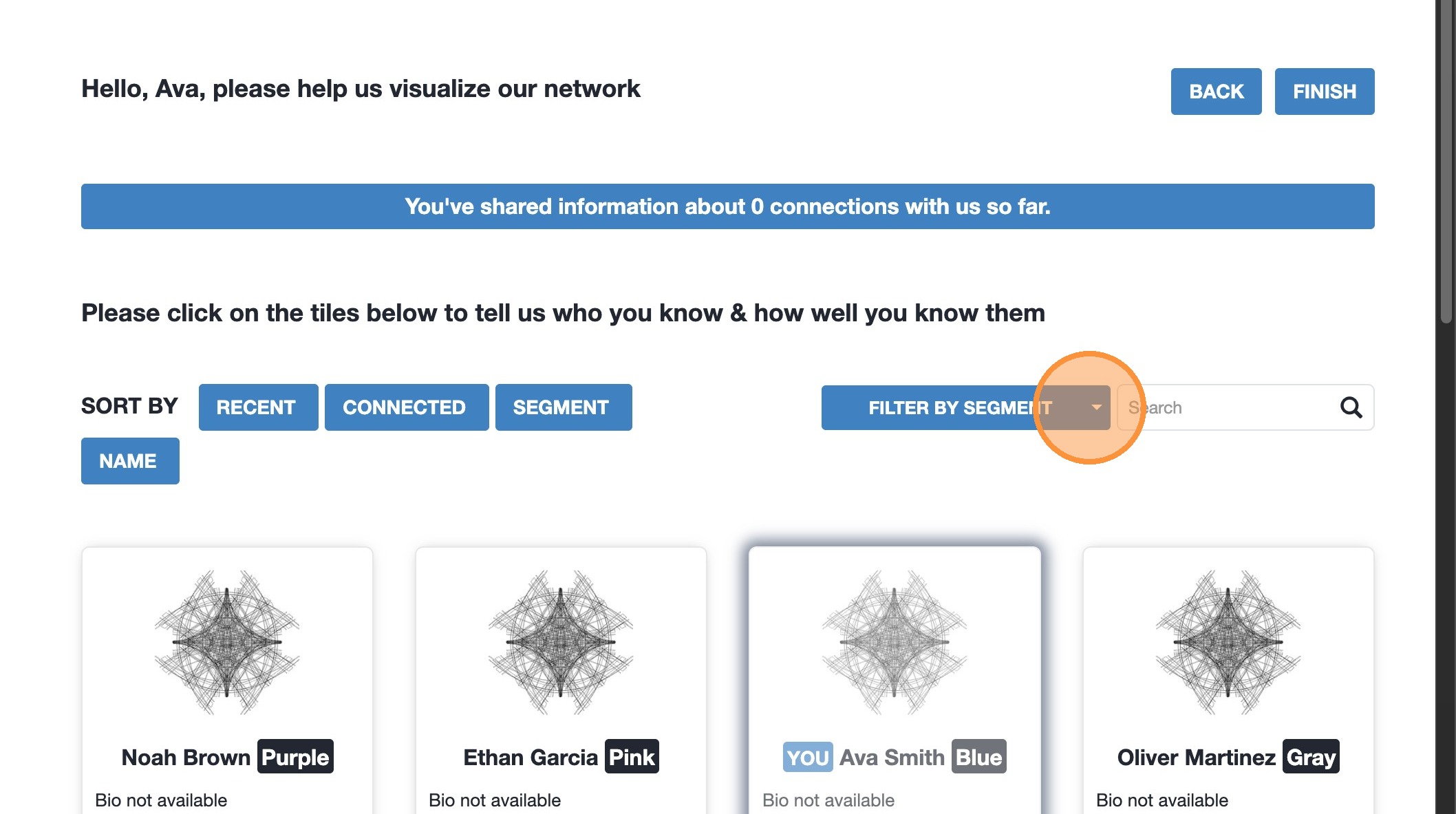
3. Select the Segment(s) you want to filter on.
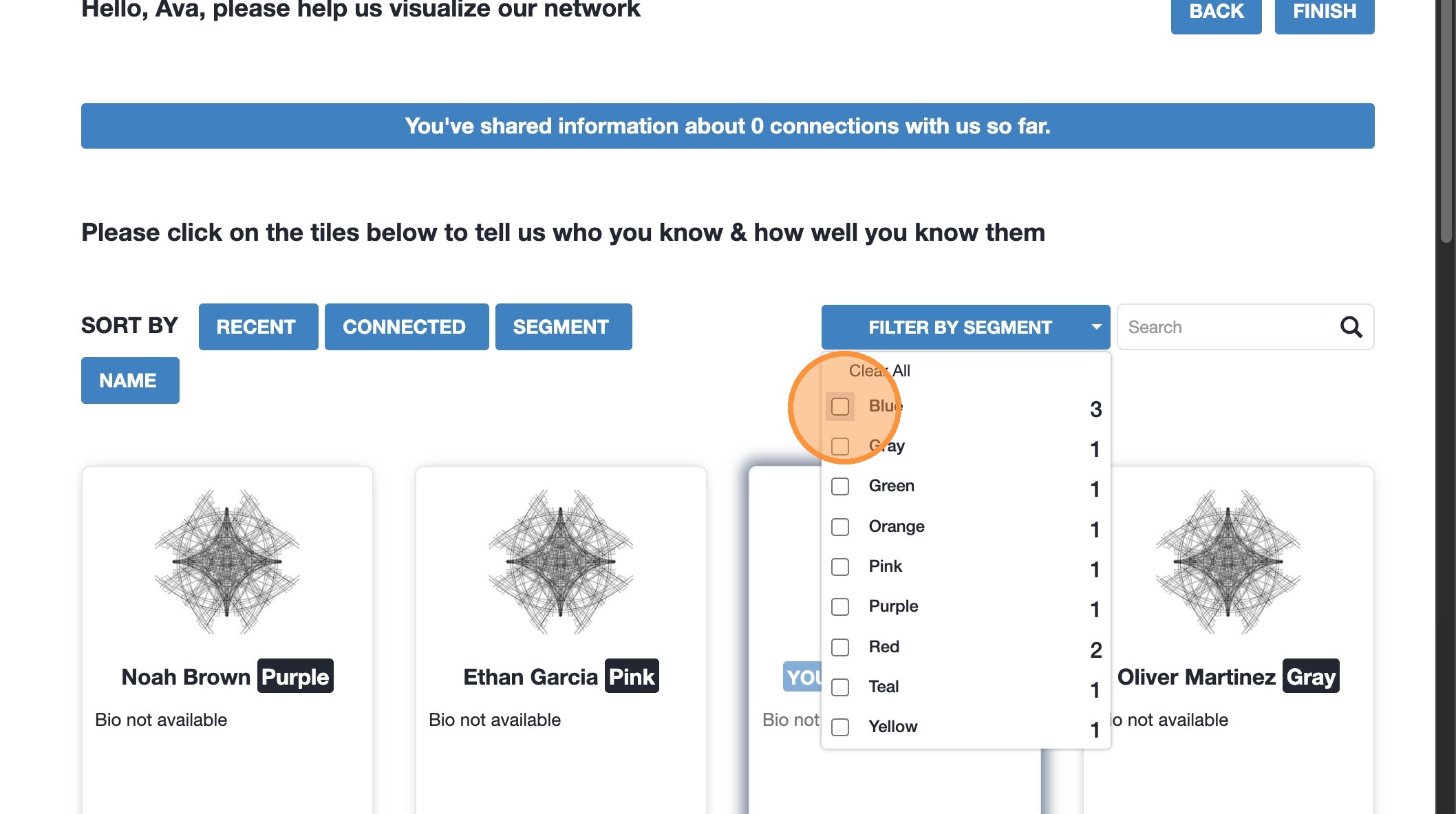
4. Members assigned to the Segment selected will appear in the member tiles below. The segment appears on the right in a box.
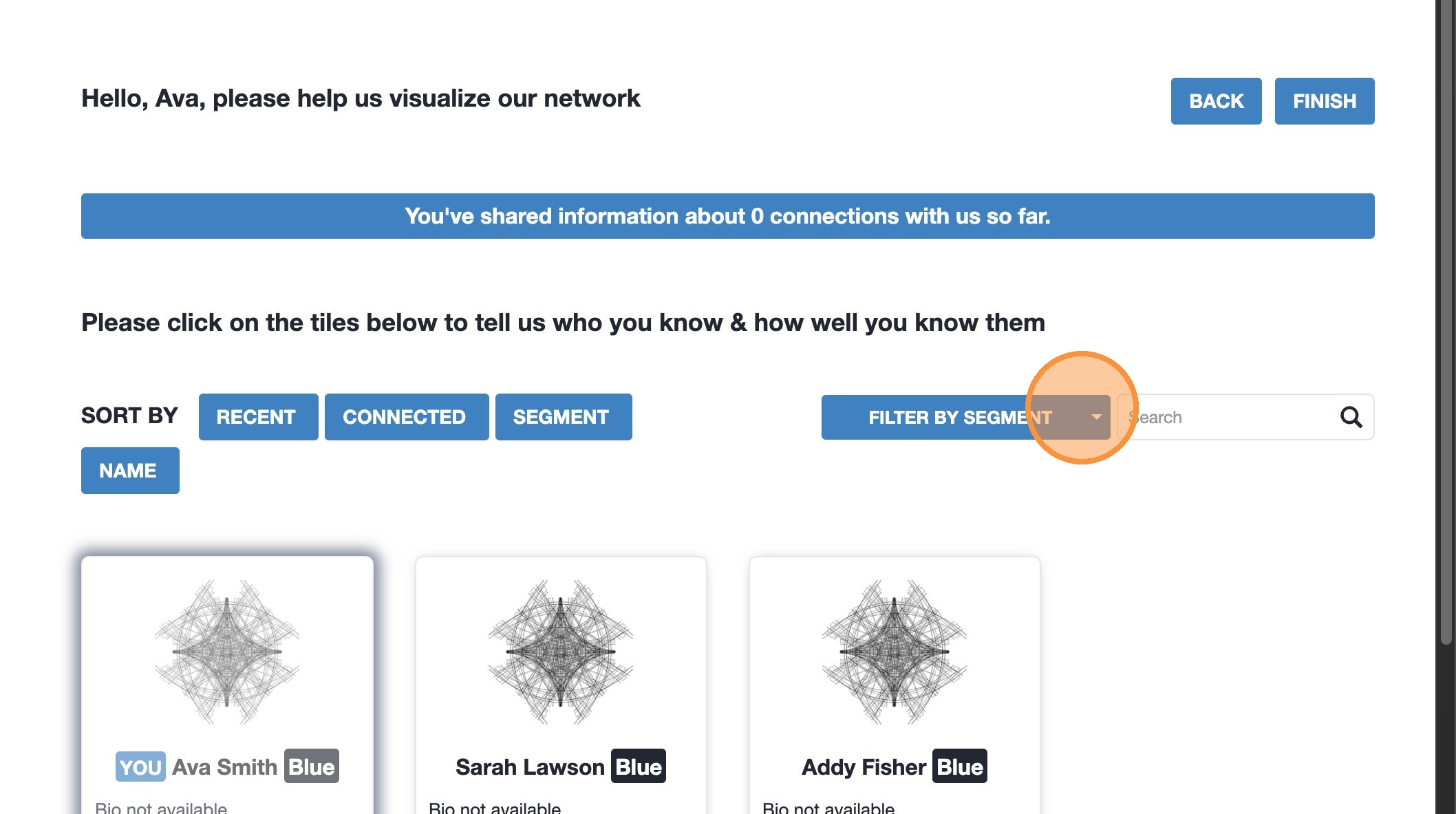
5. You can filter by multiple Segments at a time.
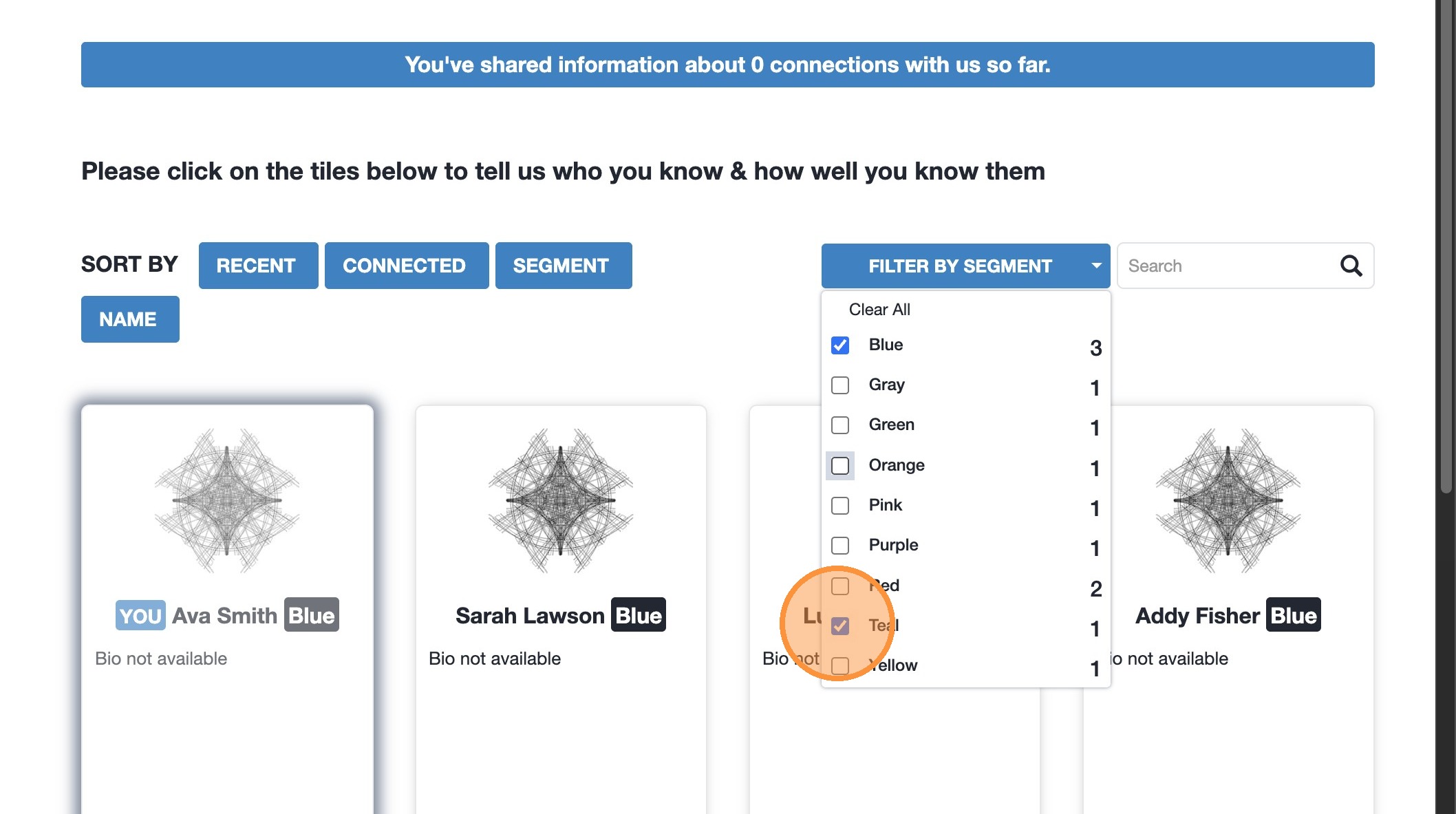
6. All members assigned to the Segments selected will appear.
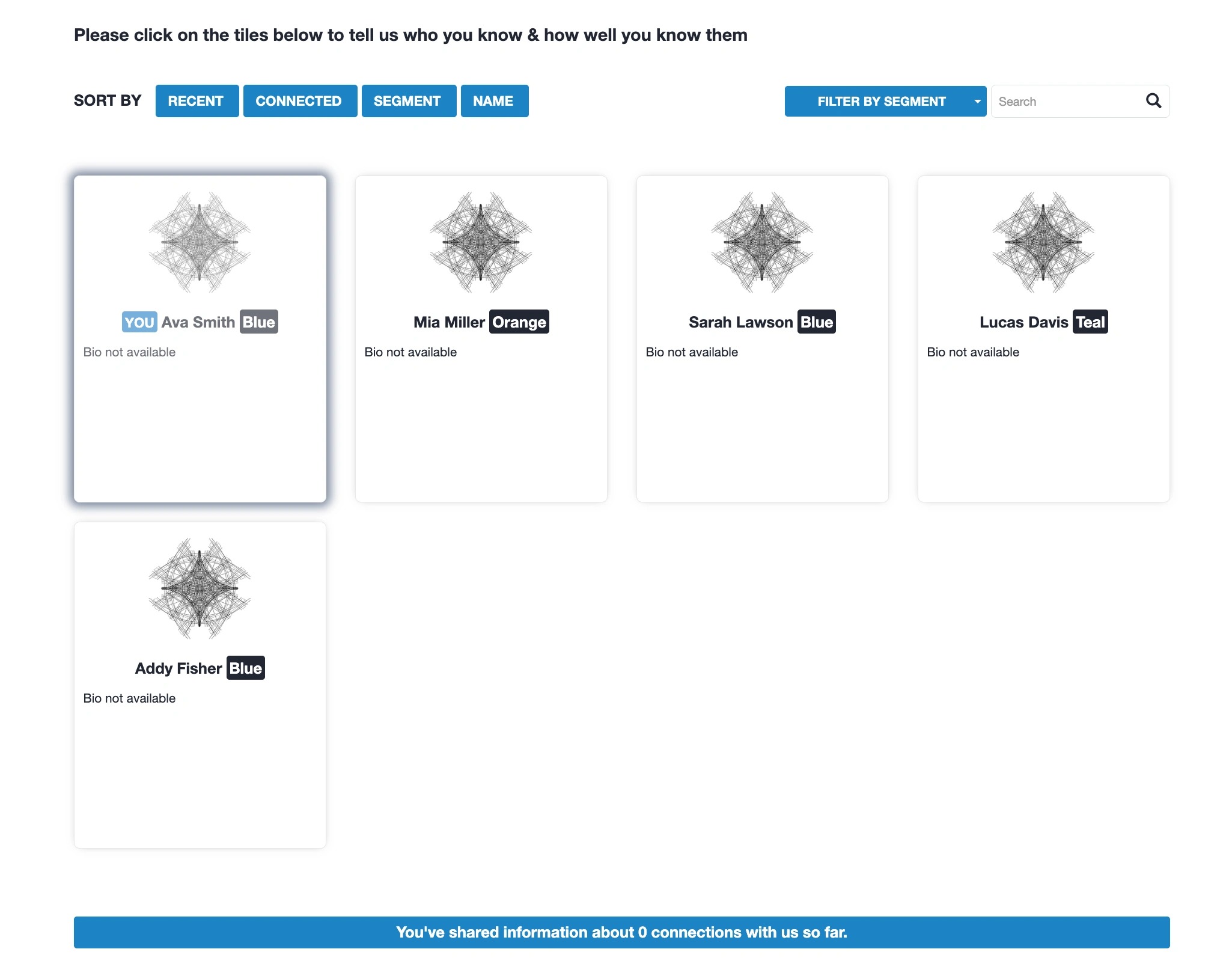
1. Click “Connections” to find members you want to add a connection to.
2. Select “Filter by segment” to view the segments in your network.
3. Select the Segment(s) you want to filter on.
4. Members assigned to the Segment selected will appear in the member tiles below. The segment appears on the right in a box.
5. You can filter by multiple Segments at a time.
6. All members assigned to the Segments selected will appear.
Settings for all Tiers
The aspects of the Member Views (outside of the survey and the connection options) that can be edited are managed in Setup > Settings:
Features of the settings page are:
1) Indicates you’re in the ‘Setup’ phase of sumApp.
2) Shows you’re on the ‘Define Settings’ page.
3) Network name – shows at top of all member view pages, in ‘network_name’ tags, and on your project list. Originally defined when creating the project, it can be changed here. Each project name must be unique.
4) Tiers II, III & IV include the survey. It can be toggled off and on, depending on your context. Checking the checkbox will show the survey in the member view, unchecking it will hide it from the member view.
5) The ‘Hello Text’ shows at the top of the member view bio page and connections page – you edit to suit your situation and can use tags to personalize the page.
6) List of tags available in the hello text
7) Welcome text – shows in body of the member view bio page. Use it to invite, orient and direct your members in the use and purpose of sumApp and your mapping project.
8) Data usage text – shows right under the welcome text on the member view bio page. Use this to be explicit about how member’s data will be used.
9) Completion message – shows when members click on ‘Finish’ at the bottom of the member view connections page. Use it to thank members and suggest/link to next steps if appropriate.
10) When checked, shows the map page option in the member view. Use this once you have at least a prototype map started in Kumu to embed the prototype into sumApp. Helps members understand why you’re collecting this data from them, enables them to start to engage with the map and to offer feedback into the map design.
11) Insert the map embed code from Kumu here so that map shows up in the map tab. How to add the embed.
12) Cancel changes made above.
13) Save changes made above.
14) Archive or delete this project. Requires account password.
Extra settings in Tier IV
Tier IV was originally created because we needed to be able to change the member view language in places to accommodate projects that looked at connections between organizations as opposed to individuals. The settings page reflects that additional needed flexibility.
You’ll see these additional fields in your settings page if you have a Tier IV account.
Tier IV Settings:
1) Element type – this doesn’t show anywhere in the sumApp interface, but it is exported with your dataset, so that if you’re merging data-sets you can specify what kinds of elements sumApp is generating. Can be whatever makes sense, such as ‘organization’, ‘team’, ‘project’ – What kind of entity are you surveying, if not persons?
2) Bio nav title – if you’re surveying organizations, ‘bio’ doesn’t make a lot of sense. You can change it to something like ‘Profile’ – shows on member view navigation bar.
3) Bio upload button text. Can change the button text on the member view bio page to something more appropriate for the entity you are surveying – such as ‘logo’.
4) Bio about help text. Shows underneath the bio field on the member view bio page. Can be edited to suit your type of entity.
5) Bio about placeholder. The text in the member view bio page bio field can be edited to suit your type of entity.
6) Bio not available. This text shows up in the member tiles on the member view connections page when a member has not yet input anything into their bio field. Can be edited to suit the entity type you’re dealing with.
7) Connections page title. Shows just above the sorting buttons on the member view connections page. Can be edited to suit the type of entity you are dealing with.
8) Connections modal title. Shows in the popped-open member tile, below the image and bio, above the connection questions. Can be edited to suit the type of entity you are dealing with.
Settings for all Tiers
The aspects of the Member Views (outside of the survey and the connection options) that can be edited are managed in Setup > Settings:
Features of the settings page are:
1) Indicates you’re in the ‘Setup’ phase of sumApp.
2) Shows you’re on the ‘Define Settings’ page.
3) Network name – shows at top of all member view pages, in ‘network_name’ tags, and on your project list. Originally defined when creating the project, it can be changed here. Each project name must be unique.
4) Tiers II, III & IV include the survey. It can be toggled off and on, depending on your context. Checking the checkbox will show the survey in the member view, unchecking it will hide it from the member view.
5) The ‘Hello Text’ shows at the top of the member view bio page and connections page – you edit to suit your situation and can use tags to personalize the page.
6) List of tags available in the hello text
7) Welcome text – shows in body of the member view bio page. Use it to invite, orient and direct your members in the use and purpose of sumApp and your mapping project.
8) Data usage text – shows right under the welcome text on the member view bio page. Use this to be explicit about how member’s data will be used.
9) Completion message – shows when members click on ‘Finish’ at the bottom of the member view connections page. Use it to thank members and suggest/link to next steps if appropriate.
10) When checked, shows the map page option in the member view. Use this once you have at least a prototype map started in Kumu to embed the prototype into sumApp. Helps members understand why you’re collecting this data from them, enables them to start to engage with the map and to offer feedback into the map design.
11) Insert the map embed code from Kumu here so that map shows up in the map tab. How to add the embed.
12) Cancel changes made above.
13) Save changes made above.
14) Archive or delete this project. Requires account password.
Extra settings in Tier IV
Tier IV was originally created because we needed to be able to change the member view language in places to accommodate projects that looked at connections between organizations as opposed to individuals. The settings page reflects that additional needed flexibility.
You’ll see these additional fields in your settings page if you have a Tier IV account.
Tier IV Settings:
1) Element type – this doesn’t show anywhere in the sumApp interface, but it is exported with your dataset, so that if you’re merging data-sets you can specify what kinds of elements sumApp is generating. Can be whatever makes sense, such as ‘organization’, ‘team’, ‘project’ – What kind of entity are you surveying, if not persons?
2) Bio nav title – if you’re surveying organizations, ‘bio’ doesn’t make a lot of sense. You can change it to something like ‘Profile’ – shows on member view navigation bar.
3) Bio upload button text. Can change the button text on the member view bio page to something more appropriate for the entity you are surveying – such as ‘logo’.
4) Bio about help text. Shows underneath the bio field on the member view bio page. Can be edited to suit your type of entity.
5) Bio about placeholder. The text in the member view bio page bio field can be edited to suit your type of entity.
6) Bio not available. This text shows up in the member tiles on the member view connections page when a member has not yet input anything into their bio field. Can be edited to suit the entity type you’re dealing with.
7) Connections page title. Shows just above the sorting buttons on the member view connections page. Can be edited to suit the type of entity you are dealing with.
8) Connections modal title. Shows in the popped-open member tile, below the image and bio, above the connection questions. Can be edited to suit the type of entity you are dealing with.
Settings for all Tiers
The aspects of the Member Views (outside of the survey and the connection options) that can be edited are managed in Setup > Settings:
Features of the settings page are:
1) Indicates you’re in the ‘Setup’ phase of sumApp.
2) Shows you’re on the ‘Define Settings’ page.
3) Network name – shows at top of all member view pages, in ‘network_name’ tags, and on your project list. Originally defined when creating the project, it can be changed here. Each project name must be unique.
4) Tiers II, III & IV include the survey. It can be toggled off and on, depending on your context. Checking the checkbox will show the survey in the member view, unchecking it will hide it from the member view.
5) The ‘Hello Text’ shows at the top of the member view bio page and connections page – you edit to suit your situation and can use tags to personalize the page.
6) List of tags available in the hello text
7) Welcome text – shows in body of the member view bio page. Use it to invite, orient and direct your members in the use and purpose of sumApp and your mapping project.
8) Data usage text – shows right under the welcome text on the member view bio page. Use this to be explicit about how member’s data will be used.
9) Completion message – shows when members click on ‘Finish’ at the bottom of the member view connections page. Use it to thank members and suggest/link to next steps if appropriate.
10) When checked, shows the map page option in the member view. Use this once you have at least a prototype map started in Kumu to embed the prototype into sumApp. Helps members understand why you’re collecting this data from them, enables them to start to engage with the map and to offer feedback into the map design.
11) Insert the map embed code from Kumu here so that map shows up in the map tab. How to add the embed.
12) Cancel changes made above.
13) Save changes made above.
14) Archive or delete this project. Requires account password.
Extra settings in Tier IV
Tier IV was originally created because we needed to be able to change the member view language in places to accommodate projects that looked at connections between organizations as opposed to individuals. The settings page reflects that additional needed flexibility.
You’ll see these additional fields in your settings page if you have a Tier IV account.
Tier IV Settings:
1) Element type – this doesn’t show anywhere in the sumApp interface, but it is exported with your dataset, so that if you’re merging data-sets you can specify what kinds of elements sumApp is generating. Can be whatever makes sense, such as ‘organization’, ‘team’, ‘project’ – What kind of entity are you surveying, if not persons?
2) Bio nav title – if you’re surveying organizations, ‘bio’ doesn’t make a lot of sense. You can change it to something like ‘Profile’ – shows on member view navigation bar.
3) Bio upload button text. Can change the button text on the member view bio page to something more appropriate for the entity you are surveying – such as ‘logo’.
4) Bio about help text. Shows underneath the bio field on the member view bio page. Can be edited to suit your type of entity.
5) Bio about placeholder. The text in the member view bio page bio field can be edited to suit your type of entity.
6) Bio not available. This text shows up in the member tiles on the member view connections page when a member has not yet input anything into their bio field. Can be edited to suit the entity type you’re dealing with.
7) Connections page title. Shows just above the sorting buttons on the member view connections page. Can be edited to suit the type of entity you are dealing with.
8) Connections modal title. Shows in the popped-open member tile, below the image and bio, above the connection questions. Can be edited to suit the type of entity you are dealing with.
Settings for all Tiers
The aspects of the Member Views (outside of the survey and the connection options) that can be edited are managed in Setup > Settings:
Features of the settings page are:
1) Indicates you’re in the ‘Setup’ phase of sumApp.
2) Shows you’re on the ‘Define Settings’ page.
3) Network name – shows at top of all member view pages, in ‘network_name’ tags, and on your project list. Originally defined when creating the project, it can be changed here. Each project name must be unique.
4) Tiers II, III & IV include the survey. It can be toggled off and on, depending on your context. Checking the checkbox will show the survey in the member view, unchecking it will hide it from the member view.
5) The ‘Hello Text’ shows at the top of the member view bio page and connections page – you edit to suit your situation and can use tags to personalize the page.
6) List of tags available in the hello text
7) Welcome text – shows in body of the member view bio page. Use it to invite, orient and direct your members in the use and purpose of sumApp and your mapping project.
8) Data usage text – shows right under the welcome text on the member view bio page. Use this to be explicit about how member’s data will be used.
9) Completion message – shows when members click on ‘Finish’ at the bottom of the member view connections page. Use it to thank members and suggest/link to next steps if appropriate.
10) When checked, shows the map page option in the member view. Use this once you have at least a prototype map started in Kumu to embed the prototype into sumApp. Helps members understand why you’re collecting this data from them, enables them to start to engage with the map and to offer feedback into the map design.
11) Insert the map embed code from Kumu here so that map shows up in the map tab. How to add the embed.
12) Cancel changes made above.
13) Save changes made above.
14) Archive or delete this project. Requires account password.
Extra settings in Tier IV
Tier IV was originally created because we needed to be able to change the member view language in places to accommodate projects that looked at connections between organizations as opposed to individuals. The settings page reflects that additional needed flexibility.
You’ll see these additional fields in your settings page if you have a Tier IV account.
Tier IV Settings:
1) Element type – this doesn’t show anywhere in the sumApp interface, but it is exported with your dataset, so that if you’re merging data-sets you can specify what kinds of elements sumApp is generating. Can be whatever makes sense, such as ‘organization’, ‘team’, ‘project’ – What kind of entity are you surveying, if not persons?
2) Bio nav title – if you’re surveying organizations, ‘bio’ doesn’t make a lot of sense. You can change it to something like ‘Profile’ – shows on member view navigation bar.
3) Bio upload button text. Can change the button text on the member view bio page to something more appropriate for the entity you are surveying – such as ‘logo’.
4) Bio about help text. Shows underneath the bio field on the member view bio page. Can be edited to suit your type of entity.
5) Bio about placeholder. The text in the member view bio page bio field can be edited to suit your type of entity.
6) Bio not available. This text shows up in the member tiles on the member view connections page when a member has not yet input anything into their bio field. Can be edited to suit the entity type you’re dealing with.
7) Connections page title. Shows just above the sorting buttons on the member view connections page. Can be edited to suit the type of entity you are dealing with.
8) Connections modal title. Shows in the popped-open member tile, below the image and bio, above the connection questions. Can be edited to suit the type of entity you are dealing with.
Settings for all Tiers
The aspects of the Member Views (outside of the survey and the connection options) that can be edited are managed in Setup > Settings:
Features of the settings page are:
1) Indicates you’re in the ‘Setup’ phase of sumApp.
2) Shows you’re on the ‘Define Settings’ page.
3) Network name – shows at top of all member view pages, in ‘network_name’ tags, and on your project list. Originally defined when creating the project, it can be changed here. Each project name must be unique.
4) Tiers II, III & IV include the survey. It can be toggled off and on, depending on your context. Checking the checkbox will show the survey in the member view, unchecking it will hide it from the member view.
5) The ‘Hello Text’ shows at the top of the member view bio page and connections page – you edit to suit your situation and can use tags to personalize the page.
6) List of tags available in the hello text
7) Welcome text – shows in body of the member view bio page. Use it to invite, orient and direct your members in the use and purpose of sumApp and your mapping project.
8) Data usage text – shows right under the welcome text on the member view bio page. Use this to be explicit about how member’s data will be used.
9) Completion message – shows when members click on ‘Finish’ at the bottom of the member view connections page. Use it to thank members and suggest/link to next steps if appropriate.
10) When checked, shows the map page option in the member view. Use this once you have at least a prototype map started in Kumu to embed the prototype into sumApp. Helps members understand why you’re collecting this data from them, enables them to start to engage with the map and to offer feedback into the map design.
11) Insert the map embed code from Kumu here so that map shows up in the map tab. How to add the embed.
12) Cancel changes made above.
13) Save changes made above.
14) Archive or delete this project. Requires account password.
Extra settings in Tier IV
Tier IV was originally created because we needed to be able to change the member view language in places to accommodate projects that looked at connections between organizations as opposed to individuals. The settings page reflects that additional needed flexibility.
You’ll see these additional fields in your settings page if you have a Tier IV account.
Tier IV Settings:
1) Element type – this doesn’t show anywhere in the sumApp interface, but it is exported with your dataset, so that if you’re merging data-sets you can specify what kinds of elements sumApp is generating. Can be whatever makes sense, such as ‘organization’, ‘team’, ‘project’ – What kind of entity are you surveying, if not persons?
2) Bio nav title – if you’re surveying organizations, ‘bio’ doesn’t make a lot of sense. You can change it to something like ‘Profile’ – shows on member view navigation bar.
3) Bio upload button text. Can change the button text on the member view bio page to something more appropriate for the entity you are surveying – such as ‘logo’.
4) Bio about help text. Shows underneath the bio field on the member view bio page. Can be edited to suit your type of entity.
5) Bio about placeholder. The text in the member view bio page bio field can be edited to suit your type of entity.
6) Bio not available. This text shows up in the member tiles on the member view connections page when a member has not yet input anything into their bio field. Can be edited to suit the entity type you’re dealing with.
7) Connections page title. Shows just above the sorting buttons on the member view connections page. Can be edited to suit the type of entity you are dealing with.
8) Connections modal title. Shows in the popped-open member tile, below the image and bio, above the connection questions. Can be edited to suit the type of entity you are dealing with.
The Bio page is the first page your members will see when they click on the link included in their sumApp invitation email. It is meant to help orient your members to the project’s process and purpose and give each member the opportunity to help others in the network identify them easily on the Connections page.
Features of the Bio page
1) Project name – defined when the project was created. Can be changed in
2) Member View Navigation Bar. Members can skip forward through the app to whichever page they want to see. The Bio tab is editable in Tier IV, in
3) If the member has already shared connections in the connections page, the blue info bar at the top tells them how many they’ve shared.
4) ‘Hello Text’. Editable in all Tiers,
5) ‘Welcome Text’. Editable in all Tiers,
6) ‘Data Usage Text’. Editable in all Tiers, Make sure you are clear and accurate about how private or public the map and the data in it will be.
7) The profile picture upload. Members who have a Gravitar account associated with the email address you are using, their ‘gravitar’ will be pulled in automatically. They can replace it using the upload function if desired. Helps members easily identify one another on the connections page and you can show the picture in the member nodes in the Kumu map. The text on the blue button is editable in Tier IV, in Settings.
8) An (old-school) tweet-sized space for member to share a little info about themselves to help others in the network identify them easily. Limit is 140 characters (not words!). The light blue description text below the field is editable in Tier IV, in Settings.
9) Character countdown showing how many unused characters remain in the field (in #8).
10) Proceed button – saves bio text and proceeds to the survey page.
You can change your options in Setup > Define connection options – #1 & #2 in image below.
Tiers I & II have a simple, single-question interface – #3 in image below.
- Edit the options in #3 in the image above.
- You can use as few or as many options as you like, but don’t use so many it becomes hard for your members to decide.
- Only one option can be selected from the list.
- The options should be general enough to encompass the range of possible connections without making an exhaustive list.
- Don’t include ‘don’t know’ as an option – that will require everyone in the network to reply regarding everyone else in the network, and it will generate a whole lot of unnecessary data.
- Set your options to be ranked with increasing strength.
- You can preview the options in the preview panel below the editor.
- Don’t forget to save! #5 in image.
- Options show up on the member view connections page in the member tiles when they are clicked open.
Settings for all Tiers
The aspects of the Member Views (outside of the survey and the connection options) that can be edited are managed in Setup > Settings:
Features of the settings page are:
1) Indicates you’re in the ‘Setup’ phase of sumApp.
2) Shows you’re on the ‘Define Settings’ page.
3) Network name – shows at top of all member view pages, in ‘network_name’ tags, and on your project list. Originally defined when creating the project, it can be changed here. Each project name must be unique.
4) Tiers II, III & IV include the survey. It can be toggled off and on, depending on your context. Checking the checkbox will show the survey in the member view, unchecking it will hide it from the member view.
5) The ‘Hello Text’ shows at the top of the member view bio page and connections page – you edit to suit your situation and can use tags to personalize the page.
6) List of tags available in the hello text
7) Welcome text – shows in body of the member view bio page. Use it to invite, orient and direct your members in the use and purpose of sumApp and your mapping project.
8) Data usage text – shows right under the welcome text on the member view bio page. Use this to be explicit about how member’s data will be used.
9) Completion message – shows when members click on ‘Finish’ at the bottom of the member view connections page. Use it to thank members and suggest/link to next steps if appropriate.
10) When checked, shows the map page option in the member view. Use this once you have at least a prototype map started in Kumu to embed the prototype into sumApp. Helps members understand why you’re collecting this data from them, enables them to start to engage with the map and to offer feedback into the map design.
11) Insert the map embed code from Kumu here so that map shows up in the map tab. How to add the embed.
12) Cancel changes made above.
13) Save changes made above.
14) Archive or delete this project. Requires account password.
Extra settings in Tier IV
Tier IV was originally created because we needed to be able to change the member view language in places to accommodate projects that looked at connections between organizations as opposed to individuals. The settings page reflects that additional needed flexibility.
You’ll see these additional fields in your settings page if you have a Tier IV account.
Tier IV Settings:
1) Element type – this doesn’t show anywhere in the sumApp interface, but it is exported with your dataset, so that if you’re merging data-sets you can specify what kinds of elements sumApp is generating. Can be whatever makes sense, such as ‘organization’, ‘team’, ‘project’ – What kind of entity are you surveying, if not persons?
2) Bio nav title – if you’re surveying organizations, ‘bio’ doesn’t make a lot of sense. You can change it to something like ‘Profile’ – shows on member view navigation bar.
3) Bio upload button text. Can change the button text on the member view bio page to something more appropriate for the entity you are surveying – such as ‘logo’.
4) Bio about help text. Shows underneath the bio field on the member view bio page. Can be edited to suit your type of entity.
5) Bio about placeholder. The text in the member view bio page bio field can be edited to suit your type of entity.
6) Bio not available. This text shows up in the member tiles on the member view connections page when a member has not yet input anything into their bio field. Can be edited to suit the entity type you’re dealing with.
7) Connections page title. Shows just above the sorting buttons on the member view connections page. Can be edited to suit the type of entity you are dealing with.
8) Connections modal title. Shows in the popped-open member tile, below the image and bio, above the connection questions. Can be edited to suit the type of entity you are dealing with.
Settings for all Tiers
The aspects of the Member Views (outside of the survey and the connection options) that can be edited are managed in Setup > Settings:
Features of the settings page are:
1) Indicates you’re in the ‘Setup’ phase of sumApp.
2) Shows you’re on the ‘Define Settings’ page.
3) Network name – shows at top of all member view pages, in ‘network_name’ tags, and on your project list. Originally defined when creating the project, it can be changed here. Each project name must be unique.
4) Tiers II, III & IV include the survey. It can be toggled off and on, depending on your context. Checking the checkbox will show the survey in the member view, unchecking it will hide it from the member view.
5) The ‘Hello Text’ shows at the top of the member view bio page and connections page – you edit to suit your situation and can use tags to personalize the page.
6) List of tags available in the hello text
7) Welcome text – shows in body of the member view bio page. Use it to invite, orient and direct your members in the use and purpose of sumApp and your mapping project.
8) Data usage text – shows right under the welcome text on the member view bio page. Use this to be explicit about how member’s data will be used.
9) Completion message – shows when members click on ‘Finish’ at the bottom of the member view connections page. Use it to thank members and suggest/link to next steps if appropriate.
10) When checked, shows the map page option in the member view. Use this once you have at least a prototype map started in Kumu to embed the prototype into sumApp. Helps members understand why you’re collecting this data from them, enables them to start to engage with the map and to offer feedback into the map design.
11) Insert the map embed code from Kumu here so that map shows up in the map tab. How to add the embed.
12) Cancel changes made above.
13) Save changes made above.
14) Archive or delete this project. Requires account password.
Extra settings in Tier IV
Tier IV was originally created because we needed to be able to change the member view language in places to accommodate projects that looked at connections between organizations as opposed to individuals. The settings page reflects that additional needed flexibility.
You’ll see these additional fields in your settings page if you have a Tier IV account.
Tier IV Settings:
1) Element type – this doesn’t show anywhere in the sumApp interface, but it is exported with your dataset, so that if you’re merging data-sets you can specify what kinds of elements sumApp is generating. Can be whatever makes sense, such as ‘organization’, ‘team’, ‘project’ – What kind of entity are you surveying, if not persons?
2) Bio nav title – if you’re surveying organizations, ‘bio’ doesn’t make a lot of sense. You can change it to something like ‘Profile’ – shows on member view navigation bar.
3) Bio upload button text. Can change the button text on the member view bio page to something more appropriate for the entity you are surveying – such as ‘logo’.
4) Bio about help text. Shows underneath the bio field on the member view bio page. Can be edited to suit your type of entity.
5) Bio about placeholder. The text in the member view bio page bio field can be edited to suit your type of entity.
6) Bio not available. This text shows up in the member tiles on the member view connections page when a member has not yet input anything into their bio field. Can be edited to suit the entity type you’re dealing with.
7) Connections page title. Shows just above the sorting buttons on the member view connections page. Can be edited to suit the type of entity you are dealing with.
8) Connections modal title. Shows in the popped-open member tile, below the image and bio, above the connection questions. Can be edited to suit the type of entity you are dealing with.
Settings for all Tiers
The aspects of the Member Views (outside of the survey and the connection options) that can be edited are managed in Setup > Settings:
Features of the settings page are:
1) Indicates you’re in the ‘Setup’ phase of sumApp.
2) Shows you’re on the ‘Define Settings’ page.
3) Network name – shows at top of all member view pages, in ‘network_name’ tags, and on your project list. Originally defined when creating the project, it can be changed here. Each project name must be unique.
4) Tiers II, III & IV include the survey. It can be toggled off and on, depending on your context. Checking the checkbox will show the survey in the member view, unchecking it will hide it from the member view.
5) The ‘Hello Text’ shows at the top of the member view bio page and connections page – you edit to suit your situation and can use tags to personalize the page.
6) List of tags available in the hello text
7) Welcome text – shows in body of the member view bio page. Use it to invite, orient and direct your members in the use and purpose of sumApp and your mapping project.
8) Data usage text – shows right under the welcome text on the member view bio page. Use this to be explicit about how member’s data will be used.
9) Completion message – shows when members click on ‘Finish’ at the bottom of the member view connections page. Use it to thank members and suggest/link to next steps if appropriate.
10) When checked, shows the map page option in the member view. Use this once you have at least a prototype map started in Kumu to embed the prototype into sumApp. Helps members understand why you’re collecting this data from them, enables them to start to engage with the map and to offer feedback into the map design.
11) Insert the map embed code from Kumu here so that map shows up in the map tab. How to add the embed.
12) Cancel changes made above.
13) Save changes made above.
14) Archive or delete this project. Requires account password.
Extra settings in Tier IV
Tier IV was originally created because we needed to be able to change the member view language in places to accommodate projects that looked at connections between organizations as opposed to individuals. The settings page reflects that additional needed flexibility.
You’ll see these additional fields in your settings page if you have a Tier IV account.
Tier IV Settings:
1) Element type – this doesn’t show anywhere in the sumApp interface, but it is exported with your dataset, so that if you’re merging data-sets you can specify what kinds of elements sumApp is generating. Can be whatever makes sense, such as ‘organization’, ‘team’, ‘project’ – What kind of entity are you surveying, if not persons?
2) Bio nav title – if you’re surveying organizations, ‘bio’ doesn’t make a lot of sense. You can change it to something like ‘Profile’ – shows on member view navigation bar.
3) Bio upload button text. Can change the button text on the member view bio page to something more appropriate for the entity you are surveying – such as ‘logo’.
4) Bio about help text. Shows underneath the bio field on the member view bio page. Can be edited to suit your type of entity.
5) Bio about placeholder. The text in the member view bio page bio field can be edited to suit your type of entity.
6) Bio not available. This text shows up in the member tiles on the member view connections page when a member has not yet input anything into their bio field. Can be edited to suit the entity type you’re dealing with.
7) Connections page title. Shows just above the sorting buttons on the member view connections page. Can be edited to suit the type of entity you are dealing with.
8) Connections modal title. Shows in the popped-open member tile, below the image and bio, above the connection questions. Can be edited to suit the type of entity you are dealing with.
Settings for all Tiers
The aspects of the Member Views (outside of the survey and the connection options) that can be edited are managed in Setup > Settings:
Features of the settings page are:
1) Indicates you’re in the ‘Setup’ phase of sumApp.
2) Shows you’re on the ‘Define Settings’ page.
3) Network name – shows at top of all member view pages, in ‘network_name’ tags, and on your project list. Originally defined when creating the project, it can be changed here. Each project name must be unique.
4) Tiers II, III & IV include the survey. It can be toggled off and on, depending on your context. Checking the checkbox will show the survey in the member view, unchecking it will hide it from the member view.
5) The ‘Hello Text’ shows at the top of the member view bio page and connections page – you edit to suit your situation and can use tags to personalize the page.
6) List of tags available in the hello text
7) Welcome text – shows in body of the member view bio page. Use it to invite, orient and direct your members in the use and purpose of sumApp and your mapping project.
8) Data usage text – shows right under the welcome text on the member view bio page. Use this to be explicit about how member’s data will be used.
9) Completion message – shows when members click on ‘Finish’ at the bottom of the member view connections page. Use it to thank members and suggest/link to next steps if appropriate.
10) When checked, shows the map page option in the member view. Use this once you have at least a prototype map started in Kumu to embed the prototype into sumApp. Helps members understand why you’re collecting this data from them, enables them to start to engage with the map and to offer feedback into the map design.
11) Insert the map embed code from Kumu here so that map shows up in the map tab. How to add the embed.
12) Cancel changes made above.
13) Save changes made above.
14) Archive or delete this project. Requires account password.
Extra settings in Tier IV
Tier IV was originally created because we needed to be able to change the member view language in places to accommodate projects that looked at connections between organizations as opposed to individuals. The settings page reflects that additional needed flexibility.
You’ll see these additional fields in your settings page if you have a Tier IV account.
Tier IV Settings:
1) Element type – this doesn’t show anywhere in the sumApp interface, but it is exported with your dataset, so that if you’re merging data-sets you can specify what kinds of elements sumApp is generating. Can be whatever makes sense, such as ‘organization’, ‘team’, ‘project’ – What kind of entity are you surveying, if not persons?
2) Bio nav title – if you’re surveying organizations, ‘bio’ doesn’t make a lot of sense. You can change it to something like ‘Profile’ – shows on member view navigation bar.
3) Bio upload button text. Can change the button text on the member view bio page to something more appropriate for the entity you are surveying – such as ‘logo’.
4) Bio about help text. Shows underneath the bio field on the member view bio page. Can be edited to suit your type of entity.
5) Bio about placeholder. The text in the member view bio page bio field can be edited to suit your type of entity.
6) Bio not available. This text shows up in the member tiles on the member view connections page when a member has not yet input anything into their bio field. Can be edited to suit the entity type you’re dealing with.
7) Connections page title. Shows just above the sorting buttons on the member view connections page. Can be edited to suit the type of entity you are dealing with.
8) Connections modal title. Shows in the popped-open member tile, below the image and bio, above the connection questions. Can be edited to suit the type of entity you are dealing with.
Settings for all Tiers
The aspects of the Member Views (outside of the survey and the connection options) that can be edited are managed in Setup > Settings:
Features of the settings page are:
1) Indicates you’re in the ‘Setup’ phase of sumApp.
2) Shows you’re on the ‘Define Settings’ page.
3) Network name – shows at top of all member view pages, in ‘network_name’ tags, and on your project list. Originally defined when creating the project, it can be changed here. Each project name must be unique.
4) Tiers II, III & IV include the survey. It can be toggled off and on, depending on your context. Checking the checkbox will show the survey in the member view, unchecking it will hide it from the member view.
5) The ‘Hello Text’ shows at the top of the member view bio page and connections page – you edit to suit your situation and can use tags to personalize the page.
6) List of tags available in the hello text
7) Welcome text – shows in body of the member view bio page. Use it to invite, orient and direct your members in the use and purpose of sumApp and your mapping project.
8) Data usage text – shows right under the welcome text on the member view bio page. Use this to be explicit about how member’s data will be used.
9) Completion message – shows when members click on ‘Finish’ at the bottom of the member view connections page. Use it to thank members and suggest/link to next steps if appropriate.
10) When checked, shows the map page option in the member view. Use this once you have at least a prototype map started in Kumu to embed the prototype into sumApp. Helps members understand why you’re collecting this data from them, enables them to start to engage with the map and to offer feedback into the map design.
11) Insert the map embed code from Kumu here so that map shows up in the map tab. How to add the embed.
12) Cancel changes made above.
13) Save changes made above.
14) Archive or delete this project. Requires account password.
Extra settings in Tier IV
Tier IV was originally created because we needed to be able to change the member view language in places to accommodate projects that looked at connections between organizations as opposed to individuals. The settings page reflects that additional needed flexibility.
You’ll see these additional fields in your settings page if you have a Tier IV account.
Tier IV Settings:
1) Element type – this doesn’t show anywhere in the sumApp interface, but it is exported with your dataset, so that if you’re merging data-sets you can specify what kinds of elements sumApp is generating. Can be whatever makes sense, such as ‘organization’, ‘team’, ‘project’ – What kind of entity are you surveying, if not persons?
2) Bio nav title – if you’re surveying organizations, ‘bio’ doesn’t make a lot of sense. You can change it to something like ‘Profile’ – shows on member view navigation bar.
3) Bio upload button text. Can change the button text on the member view bio page to something more appropriate for the entity you are surveying – such as ‘logo’.
4) Bio about help text. Shows underneath the bio field on the member view bio page. Can be edited to suit your type of entity.
5) Bio about placeholder. The text in the member view bio page bio field can be edited to suit your type of entity.
6) Bio not available. This text shows up in the member tiles on the member view connections page when a member has not yet input anything into their bio field. Can be edited to suit the entity type you’re dealing with.
7) Connections page title. Shows just above the sorting buttons on the member view connections page. Can be edited to suit the type of entity you are dealing with.
8) Connections modal title. Shows in the popped-open member tile, below the image and bio, above the connection questions. Can be edited to suit the type of entity you are dealing with.
The Bio page is the first page your members will see when they click on the link included in their sumApp invitation email. It is meant to help orient your members to the project’s process and purpose and give each member the opportunity to help others in the network identify them easily on the Connections page.
Features of the Bio page
1) Project name – defined when the project was created. Can be changed in
2) Member View Navigation Bar. Members can skip forward through the app to whichever page they want to see. The Bio tab is editable in Tier IV, in
3) If the member has already shared connections in the connections page, the blue info bar at the top tells them how many they’ve shared.
4) ‘Hello Text’. Editable in all Tiers,
5) ‘Welcome Text’. Editable in all Tiers,
6) ‘Data Usage Text’. Editable in all Tiers, Make sure you are clear and accurate about how private or public the map and the data in it will be.
7) The profile picture upload. Members who have a Gravitar account associated with the email address you are using, their ‘gravitar’ will be pulled in automatically. They can replace it using the upload function if desired. Helps members easily identify one another on the connections page and you can show the picture in the member nodes in the Kumu map. The text on the blue button is editable in Tier IV, in Settings.
8) An (old-school) tweet-sized space for member to share a little info about themselves to help others in the network identify them easily. Limit is 140 characters (not words!). The light blue description text below the field is editable in Tier IV, in Settings.
9) Character countdown showing how many unused characters remain in the field (in #8).
10) Proceed button – saves bio text and proceeds to the survey page.
Settings for all Tiers
The aspects of the Member Views (outside of the survey and the connection options) that can be edited are managed in Setup > Settings:
Features of the settings page are:
1) Indicates you’re in the ‘Setup’ phase of sumApp.
2) Shows you’re on the ‘Define Settings’ page.
3) Network name – shows at top of all member view pages, in ‘network_name’ tags, and on your project list. Originally defined when creating the project, it can be changed here. Each project name must be unique.
4) Tiers II, III & IV include the survey. It can be toggled off and on, depending on your context. Checking the checkbox will show the survey in the member view, unchecking it will hide it from the member view.
5) The ‘Hello Text’ shows at the top of the member view bio page and connections page – you edit to suit your situation and can use tags to personalize the page.
6) List of tags available in the hello text
7) Welcome text – shows in body of the member view bio page. Use it to invite, orient and direct your members in the use and purpose of sumApp and your mapping project.
8) Data usage text – shows right under the welcome text on the member view bio page. Use this to be explicit about how member’s data will be used.
9) Completion message – shows when members click on ‘Finish’ at the bottom of the member view connections page. Use it to thank members and suggest/link to next steps if appropriate.
10) When checked, shows the map page option in the member view. Use this once you have at least a prototype map started in Kumu to embed the prototype into sumApp. Helps members understand why you’re collecting this data from them, enables them to start to engage with the map and to offer feedback into the map design.
11) Insert the map embed code from Kumu here so that map shows up in the map tab. How to add the embed.
12) Cancel changes made above.
13) Save changes made above.
14) Archive or delete this project. Requires account password.
Extra settings in Tier IV
Tier IV was originally created because we needed to be able to change the member view language in places to accommodate projects that looked at connections between organizations as opposed to individuals. The settings page reflects that additional needed flexibility.
You’ll see these additional fields in your settings page if you have a Tier IV account.
Tier IV Settings:
1) Element type – this doesn’t show anywhere in the sumApp interface, but it is exported with your dataset, so that if you’re merging data-sets you can specify what kinds of elements sumApp is generating. Can be whatever makes sense, such as ‘organization’, ‘team’, ‘project’ – What kind of entity are you surveying, if not persons?
2) Bio nav title – if you’re surveying organizations, ‘bio’ doesn’t make a lot of sense. You can change it to something like ‘Profile’ – shows on member view navigation bar.
3) Bio upload button text. Can change the button text on the member view bio page to something more appropriate for the entity you are surveying – such as ‘logo’.
4) Bio about help text. Shows underneath the bio field on the member view bio page. Can be edited to suit your type of entity.
5) Bio about placeholder. The text in the member view bio page bio field can be edited to suit your type of entity.
6) Bio not available. This text shows up in the member tiles on the member view connections page when a member has not yet input anything into their bio field. Can be edited to suit the entity type you’re dealing with.
7) Connections page title. Shows just above the sorting buttons on the member view connections page. Can be edited to suit the type of entity you are dealing with.
8) Connections modal title. Shows in the popped-open member tile, below the image and bio, above the connection questions. Can be edited to suit the type of entity you are dealing with.
Settings for all Tiers
The aspects of the Member Views (outside of the survey and the connection options) that can be edited are managed in Setup > Settings:
Features of the settings page are:
1) Indicates you’re in the ‘Setup’ phase of sumApp.
2) Shows you’re on the ‘Define Settings’ page.
3) Network name – shows at top of all member view pages, in ‘network_name’ tags, and on your project list. Originally defined when creating the project, it can be changed here. Each project name must be unique.
4) Tiers II, III & IV include the survey. It can be toggled off and on, depending on your context. Checking the checkbox will show the survey in the member view, unchecking it will hide it from the member view.
5) The ‘Hello Text’ shows at the top of the member view bio page and connections page – you edit to suit your situation and can use tags to personalize the page.
6) List of tags available in the hello text
7) Welcome text – shows in body of the member view bio page. Use it to invite, orient and direct your members in the use and purpose of sumApp and your mapping project.
8) Data usage text – shows right under the welcome text on the member view bio page. Use this to be explicit about how member’s data will be used.
9) Completion message – shows when members click on ‘Finish’ at the bottom of the member view connections page. Use it to thank members and suggest/link to next steps if appropriate.
10) When checked, shows the map page option in the member view. Use this once you have at least a prototype map started in Kumu to embed the prototype into sumApp. Helps members understand why you’re collecting this data from them, enables them to start to engage with the map and to offer feedback into the map design.
11) Insert the map embed code from Kumu here so that map shows up in the map tab. How to add the embed.
12) Cancel changes made above.
13) Save changes made above.
14) Archive or delete this project. Requires account password.
Extra settings in Tier IV
Tier IV was originally created because we needed to be able to change the member view language in places to accommodate projects that looked at connections between organizations as opposed to individuals. The settings page reflects that additional needed flexibility.
You’ll see these additional fields in your settings page if you have a Tier IV account.
Tier IV Settings:
1) Element type – this doesn’t show anywhere in the sumApp interface, but it is exported with your dataset, so that if you’re merging data-sets you can specify what kinds of elements sumApp is generating. Can be whatever makes sense, such as ‘organization’, ‘team’, ‘project’ – What kind of entity are you surveying, if not persons?
2) Bio nav title – if you’re surveying organizations, ‘bio’ doesn’t make a lot of sense. You can change it to something like ‘Profile’ – shows on member view navigation bar.
3) Bio upload button text. Can change the button text on the member view bio page to something more appropriate for the entity you are surveying – such as ‘logo’.
4) Bio about help text. Shows underneath the bio field on the member view bio page. Can be edited to suit your type of entity.
5) Bio about placeholder. The text in the member view bio page bio field can be edited to suit your type of entity.
6) Bio not available. This text shows up in the member tiles on the member view connections page when a member has not yet input anything into their bio field. Can be edited to suit the entity type you’re dealing with.
7) Connections page title. Shows just above the sorting buttons on the member view connections page. Can be edited to suit the type of entity you are dealing with.
8) Connections modal title. Shows in the popped-open member tile, below the image and bio, above the connection questions. Can be edited to suit the type of entity you are dealing with.
Settings for all Tiers
The aspects of the Member Views (outside of the survey and the connection options) that can be edited are managed in Setup > Settings:
Features of the settings page are:
1) Indicates you’re in the ‘Setup’ phase of sumApp.
2) Shows you’re on the ‘Define Settings’ page.
3) Network name – shows at top of all member view pages, in ‘network_name’ tags, and on your project list. Originally defined when creating the project, it can be changed here. Each project name must be unique.
4) Tiers II, III & IV include the survey. It can be toggled off and on, depending on your context. Checking the checkbox will show the survey in the member view, unchecking it will hide it from the member view.
5) The ‘Hello Text’ shows at the top of the member view bio page and connections page – you edit to suit your situation and can use tags to personalize the page.
6) List of tags available in the hello text
7) Welcome text – shows in body of the member view bio page. Use it to invite, orient and direct your members in the use and purpose of sumApp and your mapping project.
8) Data usage text – shows right under the welcome text on the member view bio page. Use this to be explicit about how member’s data will be used.
9) Completion message – shows when members click on ‘Finish’ at the bottom of the member view connections page. Use it to thank members and suggest/link to next steps if appropriate.
10) When checked, shows the map page option in the member view. Use this once you have at least a prototype map started in Kumu to embed the prototype into sumApp. Helps members understand why you’re collecting this data from them, enables them to start to engage with the map and to offer feedback into the map design.
11) Insert the map embed code from Kumu here so that map shows up in the map tab. How to add the embed.
12) Cancel changes made above.
13) Save changes made above.
14) Archive or delete this project. Requires account password.
Extra settings in Tier IV
Tier IV was originally created because we needed to be able to change the member view language in places to accommodate projects that looked at connections between organizations as opposed to individuals. The settings page reflects that additional needed flexibility.
You’ll see these additional fields in your settings page if you have a Tier IV account.
Tier IV Settings:
1) Element type – this doesn’t show anywhere in the sumApp interface, but it is exported with your dataset, so that if you’re merging data-sets you can specify what kinds of elements sumApp is generating. Can be whatever makes sense, such as ‘organization’, ‘team’, ‘project’ – What kind of entity are you surveying, if not persons?
2) Bio nav title – if you’re surveying organizations, ‘bio’ doesn’t make a lot of sense. You can change it to something like ‘Profile’ – shows on member view navigation bar.
3) Bio upload button text. Can change the button text on the member view bio page to something more appropriate for the entity you are surveying – such as ‘logo’.
4) Bio about help text. Shows underneath the bio field on the member view bio page. Can be edited to suit your type of entity.
5) Bio about placeholder. The text in the member view bio page bio field can be edited to suit your type of entity.
6) Bio not available. This text shows up in the member tiles on the member view connections page when a member has not yet input anything into their bio field. Can be edited to suit the entity type you’re dealing with.
7) Connections page title. Shows just above the sorting buttons on the member view connections page. Can be edited to suit the type of entity you are dealing with.
8) Connections modal title. Shows in the popped-open member tile, below the image and bio, above the connection questions. Can be edited to suit the type of entity you are dealing with.
Settings for all Tiers
The aspects of the Member Views (outside of the survey and the connection options) that can be edited are managed in Setup > Settings:
Features of the settings page are:
1) Indicates you’re in the ‘Setup’ phase of sumApp.
2) Shows you’re on the ‘Define Settings’ page.
3) Network name – shows at top of all member view pages, in ‘network_name’ tags, and on your project list. Originally defined when creating the project, it can be changed here. Each project name must be unique.
4) Tiers II, III & IV include the survey. It can be toggled off and on, depending on your context. Checking the checkbox will show the survey in the member view, unchecking it will hide it from the member view.
5) The ‘Hello Text’ shows at the top of the member view bio page and connections page – you edit to suit your situation and can use tags to personalize the page.
6) List of tags available in the hello text
7) Welcome text – shows in body of the member view bio page. Use it to invite, orient and direct your members in the use and purpose of sumApp and your mapping project.
8) Data usage text – shows right under the welcome text on the member view bio page. Use this to be explicit about how member’s data will be used.
9) Completion message – shows when members click on ‘Finish’ at the bottom of the member view connections page. Use it to thank members and suggest/link to next steps if appropriate.
10) When checked, shows the map page option in the member view. Use this once you have at least a prototype map started in Kumu to embed the prototype into sumApp. Helps members understand why you’re collecting this data from them, enables them to start to engage with the map and to offer feedback into the map design.
11) Insert the map embed code from Kumu here so that map shows up in the map tab. How to add the embed.
12) Cancel changes made above.
13) Save changes made above.
14) Archive or delete this project. Requires account password.
Extra settings in Tier IV
Tier IV was originally created because we needed to be able to change the member view language in places to accommodate projects that looked at connections between organizations as opposed to individuals. The settings page reflects that additional needed flexibility.
You’ll see these additional fields in your settings page if you have a Tier IV account.
Tier IV Settings:
1) Element type – this doesn’t show anywhere in the sumApp interface, but it is exported with your dataset, so that if you’re merging data-sets you can specify what kinds of elements sumApp is generating. Can be whatever makes sense, such as ‘organization’, ‘team’, ‘project’ – What kind of entity are you surveying, if not persons?
2) Bio nav title – if you’re surveying organizations, ‘bio’ doesn’t make a lot of sense. You can change it to something like ‘Profile’ – shows on member view navigation bar.
3) Bio upload button text. Can change the button text on the member view bio page to something more appropriate for the entity you are surveying – such as ‘logo’.
4) Bio about help text. Shows underneath the bio field on the member view bio page. Can be edited to suit your type of entity.
5) Bio about placeholder. The text in the member view bio page bio field can be edited to suit your type of entity.
6) Bio not available. This text shows up in the member tiles on the member view connections page when a member has not yet input anything into their bio field. Can be edited to suit the entity type you’re dealing with.
7) Connections page title. Shows just above the sorting buttons on the member view connections page. Can be edited to suit the type of entity you are dealing with.
8) Connections modal title. Shows in the popped-open member tile, below the image and bio, above the connection questions. Can be edited to suit the type of entity you are dealing with.
Settings for all Tiers
The aspects of the Member Views (outside of the survey and the connection options) that can be edited are managed in Setup > Settings:
Features of the settings page are:
1) Indicates you’re in the ‘Setup’ phase of sumApp.
2) Shows you’re on the ‘Define Settings’ page.
3) Network name – shows at top of all member view pages, in ‘network_name’ tags, and on your project list. Originally defined when creating the project, it can be changed here. Each project name must be unique.
4) Tiers II, III & IV include the survey. It can be toggled off and on, depending on your context. Checking the checkbox will show the survey in the member view, unchecking it will hide it from the member view.
5) The ‘Hello Text’ shows at the top of the member view bio page and connections page – you edit to suit your situation and can use tags to personalize the page.
6) List of tags available in the hello text
7) Welcome text – shows in body of the member view bio page. Use it to invite, orient and direct your members in the use and purpose of sumApp and your mapping project.
8) Data usage text – shows right under the welcome text on the member view bio page. Use this to be explicit about how member’s data will be used.
9) Completion message – shows when members click on ‘Finish’ at the bottom of the member view connections page. Use it to thank members and suggest/link to next steps if appropriate.
10) When checked, shows the map page option in the member view. Use this once you have at least a prototype map started in Kumu to embed the prototype into sumApp. Helps members understand why you’re collecting this data from them, enables them to start to engage with the map and to offer feedback into the map design.
11) Insert the map embed code from Kumu here so that map shows up in the map tab. How to add the embed.
12) Cancel changes made above.
13) Save changes made above.
14) Archive or delete this project. Requires account password.
Extra settings in Tier IV
Tier IV was originally created because we needed to be able to change the member view language in places to accommodate projects that looked at connections between organizations as opposed to individuals. The settings page reflects that additional needed flexibility.
You’ll see these additional fields in your settings page if you have a Tier IV account.
Tier IV Settings:
1) Element type – this doesn’t show anywhere in the sumApp interface, but it is exported with your dataset, so that if you’re merging data-sets you can specify what kinds of elements sumApp is generating. Can be whatever makes sense, such as ‘organization’, ‘team’, ‘project’ – What kind of entity are you surveying, if not persons?
2) Bio nav title – if you’re surveying organizations, ‘bio’ doesn’t make a lot of sense. You can change it to something like ‘Profile’ – shows on member view navigation bar.
3) Bio upload button text. Can change the button text on the member view bio page to something more appropriate for the entity you are surveying – such as ‘logo’.
4) Bio about help text. Shows underneath the bio field on the member view bio page. Can be edited to suit your type of entity.
5) Bio about placeholder. The text in the member view bio page bio field can be edited to suit your type of entity.
6) Bio not available. This text shows up in the member tiles on the member view connections page when a member has not yet input anything into their bio field. Can be edited to suit the entity type you’re dealing with.
7) Connections page title. Shows just above the sorting buttons on the member view connections page. Can be edited to suit the type of entity you are dealing with.
8) Connections modal title. Shows in the popped-open member tile, below the image and bio, above the connection questions. Can be edited to suit the type of entity you are dealing with.
The Bio page is the first page your members will see when they click on the link included in their sumApp invitation email. It is meant to help orient your members to the project’s process and purpose and give each member the opportunity to help others in the network identify them easily on the Connections page.
Features of the Bio page
1) Project name – defined when the project was created. Can be changed in
2) Member View Navigation Bar. Members can skip forward through the app to whichever page they want to see. The Bio tab is editable in Tier IV, in
3) If the member has already shared connections in the connections page, the blue info bar at the top tells them how many they’ve shared.
4) ‘Hello Text’. Editable in all Tiers,
5) ‘Welcome Text’. Editable in all Tiers,
6) ‘Data Usage Text’. Editable in all Tiers, Make sure you are clear and accurate about how private or public the map and the data in it will be.
7) The profile picture upload. Members who have a Gravitar account associated with the email address you are using, their ‘gravitar’ will be pulled in automatically. They can replace it using the upload function if desired. Helps members easily identify one another on the connections page and you can show the picture in the member nodes in the Kumu map. The text on the blue button is editable in Tier IV, in Settings.
8) An (old-school) tweet-sized space for member to share a little info about themselves to help others in the network identify them easily. Limit is 140 characters (not words!). The light blue description text below the field is editable in Tier IV, in Settings.
9) Character countdown showing how many unused characters remain in the field (in #8).
10) Proceed button – saves bio text and proceeds to the survey page.
Settings for all Tiers
The aspects of the Member Views (outside of the survey and the connection options) that can be edited are managed in Setup > Settings:
Features of the settings page are:
1) Indicates you’re in the ‘Setup’ phase of sumApp.
2) Shows you’re on the ‘Define Settings’ page.
3) Network name – shows at top of all member view pages, in ‘network_name’ tags, and on your project list. Originally defined when creating the project, it can be changed here. Each project name must be unique.
4) Tiers II, III & IV include the survey. It can be toggled off and on, depending on your context. Checking the checkbox will show the survey in the member view, unchecking it will hide it from the member view.
5) The ‘Hello Text’ shows at the top of the member view bio page and connections page – you edit to suit your situation and can use tags to personalize the page.
6) List of tags available in the hello text
7) Welcome text – shows in body of the member view bio page. Use it to invite, orient and direct your members in the use and purpose of sumApp and your mapping project.
8) Data usage text – shows right under the welcome text on the member view bio page. Use this to be explicit about how member’s data will be used.
9) Completion message – shows when members click on ‘Finish’ at the bottom of the member view connections page. Use it to thank members and suggest/link to next steps if appropriate.
10) When checked, shows the map page option in the member view. Use this once you have at least a prototype map started in Kumu to embed the prototype into sumApp. Helps members understand why you’re collecting this data from them, enables them to start to engage with the map and to offer feedback into the map design.
11) Insert the map embed code from Kumu here so that map shows up in the map tab. How to add the embed.
12) Cancel changes made above.
13) Save changes made above.
14) Archive or delete this project. Requires account password.
Extra settings in Tier IV
Tier IV was originally created because we needed to be able to change the member view language in places to accommodate projects that looked at connections between organizations as opposed to individuals. The settings page reflects that additional needed flexibility.
You’ll see these additional fields in your settings page if you have a Tier IV account.
Tier IV Settings:
1) Element type – this doesn’t show anywhere in the sumApp interface, but it is exported with your dataset, so that if you’re merging data-sets you can specify what kinds of elements sumApp is generating. Can be whatever makes sense, such as ‘organization’, ‘team’, ‘project’ – What kind of entity are you surveying, if not persons?
2) Bio nav title – if you’re surveying organizations, ‘bio’ doesn’t make a lot of sense. You can change it to something like ‘Profile’ – shows on member view navigation bar.
3) Bio upload button text. Can change the button text on the member view bio page to something more appropriate for the entity you are surveying – such as ‘logo’.
4) Bio about help text. Shows underneath the bio field on the member view bio page. Can be edited to suit your type of entity.
5) Bio about placeholder. The text in the member view bio page bio field can be edited to suit your type of entity.
6) Bio not available. This text shows up in the member tiles on the member view connections page when a member has not yet input anything into their bio field. Can be edited to suit the entity type you’re dealing with.
7) Connections page title. Shows just above the sorting buttons on the member view connections page. Can be edited to suit the type of entity you are dealing with.
8) Connections modal title. Shows in the popped-open member tile, below the image and bio, above the connection questions. Can be edited to suit the type of entity you are dealing with.
You can change your options in Setup > Define connection options – #1 & #2 in image below.
Tiers I & II have a simple, single-question interface – #3 in image below.
- Edit the options in #3 in the image above.
- You can use as few or as many options as you like, but don’t use so many it becomes hard for your members to decide.
- Only one option can be selected from the list.
- The options should be general enough to encompass the range of possible connections without making an exhaustive list.
- Don’t include ‘don’t know’ as an option – that will require everyone in the network to reply regarding everyone else in the network, and it will generate a whole lot of unnecessary data.
- Set your options to be ranked with increasing strength.
- You can preview the options in the preview panel below the editor.
- Don’t forget to save! #5 in image.
- Options show up on the member view connections page in the member tiles when they are clicked open.
Settings for all Tiers
The aspects of the Member Views (outside of the survey and the connection options) that can be edited are managed in Setup > Settings:
Features of the settings page are:
1) Indicates you’re in the ‘Setup’ phase of sumApp.
2) Shows you’re on the ‘Define Settings’ page.
3) Network name – shows at top of all member view pages, in ‘network_name’ tags, and on your project list. Originally defined when creating the project, it can be changed here. Each project name must be unique.
4) Tiers II, III & IV include the survey. It can be toggled off and on, depending on your context. Checking the checkbox will show the survey in the member view, unchecking it will hide it from the member view.
5) The ‘Hello Text’ shows at the top of the member view bio page and connections page – you edit to suit your situation and can use tags to personalize the page.
6) List of tags available in the hello text
7) Welcome text – shows in body of the member view bio page. Use it to invite, orient and direct your members in the use and purpose of sumApp and your mapping project.
8) Data usage text – shows right under the welcome text on the member view bio page. Use this to be explicit about how member’s data will be used.
9) Completion message – shows when members click on ‘Finish’ at the bottom of the member view connections page. Use it to thank members and suggest/link to next steps if appropriate.
10) When checked, shows the map page option in the member view. Use this once you have at least a prototype map started in Kumu to embed the prototype into sumApp. Helps members understand why you’re collecting this data from them, enables them to start to engage with the map and to offer feedback into the map design.
11) Insert the map embed code from Kumu here so that map shows up in the map tab. How to add the embed.
12) Cancel changes made above.
13) Save changes made above.
14) Archive or delete this project. Requires account password.
Extra settings in Tier IV
Tier IV was originally created because we needed to be able to change the member view language in places to accommodate projects that looked at connections between organizations as opposed to individuals. The settings page reflects that additional needed flexibility.
You’ll see these additional fields in your settings page if you have a Tier IV account.
Tier IV Settings:
1) Element type – this doesn’t show anywhere in the sumApp interface, but it is exported with your dataset, so that if you’re merging data-sets you can specify what kinds of elements sumApp is generating. Can be whatever makes sense, such as ‘organization’, ‘team’, ‘project’ – What kind of entity are you surveying, if not persons?
2) Bio nav title – if you’re surveying organizations, ‘bio’ doesn’t make a lot of sense. You can change it to something like ‘Profile’ – shows on member view navigation bar.
3) Bio upload button text. Can change the button text on the member view bio page to something more appropriate for the entity you are surveying – such as ‘logo’.
4) Bio about help text. Shows underneath the bio field on the member view bio page. Can be edited to suit your type of entity.
5) Bio about placeholder. The text in the member view bio page bio field can be edited to suit your type of entity.
6) Bio not available. This text shows up in the member tiles on the member view connections page when a member has not yet input anything into their bio field. Can be edited to suit the entity type you’re dealing with.
7) Connections page title. Shows just above the sorting buttons on the member view connections page. Can be edited to suit the type of entity you are dealing with.
8) Connections modal title. Shows in the popped-open member tile, below the image and bio, above the connection questions. Can be edited to suit the type of entity you are dealing with.
Settings for all Tiers
The aspects of the Member Views (outside of the survey and the connection options) that can be edited are managed in Setup > Settings:
Features of the settings page are:
1) Indicates you’re in the ‘Setup’ phase of sumApp.
2) Shows you’re on the ‘Define Settings’ page.
3) Network name – shows at top of all member view pages, in ‘network_name’ tags, and on your project list. Originally defined when creating the project, it can be changed here. Each project name must be unique.
4) Tiers II, III & IV include the survey. It can be toggled off and on, depending on your context. Checking the checkbox will show the survey in the member view, unchecking it will hide it from the member view.
5) The ‘Hello Text’ shows at the top of the member view bio page and connections page – you edit to suit your situation and can use tags to personalize the page.
6) List of tags available in the hello text
7) Welcome text – shows in body of the member view bio page. Use it to invite, orient and direct your members in the use and purpose of sumApp and your mapping project.
8) Data usage text – shows right under the welcome text on the member view bio page. Use this to be explicit about how member’s data will be used.
9) Completion message – shows when members click on ‘Finish’ at the bottom of the member view connections page. Use it to thank members and suggest/link to next steps if appropriate.
10) When checked, shows the map page option in the member view. Use this once you have at least a prototype map started in Kumu to embed the prototype into sumApp. Helps members understand why you’re collecting this data from them, enables them to start to engage with the map and to offer feedback into the map design.
11) Insert the map embed code from Kumu here so that map shows up in the map tab. How to add the embed.
12) Cancel changes made above.
13) Save changes made above.
14) Archive or delete this project. Requires account password.
Extra settings in Tier IV
Tier IV was originally created because we needed to be able to change the member view language in places to accommodate projects that looked at connections between organizations as opposed to individuals. The settings page reflects that additional needed flexibility.
You’ll see these additional fields in your settings page if you have a Tier IV account.
Tier IV Settings:
1) Element type – this doesn’t show anywhere in the sumApp interface, but it is exported with your dataset, so that if you’re merging data-sets you can specify what kinds of elements sumApp is generating. Can be whatever makes sense, such as ‘organization’, ‘team’, ‘project’ – What kind of entity are you surveying, if not persons?
2) Bio nav title – if you’re surveying organizations, ‘bio’ doesn’t make a lot of sense. You can change it to something like ‘Profile’ – shows on member view navigation bar.
3) Bio upload button text. Can change the button text on the member view bio page to something more appropriate for the entity you are surveying – such as ‘logo’.
4) Bio about help text. Shows underneath the bio field on the member view bio page. Can be edited to suit your type of entity.
5) Bio about placeholder. The text in the member view bio page bio field can be edited to suit your type of entity.
6) Bio not available. This text shows up in the member tiles on the member view connections page when a member has not yet input anything into their bio field. Can be edited to suit the entity type you’re dealing with.
7) Connections page title. Shows just above the sorting buttons on the member view connections page. Can be edited to suit the type of entity you are dealing with.
8) Connections modal title. Shows in the popped-open member tile, below the image and bio, above the connection questions. Can be edited to suit the type of entity you are dealing with.
Settings for all Tiers
The aspects of the Member Views (outside of the survey and the connection options) that can be edited are managed in Setup > Settings:
Features of the settings page are:
1) Indicates you’re in the ‘Setup’ phase of sumApp.
2) Shows you’re on the ‘Define Settings’ page.
3) Network name – shows at top of all member view pages, in ‘network_name’ tags, and on your project list. Originally defined when creating the project, it can be changed here. Each project name must be unique.
4) Tiers II, III & IV include the survey. It can be toggled off and on, depending on your context. Checking the checkbox will show the survey in the member view, unchecking it will hide it from the member view.
5) The ‘Hello Text’ shows at the top of the member view bio page and connections page – you edit to suit your situation and can use tags to personalize the page.
6) List of tags available in the hello text
7) Welcome text – shows in body of the member view bio page. Use it to invite, orient and direct your members in the use and purpose of sumApp and your mapping project.
8) Data usage text – shows right under the welcome text on the member view bio page. Use this to be explicit about how member’s data will be used.
9) Completion message – shows when members click on ‘Finish’ at the bottom of the member view connections page. Use it to thank members and suggest/link to next steps if appropriate.
10) When checked, shows the map page option in the member view. Use this once you have at least a prototype map started in Kumu to embed the prototype into sumApp. Helps members understand why you’re collecting this data from them, enables them to start to engage with the map and to offer feedback into the map design.
11) Insert the map embed code from Kumu here so that map shows up in the map tab. How to add the embed.
12) Cancel changes made above.
13) Save changes made above.
14) Archive or delete this project. Requires account password.
Extra settings in Tier IV
Tier IV was originally created because we needed to be able to change the member view language in places to accommodate projects that looked at connections between organizations as opposed to individuals. The settings page reflects that additional needed flexibility.
You’ll see these additional fields in your settings page if you have a Tier IV account.
Tier IV Settings:
1) Element type – this doesn’t show anywhere in the sumApp interface, but it is exported with your dataset, so that if you’re merging data-sets you can specify what kinds of elements sumApp is generating. Can be whatever makes sense, such as ‘organization’, ‘team’, ‘project’ – What kind of entity are you surveying, if not persons?
2) Bio nav title – if you’re surveying organizations, ‘bio’ doesn’t make a lot of sense. You can change it to something like ‘Profile’ – shows on member view navigation bar.
3) Bio upload button text. Can change the button text on the member view bio page to something more appropriate for the entity you are surveying – such as ‘logo’.
4) Bio about help text. Shows underneath the bio field on the member view bio page. Can be edited to suit your type of entity.
5) Bio about placeholder. The text in the member view bio page bio field can be edited to suit your type of entity.
6) Bio not available. This text shows up in the member tiles on the member view connections page when a member has not yet input anything into their bio field. Can be edited to suit the entity type you’re dealing with.
7) Connections page title. Shows just above the sorting buttons on the member view connections page. Can be edited to suit the type of entity you are dealing with.
8) Connections modal title. Shows in the popped-open member tile, below the image and bio, above the connection questions. Can be edited to suit the type of entity you are dealing with.
Settings for all Tiers
The aspects of the Member Views (outside of the survey and the connection options) that can be edited are managed in Setup > Settings:
Features of the settings page are:
1) Indicates you’re in the ‘Setup’ phase of sumApp.
2) Shows you’re on the ‘Define Settings’ page.
3) Network name – shows at top of all member view pages, in ‘network_name’ tags, and on your project list. Originally defined when creating the project, it can be changed here. Each project name must be unique.
4) Tiers II, III & IV include the survey. It can be toggled off and on, depending on your context. Checking the checkbox will show the survey in the member view, unchecking it will hide it from the member view.
5) The ‘Hello Text’ shows at the top of the member view bio page and connections page – you edit to suit your situation and can use tags to personalize the page.
6) List of tags available in the hello text
7) Welcome text – shows in body of the member view bio page. Use it to invite, orient and direct your members in the use and purpose of sumApp and your mapping project.
8) Data usage text – shows right under the welcome text on the member view bio page. Use this to be explicit about how member’s data will be used.
9) Completion message – shows when members click on ‘Finish’ at the bottom of the member view connections page. Use it to thank members and suggest/link to next steps if appropriate.
10) When checked, shows the map page option in the member view. Use this once you have at least a prototype map started in Kumu to embed the prototype into sumApp. Helps members understand why you’re collecting this data from them, enables them to start to engage with the map and to offer feedback into the map design.
11) Insert the map embed code from Kumu here so that map shows up in the map tab. How to add the embed.
12) Cancel changes made above.
13) Save changes made above.
14) Archive or delete this project. Requires account password.
Extra settings in Tier IV
Tier IV was originally created because we needed to be able to change the member view language in places to accommodate projects that looked at connections between organizations as opposed to individuals. The settings page reflects that additional needed flexibility.
You’ll see these additional fields in your settings page if you have a Tier IV account.
Tier IV Settings:
1) Element type – this doesn’t show anywhere in the sumApp interface, but it is exported with your dataset, so that if you’re merging data-sets you can specify what kinds of elements sumApp is generating. Can be whatever makes sense, such as ‘organization’, ‘team’, ‘project’ – What kind of entity are you surveying, if not persons?
2) Bio nav title – if you’re surveying organizations, ‘bio’ doesn’t make a lot of sense. You can change it to something like ‘Profile’ – shows on member view navigation bar.
3) Bio upload button text. Can change the button text on the member view bio page to something more appropriate for the entity you are surveying – such as ‘logo’.
4) Bio about help text. Shows underneath the bio field on the member view bio page. Can be edited to suit your type of entity.
5) Bio about placeholder. The text in the member view bio page bio field can be edited to suit your type of entity.
6) Bio not available. This text shows up in the member tiles on the member view connections page when a member has not yet input anything into their bio field. Can be edited to suit the entity type you’re dealing with.
7) Connections page title. Shows just above the sorting buttons on the member view connections page. Can be edited to suit the type of entity you are dealing with.
8) Connections modal title. Shows in the popped-open member tile, below the image and bio, above the connection questions. Can be edited to suit the type of entity you are dealing with.
Settings for all Tiers
The aspects of the Member Views (outside of the survey and the connection options) that can be edited are managed in Setup > Settings:
Features of the settings page are:
1) Indicates you’re in the ‘Setup’ phase of sumApp.
2) Shows you’re on the ‘Define Settings’ page.
3) Network name – shows at top of all member view pages, in ‘network_name’ tags, and on your project list. Originally defined when creating the project, it can be changed here. Each project name must be unique.
4) Tiers II, III & IV include the survey. It can be toggled off and on, depending on your context. Checking the checkbox will show the survey in the member view, unchecking it will hide it from the member view.
5) The ‘Hello Text’ shows at the top of the member view bio page and connections page – you edit to suit your situation and can use tags to personalize the page.
6) List of tags available in the hello text
7) Welcome text – shows in body of the member view bio page. Use it to invite, orient and direct your members in the use and purpose of sumApp and your mapping project.
8) Data usage text – shows right under the welcome text on the member view bio page. Use this to be explicit about how member’s data will be used.
9) Completion message – shows when members click on ‘Finish’ at the bottom of the member view connections page. Use it to thank members and suggest/link to next steps if appropriate.
10) When checked, shows the map page option in the member view. Use this once you have at least a prototype map started in Kumu to embed the prototype into sumApp. Helps members understand why you’re collecting this data from them, enables them to start to engage with the map and to offer feedback into the map design.
11) Insert the map embed code from Kumu here so that map shows up in the map tab. How to add the embed.
12) Cancel changes made above.
13) Save changes made above.
14) Archive or delete this project. Requires account password.
Extra settings in Tier IV
Tier IV was originally created because we needed to be able to change the member view language in places to accommodate projects that looked at connections between organizations as opposed to individuals. The settings page reflects that additional needed flexibility.
You’ll see these additional fields in your settings page if you have a Tier IV account.
Tier IV Settings:
1) Element type – this doesn’t show anywhere in the sumApp interface, but it is exported with your dataset, so that if you’re merging data-sets you can specify what kinds of elements sumApp is generating. Can be whatever makes sense, such as ‘organization’, ‘team’, ‘project’ – What kind of entity are you surveying, if not persons?
2) Bio nav title – if you’re surveying organizations, ‘bio’ doesn’t make a lot of sense. You can change it to something like ‘Profile’ – shows on member view navigation bar.
3) Bio upload button text. Can change the button text on the member view bio page to something more appropriate for the entity you are surveying – such as ‘logo’.
4) Bio about help text. Shows underneath the bio field on the member view bio page. Can be edited to suit your type of entity.
5) Bio about placeholder. The text in the member view bio page bio field can be edited to suit your type of entity.
6) Bio not available. This text shows up in the member tiles on the member view connections page when a member has not yet input anything into their bio field. Can be edited to suit the entity type you’re dealing with.
7) Connections page title. Shows just above the sorting buttons on the member view connections page. Can be edited to suit the type of entity you are dealing with.
8) Connections modal title. Shows in the popped-open member tile, below the image and bio, above the connection questions. Can be edited to suit the type of entity you are dealing with.
The Bio page is the first page your members will see when they click on the link included in their sumApp invitation email. It is meant to help orient your members to the project’s process and purpose and give each member the opportunity to help others in the network identify them easily on the Connections page.
Features of the Bio page
1) Project name – defined when the project was created. Can be changed in
2) Member View Navigation Bar. Members can skip forward through the app to whichever page they want to see. The Bio tab is editable in Tier IV, in
3) If the member has already shared connections in the connections page, the blue info bar at the top tells them how many they’ve shared.
4) ‘Hello Text’. Editable in all Tiers,
5) ‘Welcome Text’. Editable in all Tiers,
6) ‘Data Usage Text’. Editable in all Tiers, Make sure you are clear and accurate about how private or public the map and the data in it will be.
7) The profile picture upload. Members who have a Gravitar account associated with the email address you are using, their ‘gravitar’ will be pulled in automatically. They can replace it using the upload function if desired. Helps members easily identify one another on the connections page and you can show the picture in the member nodes in the Kumu map. The text on the blue button is editable in Tier IV, in Settings.
8) An (old-school) tweet-sized space for member to share a little info about themselves to help others in the network identify them easily. Limit is 140 characters (not words!). The light blue description text below the field is editable in Tier IV, in Settings.
9) Character countdown showing how many unused characters remain in the field (in #8).
10) Proceed button – saves bio text and proceeds to the survey page.
Settings for all Tiers
The aspects of the Member Views (outside of the survey and the connection options) that can be edited are managed in Setup > Settings:
Features of the settings page are:
1) Indicates you’re in the ‘Setup’ phase of sumApp.
2) Shows you’re on the ‘Define Settings’ page.
3) Network name – shows at top of all member view pages, in ‘network_name’ tags, and on your project list. Originally defined when creating the project, it can be changed here. Each project name must be unique.
4) Tiers II, III & IV include the survey. It can be toggled off and on, depending on your context. Checking the checkbox will show the survey in the member view, unchecking it will hide it from the member view.
5) The ‘Hello Text’ shows at the top of the member view bio page and connections page – you edit to suit your situation and can use tags to personalize the page.
6) List of tags available in the hello text
7) Welcome text – shows in body of the member view bio page. Use it to invite, orient and direct your members in the use and purpose of sumApp and your mapping project.
8) Data usage text – shows right under the welcome text on the member view bio page. Use this to be explicit about how member’s data will be used.
9) Completion message – shows when members click on ‘Finish’ at the bottom of the member view connections page. Use it to thank members and suggest/link to next steps if appropriate.
10) When checked, shows the map page option in the member view. Use this once you have at least a prototype map started in Kumu to embed the prototype into sumApp. Helps members understand why you’re collecting this data from them, enables them to start to engage with the map and to offer feedback into the map design.
11) Insert the map embed code from Kumu here so that map shows up in the map tab. How to add the embed.
12) Cancel changes made above.
13) Save changes made above.
14) Archive or delete this project. Requires account password.
Extra settings in Tier IV
Tier IV was originally created because we needed to be able to change the member view language in places to accommodate projects that looked at connections between organizations as opposed to individuals. The settings page reflects that additional needed flexibility.
You’ll see these additional fields in your settings page if you have a Tier IV account.
Tier IV Settings:
1) Element type – this doesn’t show anywhere in the sumApp interface, but it is exported with your dataset, so that if you’re merging data-sets you can specify what kinds of elements sumApp is generating. Can be whatever makes sense, such as ‘organization’, ‘team’, ‘project’ – What kind of entity are you surveying, if not persons?
2) Bio nav title – if you’re surveying organizations, ‘bio’ doesn’t make a lot of sense. You can change it to something like ‘Profile’ – shows on member view navigation bar.
3) Bio upload button text. Can change the button text on the member view bio page to something more appropriate for the entity you are surveying – such as ‘logo’.
4) Bio about help text. Shows underneath the bio field on the member view bio page. Can be edited to suit your type of entity.
5) Bio about placeholder. The text in the member view bio page bio field can be edited to suit your type of entity.
6) Bio not available. This text shows up in the member tiles on the member view connections page when a member has not yet input anything into their bio field. Can be edited to suit the entity type you’re dealing with.
7) Connections page title. Shows just above the sorting buttons on the member view connections page. Can be edited to suit the type of entity you are dealing with.
8) Connections modal title. Shows in the popped-open member tile, below the image and bio, above the connection questions. Can be edited to suit the type of entity you are dealing with.
Settings for all Tiers
The aspects of the Member Views (outside of the survey and the connection options) that can be edited are managed in Setup > Settings:
Features of the settings page are:
1) Indicates you’re in the ‘Setup’ phase of sumApp.
2) Shows you’re on the ‘Define Settings’ page.
3) Network name – shows at top of all member view pages, in ‘network_name’ tags, and on your project list. Originally defined when creating the project, it can be changed here. Each project name must be unique.
4) Tiers II, III & IV include the survey. It can be toggled off and on, depending on your context. Checking the checkbox will show the survey in the member view, unchecking it will hide it from the member view.
5) The ‘Hello Text’ shows at the top of the member view bio page and connections page – you edit to suit your situation and can use tags to personalize the page.
6) List of tags available in the hello text
7) Welcome text – shows in body of the member view bio page. Use it to invite, orient and direct your members in the use and purpose of sumApp and your mapping project.
8) Data usage text – shows right under the welcome text on the member view bio page. Use this to be explicit about how member’s data will be used.
9) Completion message – shows when members click on ‘Finish’ at the bottom of the member view connections page. Use it to thank members and suggest/link to next steps if appropriate.
10) When checked, shows the map page option in the member view. Use this once you have at least a prototype map started in Kumu to embed the prototype into sumApp. Helps members understand why you’re collecting this data from them, enables them to start to engage with the map and to offer feedback into the map design.
11) Insert the map embed code from Kumu here so that map shows up in the map tab. How to add the embed.
12) Cancel changes made above.
13) Save changes made above.
14) Archive or delete this project. Requires account password.
Extra settings in Tier IV
Tier IV was originally created because we needed to be able to change the member view language in places to accommodate projects that looked at connections between organizations as opposed to individuals. The settings page reflects that additional needed flexibility.
You’ll see these additional fields in your settings page if you have a Tier IV account.
Tier IV Settings:
1) Element type – this doesn’t show anywhere in the sumApp interface, but it is exported with your dataset, so that if you’re merging data-sets you can specify what kinds of elements sumApp is generating. Can be whatever makes sense, such as ‘organization’, ‘team’, ‘project’ – What kind of entity are you surveying, if not persons?
2) Bio nav title – if you’re surveying organizations, ‘bio’ doesn’t make a lot of sense. You can change it to something like ‘Profile’ – shows on member view navigation bar.
3) Bio upload button text. Can change the button text on the member view bio page to something more appropriate for the entity you are surveying – such as ‘logo’.
4) Bio about help text. Shows underneath the bio field on the member view bio page. Can be edited to suit your type of entity.
5) Bio about placeholder. The text in the member view bio page bio field can be edited to suit your type of entity.
6) Bio not available. This text shows up in the member tiles on the member view connections page when a member has not yet input anything into their bio field. Can be edited to suit the entity type you’re dealing with.
7) Connections page title. Shows just above the sorting buttons on the member view connections page. Can be edited to suit the type of entity you are dealing with.
8) Connections modal title. Shows in the popped-open member tile, below the image and bio, above the connection questions. Can be edited to suit the type of entity you are dealing with.
Settings for all Tiers
The aspects of the Member Views (outside of the survey and the connection options) that can be edited are managed in Setup > Settings:
Features of the settings page are:
1) Indicates you’re in the ‘Setup’ phase of sumApp.
2) Shows you’re on the ‘Define Settings’ page.
3) Network name – shows at top of all member view pages, in ‘network_name’ tags, and on your project list. Originally defined when creating the project, it can be changed here. Each project name must be unique.
4) Tiers II, III & IV include the survey. It can be toggled off and on, depending on your context. Checking the checkbox will show the survey in the member view, unchecking it will hide it from the member view.
5) The ‘Hello Text’ shows at the top of the member view bio page and connections page – you edit to suit your situation and can use tags to personalize the page.
6) List of tags available in the hello text
7) Welcome text – shows in body of the member view bio page. Use it to invite, orient and direct your members in the use and purpose of sumApp and your mapping project.
8) Data usage text – shows right under the welcome text on the member view bio page. Use this to be explicit about how member’s data will be used.
9) Completion message – shows when members click on ‘Finish’ at the bottom of the member view connections page. Use it to thank members and suggest/link to next steps if appropriate.
10) When checked, shows the map page option in the member view. Use this once you have at least a prototype map started in Kumu to embed the prototype into sumApp. Helps members understand why you’re collecting this data from them, enables them to start to engage with the map and to offer feedback into the map design.
11) Insert the map embed code from Kumu here so that map shows up in the map tab. How to add the embed.
12) Cancel changes made above.
13) Save changes made above.
14) Archive or delete this project. Requires account password.
Extra settings in Tier IV
Tier IV was originally created because we needed to be able to change the member view language in places to accommodate projects that looked at connections between organizations as opposed to individuals. The settings page reflects that additional needed flexibility.
You’ll see these additional fields in your settings page if you have a Tier IV account.
Tier IV Settings:
1) Element type – this doesn’t show anywhere in the sumApp interface, but it is exported with your dataset, so that if you’re merging data-sets you can specify what kinds of elements sumApp is generating. Can be whatever makes sense, such as ‘organization’, ‘team’, ‘project’ – What kind of entity are you surveying, if not persons?
2) Bio nav title – if you’re surveying organizations, ‘bio’ doesn’t make a lot of sense. You can change it to something like ‘Profile’ – shows on member view navigation bar.
3) Bio upload button text. Can change the button text on the member view bio page to something more appropriate for the entity you are surveying – such as ‘logo’.
4) Bio about help text. Shows underneath the bio field on the member view bio page. Can be edited to suit your type of entity.
5) Bio about placeholder. The text in the member view bio page bio field can be edited to suit your type of entity.
6) Bio not available. This text shows up in the member tiles on the member view connections page when a member has not yet input anything into their bio field. Can be edited to suit the entity type you’re dealing with.
7) Connections page title. Shows just above the sorting buttons on the member view connections page. Can be edited to suit the type of entity you are dealing with.
8) Connections modal title. Shows in the popped-open member tile, below the image and bio, above the connection questions. Can be edited to suit the type of entity you are dealing with.
Settings for all Tiers
The aspects of the Member Views (outside of the survey and the connection options) that can be edited are managed in Setup > Settings:
Features of the settings page are:
1) Indicates you’re in the ‘Setup’ phase of sumApp.
2) Shows you’re on the ‘Define Settings’ page.
3) Network name – shows at top of all member view pages, in ‘network_name’ tags, and on your project list. Originally defined when creating the project, it can be changed here. Each project name must be unique.
4) Tiers II, III & IV include the survey. It can be toggled off and on, depending on your context. Checking the checkbox will show the survey in the member view, unchecking it will hide it from the member view.
5) The ‘Hello Text’ shows at the top of the member view bio page and connections page – you edit to suit your situation and can use tags to personalize the page.
6) List of tags available in the hello text
7) Welcome text – shows in body of the member view bio page. Use it to invite, orient and direct your members in the use and purpose of sumApp and your mapping project.
8) Data usage text – shows right under the welcome text on the member view bio page. Use this to be explicit about how member’s data will be used.
9) Completion message – shows when members click on ‘Finish’ at the bottom of the member view connections page. Use it to thank members and suggest/link to next steps if appropriate.
10) When checked, shows the map page option in the member view. Use this once you have at least a prototype map started in Kumu to embed the prototype into sumApp. Helps members understand why you’re collecting this data from them, enables them to start to engage with the map and to offer feedback into the map design.
11) Insert the map embed code from Kumu here so that map shows up in the map tab. How to add the embed.
12) Cancel changes made above.
13) Save changes made above.
14) Archive or delete this project. Requires account password.
Extra settings in Tier IV
Tier IV was originally created because we needed to be able to change the member view language in places to accommodate projects that looked at connections between organizations as opposed to individuals. The settings page reflects that additional needed flexibility.
You’ll see these additional fields in your settings page if you have a Tier IV account.
Tier IV Settings:
1) Element type – this doesn’t show anywhere in the sumApp interface, but it is exported with your dataset, so that if you’re merging data-sets you can specify what kinds of elements sumApp is generating. Can be whatever makes sense, such as ‘organization’, ‘team’, ‘project’ – What kind of entity are you surveying, if not persons?
2) Bio nav title – if you’re surveying organizations, ‘bio’ doesn’t make a lot of sense. You can change it to something like ‘Profile’ – shows on member view navigation bar.
3) Bio upload button text. Can change the button text on the member view bio page to something more appropriate for the entity you are surveying – such as ‘logo’.
4) Bio about help text. Shows underneath the bio field on the member view bio page. Can be edited to suit your type of entity.
5) Bio about placeholder. The text in the member view bio page bio field can be edited to suit your type of entity.
6) Bio not available. This text shows up in the member tiles on the member view connections page when a member has not yet input anything into their bio field. Can be edited to suit the entity type you’re dealing with.
7) Connections page title. Shows just above the sorting buttons on the member view connections page. Can be edited to suit the type of entity you are dealing with.
8) Connections modal title. Shows in the popped-open member tile, below the image and bio, above the connection questions. Can be edited to suit the type of entity you are dealing with.
Settings for all Tiers
The aspects of the Member Views (outside of the survey and the connection options) that can be edited are managed in Setup > Settings:
Features of the settings page are:
1) Indicates you’re in the ‘Setup’ phase of sumApp.
2) Shows you’re on the ‘Define Settings’ page.
3) Network name – shows at top of all member view pages, in ‘network_name’ tags, and on your project list. Originally defined when creating the project, it can be changed here. Each project name must be unique.
4) Tiers II, III & IV include the survey. It can be toggled off and on, depending on your context. Checking the checkbox will show the survey in the member view, unchecking it will hide it from the member view.
5) The ‘Hello Text’ shows at the top of the member view bio page and connections page – you edit to suit your situation and can use tags to personalize the page.
6) List of tags available in the hello text
7) Welcome text – shows in body of the member view bio page. Use it to invite, orient and direct your members in the use and purpose of sumApp and your mapping project.
8) Data usage text – shows right under the welcome text on the member view bio page. Use this to be explicit about how member’s data will be used.
9) Completion message – shows when members click on ‘Finish’ at the bottom of the member view connections page. Use it to thank members and suggest/link to next steps if appropriate.
10) When checked, shows the map page option in the member view. Use this once you have at least a prototype map started in Kumu to embed the prototype into sumApp. Helps members understand why you’re collecting this data from them, enables them to start to engage with the map and to offer feedback into the map design.
11) Insert the map embed code from Kumu here so that map shows up in the map tab. How to add the embed.
12) Cancel changes made above.
13) Save changes made above.
14) Archive or delete this project. Requires account password.
Extra settings in Tier IV
Tier IV was originally created because we needed to be able to change the member view language in places to accommodate projects that looked at connections between organizations as opposed to individuals. The settings page reflects that additional needed flexibility.
You’ll see these additional fields in your settings page if you have a Tier IV account.
Tier IV Settings:
1) Element type – this doesn’t show anywhere in the sumApp interface, but it is exported with your dataset, so that if you’re merging data-sets you can specify what kinds of elements sumApp is generating. Can be whatever makes sense, such as ‘organization’, ‘team’, ‘project’ – What kind of entity are you surveying, if not persons?
2) Bio nav title – if you’re surveying organizations, ‘bio’ doesn’t make a lot of sense. You can change it to something like ‘Profile’ – shows on member view navigation bar.
3) Bio upload button text. Can change the button text on the member view bio page to something more appropriate for the entity you are surveying – such as ‘logo’.
4) Bio about help text. Shows underneath the bio field on the member view bio page. Can be edited to suit your type of entity.
5) Bio about placeholder. The text in the member view bio page bio field can be edited to suit your type of entity.
6) Bio not available. This text shows up in the member tiles on the member view connections page when a member has not yet input anything into their bio field. Can be edited to suit the entity type you’re dealing with.
7) Connections page title. Shows just above the sorting buttons on the member view connections page. Can be edited to suit the type of entity you are dealing with.
8) Connections modal title. Shows in the popped-open member tile, below the image and bio, above the connection questions. Can be edited to suit the type of entity you are dealing with.
The Bio page is the first page your members will see when they click on the link included in their sumApp invitation email. It is meant to help orient your members to the project’s process and purpose and give each member the opportunity to help others in the network identify them easily on the Connections page.
Features of the Bio page
1) Project name – defined when the project was created. Can be changed in
2) Member View Navigation Bar. Members can skip forward through the app to whichever page they want to see. The Bio tab is editable in Tier IV, in
3) If the member has already shared connections in the connections page, the blue info bar at the top tells them how many they’ve shared.
4) ‘Hello Text’. Editable in all Tiers,
5) ‘Welcome Text’. Editable in all Tiers,
6) ‘Data Usage Text’. Editable in all Tiers, Make sure you are clear and accurate about how private or public the map and the data in it will be.
7) The profile picture upload. Members who have a Gravitar account associated with the email address you are using, their ‘gravitar’ will be pulled in automatically. They can replace it using the upload function if desired. Helps members easily identify one another on the connections page and you can show the picture in the member nodes in the Kumu map. The text on the blue button is editable in Tier IV, in Settings.
8) An (old-school) tweet-sized space for member to share a little info about themselves to help others in the network identify them easily. Limit is 140 characters (not words!). The light blue description text below the field is editable in Tier IV, in Settings.
9) Character countdown showing how many unused characters remain in the field (in #8).
10) Proceed button – saves bio text and proceeds to the survey page.
Settings for all Tiers
The aspects of the Member Views (outside of the survey and the connection options) that can be edited are managed in Setup > Settings:
Features of the settings page are:
1) Indicates you’re in the ‘Setup’ phase of sumApp.
2) Shows you’re on the ‘Define Settings’ page.
3) Network name – shows at top of all member view pages, in ‘network_name’ tags, and on your project list. Originally defined when creating the project, it can be changed here. Each project name must be unique.
4) Tiers II, III & IV include the survey. It can be toggled off and on, depending on your context. Checking the checkbox will show the survey in the member view, unchecking it will hide it from the member view.
5) The ‘Hello Text’ shows at the top of the member view bio page and connections page – you edit to suit your situation and can use tags to personalize the page.
6) List of tags available in the hello text
7) Welcome text – shows in body of the member view bio page. Use it to invite, orient and direct your members in the use and purpose of sumApp and your mapping project.
8) Data usage text – shows right under the welcome text on the member view bio page. Use this to be explicit about how member’s data will be used.
9) Completion message – shows when members click on ‘Finish’ at the bottom of the member view connections page. Use it to thank members and suggest/link to next steps if appropriate.
10) When checked, shows the map page option in the member view. Use this once you have at least a prototype map started in Kumu to embed the prototype into sumApp. Helps members understand why you’re collecting this data from them, enables them to start to engage with the map and to offer feedback into the map design.
11) Insert the map embed code from Kumu here so that map shows up in the map tab. How to add the embed.
12) Cancel changes made above.
13) Save changes made above.
14) Archive or delete this project. Requires account password.
Extra settings in Tier IV
Tier IV was originally created because we needed to be able to change the member view language in places to accommodate projects that looked at connections between organizations as opposed to individuals. The settings page reflects that additional needed flexibility.
You’ll see these additional fields in your settings page if you have a Tier IV account.
Tier IV Settings:
1) Element type – this doesn’t show anywhere in the sumApp interface, but it is exported with your dataset, so that if you’re merging data-sets you can specify what kinds of elements sumApp is generating. Can be whatever makes sense, such as ‘organization’, ‘team’, ‘project’ – What kind of entity are you surveying, if not persons?
2) Bio nav title – if you’re surveying organizations, ‘bio’ doesn’t make a lot of sense. You can change it to something like ‘Profile’ – shows on member view navigation bar.
3) Bio upload button text. Can change the button text on the member view bio page to something more appropriate for the entity you are surveying – such as ‘logo’.
4) Bio about help text. Shows underneath the bio field on the member view bio page. Can be edited to suit your type of entity.
5) Bio about placeholder. The text in the member view bio page bio field can be edited to suit your type of entity.
6) Bio not available. This text shows up in the member tiles on the member view connections page when a member has not yet input anything into their bio field. Can be edited to suit the entity type you’re dealing with.
7) Connections page title. Shows just above the sorting buttons on the member view connections page. Can be edited to suit the type of entity you are dealing with.
8) Connections modal title. Shows in the popped-open member tile, below the image and bio, above the connection questions. Can be edited to suit the type of entity you are dealing with.
Purpose of the Connections Page
The Connections Page represents sumApp’s core functionality. It was designed to enable members to:
- Easily identify other members by their faces, , and .
- Easily narrow down a long list to find their most likely connections.
- Find specific members they already know are in the list.
- Focus on the most-recently added members.
- Easily see how they’ve ‘ranked’ their connection to other members.
- Easily see which members they’ve not yet identified a connection to.
All of which serve the ultimate goal of enabling them show their relationships on the map in Kumu, and to keep the map as up-to-date as possible with as little effort as possible.
There are three sumApp Admin areas that help define the Connections Page context. They include , , and for the custom survey filter .
Features of the Connections Page
Top of Connections Page
Features designed to make it easy for members to find other members and limit the total population of members shown by various variables. Includes:
1) Project Name – defined when project was created. Can be changed in .
2) Member View Navigation Bar. Member can skip forward or backward through the app to whichever page they want to see. Bio tab is editable in Tier IV, in Setup > Settings
3) ‘Hello Text’. Editable in .
4) If the member has already shared connections in the connections page, the blue info bar at the top tells them how many they’ve shared (shows at top and bottom of page).
5) Connections page title – Editable in .
6) Features for sorting, filtering and searching the member list:
Body of Connections Page
7) The member tiles themselves.
- Every member in the member list shows in the member tiles.
- Each tile shows a single member’s name, photo/gravatar (if loaded), segment, brief bio, and connected-to status. (see more about member tiles below)
- Tiles will be sorted and/or filtered based on selections made at the top of the page.
- Tiles are used by the member to identify other network members and, once identified, to indicate how well they know that person.
- Each person reports on their own sense of the relationship.
- The other member doesn’t have to ‘accept’ the connection, or rate the connection at the same level.
- Discrepancies should be expected and can be used to explore differing perspectives.
- When more members are added to the list, the default order is for the new names to show at the top. Members can sort on ‘recent’ to return the newest to the top if the order has been rearranged.
- Once a member has shared their connections to other members, that data remains in the database. When it’s time to refresh the map, they simply need to go in and make changes – they aren’t required to start all over again.
Bottom of Connections Page
4) If the member has already shared connections in the connections page, the blue info bar at the top tells them how many they’ve shared (shows at top and bottom of page).
8) Back buttons (top and bottom of page) – moves back a page.
9) Finish button (top and bottom of page) – moves to the ‘Thank You’ page editable in Setup > Settings.
Sorting, Searching, and Filtering on the Connections Page
The top of the Connections Page includes the following features for simplifying the connection-input process:
1) ‘Recent’ Sort Button. Sort the tiles by the chronological order in which they were added to the member list . (toggles back and forth from most recent to least recent). Returning members can sort on the ‘Recent’ button to only view the newest members and not go through entire population each time they return.
2) By connection ranking. Members can sort the member tiles based on how they’ve already ranked them. This enables them to review those they’ve not yet ranked, and to quickly identify members whose rank has changed, so they can update them.
3) By first name, alphabetized.
4) By ‘segment’, alphabetized.
5) Survey-Based Filter drop-down that enables your user so filter the member lists based on responses to a chosen question. Tier IV only.
6) – Drop-down for filtering based on ‘segment’. Read more about segments.
7) Search field – search on member’s names.
Anatomy of a Member Tile
Front of Tile
Member tiles are meant to further help make it easy for your members to manage their connections.
1) It’s hard to tell in this image, but tiles which the member has already reported on are greyed out compared to other tiles. The idea is for the brighter images to draw the eye’s attention. Once reported on, we want to reduce the distraction of it.
2) The green number at upper left corner of a tile says which option was chosen for that member.
3) The green check mark in the upper right of a tile indicates that a response has been made regarding this member.
4) The member’s name shows below the photo. If you have 2 different members with the same name, this isn’t a problem for sumApp, and the photo, segment, and brief bio are meant to help others distinguish one from the other. Members and their emails are loaded by the sumApp administrator via the ‘Add Members’ page in ‘set-up’.
5) The the member belongs to (can only be one segment per member. The segment label is defined when adding members to the member list and is only intended for the purpose of , but it will also flow into Kumu and can be used for filtering, clustering, decorating there as well. More about .
6) The brief bio, input by other members on their own .
Opened Tile
Clicking or tapping on a member tile opens it up for responses to the connection option questions. The possible connection options depends on which Tier the project is in.
Tiers I & II – Single Mode Connection Option
Tiers I & II have a .There is a single list of options and only one can be chosen from the list. We call this a ‘ranking’ question because the options should be in order of increasing strength.
An opened up single-mode connection tile contains:
1) Member picture – loaded by member on .
2) Member name – editable in Launch > Manage Members.
3) Segment – editable in Launch > Manage Members.
4) Member brief bio – submitted by member on .
5) Connections modal title – editable in .
6) Connection options – editable in Set up > (Tiers I & II)
7) Clear button – member can remove responses.
8) Save button – saves response and closes the pop-up tile.
Tiers III & IV – Multi-Modal Connections
An opened up multi-mode connection tile contains:
1) Member picture – loaded by member on .
2) Member name – editable in Launch > Manage Members..
3) Segment – editable in Launch > Manage Members.
4) Member brief bio – submitted by member on .
5) Connections modal title – editable in .
6) Connection options – editable in Set up > Define Connection Options. (Tiers III & IV). The multi-modal connection option editor is very similar to the survey builder. You can use as many questions as desired, and have multiple field types to choose from.
7) Clear button – member can remove responses.
8) Save button – saves response and closes the pop-up tile.
Why have three templates?
sumApp was designed to be what we call ‘evergreen’ – in other words, we wanted a tool that didn’t just create a snapshot in time, but could also continue to evolve as the network changes and as their mapping needs become more sophisticated. An important part of that evergreen characteristic means having the ability to add new members to the map’s databases as they join the network and to invite existing members back into sumApp to show their existing relationships to the new members.
On the one hand, doing that that can be as simple as deciding never to close a survey. But if your bulk email invitations don’t differentiate which phase you’re asking members to address, you’ll confuse and annoy people. It would be bad form to ask members to do something they’ve already done, without:
- Explaining that you’re not implying they didn’t do it.
- Making clear that it’s not a re-do – that what they’ve done is safe and intact.
- Making it clear that the reason you’re asking them back is because something has changed and those changes might be relevant for them to address.
- Making sure they know it will be a super-quick thing.
- Such as: “please go take a quick peek at the 10 brand new members at the top of the list, and if you know any, share that – then you’re done!”
So – in another SNA tool, you maybe COULD simply keep the survey open (tho, naaaw, it’d still be messy for other technical reasons, but we’ll ignore those right now . . . ),
but you’d have to revise the email over and over depending on who you’re sending to.
We thought that was dumb. So we make it easier by using three different email templates, each meant to be framed for a different context, depending on what stage your members are at in the evergreen cycle.
- The initial invitation – Frame this text for the brand-new member who has never seen sumApp & has no idea what you’re up to.
- The ‘new faces’ email – Frame this one for the initiated. Those who’ve done sumApp already, or at least have chosen to ignore previous invites (they know it’s been happening whether they’ve engaged or not). Framing in ‘new faces’ should, ideally, include all the bullet points above.
- The ‘reminder’ email – This is a follow-up framed generically for everyone. Use it when you want to address everyone at once.
The email template interface
Features of the email template interface:
1) Shows you’re in the sumApp setup phase.
2) Shows you’re on the ‘define email templates’ page.
3) Input name of sender here. This is a required field. Use a name that is as recognizable as possible for the whole population. All templates will come from this sender.
4) Input email of sender. This is a required field. Can be a different email than that belonging to the ‘from’ person’s name.
5) Deadline. Not required. Will fill into the template where you’ve inserted the {survey_deadline} tag. It has no functional effect (it won’t close your survey on that date). It’s simply there to make it easy to insert a date into your emails and change it in a single place, instead of digging into each email template to change it.
6) Field tags you can use in your email. {url} is required in each email template. No other fields are required. Read more about the curly-bracket tags.
7) The Invitation Email template WYSIWYG. More about the WYSIWYG interface.
8) The New Faces Email template WYSIWYG. More about the WYSIWYG interface.
9) The Reminder Email template WYSIWYG. More about the WYSIWYG interface.
10) Cancel – this will remove all changes you’ve made since your last save.
11) Save – Don’t forget to save when you’ve made changes anywhere on this page!!
Email template tags:
You find these fields at the top of the Email Templates page – they apply to each email type in your project:
1) Input name of sender here. This is a required field. Use a name that is as recognizable as possible for the whole population. All templates will come from this sender.
2) Input email of sender. This is a required field. Can be a different email than that belonging to the ‘from’ person’s name.
3) Deadline. Not required. Will fill into the template where you’ve inserted the {survey_deadline} tag. It has no functional effect (it won’t close your survey on that date). It’s simply there to make it easy to insert a date into your emails and change it in a single place, instead of digging into each email template to change it.
You also have tags that can be used in your email templates. They function as placeholders for inserting data from other fields within sumApp into the emails. They include:
4) {first_name} inserts the first name of the member receiving the email. Not mandatory.
5) {last_name} inserts the last name of the member receiving the email. Not mandatory.
6) {network_name} inserts the project name, which you can see at the top of the page. Not mandatory.
7) {survey_deadline} inserts the date in field #3 ‘Deadline’. Not mandatory.
8) {url} inserts the unique sumApp url belonging to the user receiving the email. This field is mandatory for all three templates.
9) {segment} inserts the segment you’re assigned to the user receiving the email, if you’ve assigned one. Not mandatory.
10 {sender_name} Inserts the name in the 3@ above ‘Sender email’. Not mandatory in the body of the email.
and again – a reminder 11) the {url} tag is mandatory for all email templates. If you’ve removed it, the save button won’t work until you replace it in all 3 templates.
The WYSIWYG
What is a WYSIWYG editor?
HTML markup tells a web browser how to display the text, images and other forms of multimedia on a webpage. A WYSIWYG is an interface designed to editing HTML without having to know or see the underlying code.
It it beyond the scope of this knowledge base to explain all the parts of this particular WYSIWYG interface, but we’ll point out a few basics.
1) Indicates which template you’re working on.
2) Defines the email’s subject line – it can include tags if desired.
3) The body of the email is edited in within the WYSIWYG editor.
A common cause of frustration using WYSIWYG editors:
You’ll often copy text from another editing tool into the email template. For instance if you’ve collaborated on the text in a google doc, or you’re pasting from Word. Each of those tools uses underlying code (such as HTML) to tell the browser or application how to render the content (headers, etc.)
Often when copying and pasting text from one editor into another, you also inadvertently copy over a bunch of hidden code as well. Sometimes that works fine & you get the formatting you want, but often it turns into a challenge. You can prevent this by copying your text into a non-formatting editor, such as NotePad before pasting it into the WYSWYG.
But if you haven’t already stripped the hidden code from your text before inserting it into a WYSIWYG, if the editor starts to behave strangely – such as not implementing changes you’re trying to make, you usually need to either examine the underlying HTML to remove junk code, or simply strip all formatting out of the text and start formatting fresh. You can either ‘view source’ or ‘remove formatting’.
4) The ‘source’ button in the WYSIWYG dashboard enables you to examine and edit the underlying HTML code. Even if you have no idea what HTML is, taking a peek will give you at least a sense of what’s going on.
5) The Tx icon will remove all hidden formatting code from the text so you can start fresh. The text to be cleaned must be selected first. You can double-check that it got removed by looking at the source code under #4.
The other buttons in the WYSWYG dashboard are either self-explanatory or not that relevant in this context.
6) If you want to start over, select ‘Reset Default’
7) The green ‘Preview’ button enables you to preview your content.
Once you’ve edited each template – don’t forget to click ‘save’ at the bottom of the page!
How sending works with each template
You send emails from the Launch > Manage Invitations page in sumApp.
Here is an overview explaining when each type is sent.
Invitation Email
- Is sent when you click the ‘Send Invitation Emails’ button or the ‘Send Invitation & New Faces Emails’ button in Launch > Manage Invitations page. It will only go out to members who have never previously been sent the first invitation.
- You can also send the Invitation Email to anyone, regardless of if they’ve been sent it before, on a case-by-case basis in the member list in Launch > Manage Members.
New Faces Email
- Is sent when you click the ‘Send Invitation & New Faces Emails’ button or the ‘Send New Faces Emails’ button in Launch > Manage Invitations page. It will only go out to members who have ALREADY been sent the first invitation at some point in the past.
- You can also send the New Faces Email to anyone, regardless of what they’ve been sent it before, on a case-by-case basis in the member list in Launch > Manage Members.
Reminder Email
- Is sent when you click the the ‘Send Reminders’ button in Launch > Manage Invitations page. It will go out to everyone in your member list, regardless of what they’ve been sent in the past.
- You can also send the Reminder Email to anyone, regardless of what they’ve been sent it before, on a case-by-case basis in the member list in Launch > Manage Members.
Custom survey filter email template – Tier IV
If you’re using the custom survey filter feature in Tier IV, you have another email template option. You can send a custom email to a sub-set of the population, based on their responses to the custom filter survey question you’re using.
You can access this extra functionality in Launch > Manage Invitations – Under the ‘Actions’ section of the page, find and click on the 5th sending button ‘Custom Filter Email’.
Why have three templates?
sumApp was designed to be what we call ‘evergreen’ – in other words, we wanted a tool that didn’t just create a snapshot in time, but could also continue to evolve as the network changes and as their mapping needs become more sophisticated. An important part of that evergreen characteristic means having the ability to add new members to the map’s databases as they join the network and to invite existing members back into sumApp to show their existing relationships to the new members.
On the one hand, doing that that can be as simple as deciding never to close a survey. But if your bulk email invitations don’t differentiate which phase you’re asking members to address, you’ll confuse and annoy people. It would be bad form to ask members to do something they’ve already done, without:
- Explaining that you’re not implying they didn’t do it.
- Making clear that it’s not a re-do – that what they’ve done is safe and intact.
- Making it clear that the reason you’re asking them back is because something has changed and those changes might be relevant for them to address.
- Making sure they know it will be a super-quick thing.
- Such as: “please go take a quick peek at the 10 brand new members at the top of the list, and if you know any, share that – then you’re done!”
So – in another SNA tool, you maybe COULD simply keep the survey open (tho, naaaw, it’d still be messy for other technical reasons, but we’ll ignore those right now . . . ),
but you’d have to revise the email over and over depending on who you’re sending to.
We thought that was dumb. So we make it easier by using three different email templates, each meant to be framed for a different context, depending on what stage your members are at in the evergreen cycle.
- The initial invitation – Frame this text for the brand-new member who has never seen sumApp & has no idea what you’re up to.
- The ‘new faces’ email – Frame this one for the initiated. Those who’ve done sumApp already, or at least have chosen to ignore previous invites (they know it’s been happening whether they’ve engaged or not). Framing in ‘new faces’ should, ideally, include all the bullet points above.
- The ‘reminder’ email – This is a follow-up framed generically for everyone. Use it when you want to address everyone at once.
The email template interface
Features of the email template interface:
1) Shows you’re in the sumApp setup phase.
2) Shows you’re on the ‘define email templates’ page.
3) Input name of sender here. This is a required field. Use a name that is as recognizable as possible for the whole population. All templates will come from this sender.
4) Input email of sender. This is a required field. Can be a different email than that belonging to the ‘from’ person’s name.
5) Deadline. Not required. Will fill into the template where you’ve inserted the {survey_deadline} tag. It has no functional effect (it won’t close your survey on that date). It’s simply there to make it easy to insert a date into your emails and change it in a single place, instead of digging into each email template to change it.
6) Field tags you can use in your email. {url} is required in each email template. No other fields are required. Read more about the curly-bracket tags.
7) The Invitation Email template WYSIWYG. More about the WYSIWYG interface.
8) The New Faces Email template WYSIWYG. More about the WYSIWYG interface.
9) The Reminder Email template WYSIWYG. More about the WYSIWYG interface.
10) Cancel – this will remove all changes you’ve made since your last save.
11) Save – Don’t forget to save when you’ve made changes anywhere on this page!!
Email template tags:
You find these fields at the top of the Email Templates page – they apply to each email type in your project:
1) Input name of sender here. This is a required field. Use a name that is as recognizable as possible for the whole population. All templates will come from this sender.
2) Input email of sender. This is a required field. Can be a different email than that belonging to the ‘from’ person’s name.
3) Deadline. Not required. Will fill into the template where you’ve inserted the {survey_deadline} tag. It has no functional effect (it won’t close your survey on that date). It’s simply there to make it easy to insert a date into your emails and change it in a single place, instead of digging into each email template to change it.
You also have tags that can be used in your email templates. They function as placeholders for inserting data from other fields within sumApp into the emails. They include:
4) {first_name} inserts the first name of the member receiving the email. Not mandatory.
5) {last_name} inserts the last name of the member receiving the email. Not mandatory.
6) {network_name} inserts the project name, which you can see at the top of the page. Not mandatory.
7) {survey_deadline} inserts the date in field #3 ‘Deadline’. Not mandatory.
8) {url} inserts the unique sumApp url belonging to the user receiving the email. This field is mandatory for all three templates.
9) {segment} inserts the segment you’re assigned to the user receiving the email, if you’ve assigned one. Not mandatory.
10 {sender_name} Inserts the name in the 3@ above ‘Sender email’. Not mandatory in the body of the email.
and again – a reminder 11) the {url} tag is mandatory for all email templates. If you’ve removed it, the save button won’t work until you replace it in all 3 templates.
The WYSIWYG
What is a WYSIWYG editor?
HTML markup tells a web browser how to display the text, images and other forms of multimedia on a webpage. A WYSIWYG is an interface designed to editing HTML without having to know or see the underlying code.
It it beyond the scope of this knowledge base to explain all the parts of this particular WYSIWYG interface, but we’ll point out a few basics.
1) Indicates which template you’re working on.
2) Defines the email’s subject line – it can include tags if desired.
3) The body of the email is edited in within the WYSIWYG editor.
A common cause of frustration using WYSIWYG editors:
You’ll often copy text from another editing tool into the email template. For instance if you’ve collaborated on the text in a google doc, or you’re pasting from Word. Each of those tools uses underlying code (such as HTML) to tell the browser or application how to render the content (headers, etc.)
Often when copying and pasting text from one editor into another, you also inadvertently copy over a bunch of hidden code as well. Sometimes that works fine & you get the formatting you want, but often it turns into a challenge. You can prevent this by copying your text into a non-formatting editor, such as NotePad before pasting it into the WYSWYG.
But if you haven’t already stripped the hidden code from your text before inserting it into a WYSIWYG, if the editor starts to behave strangely – such as not implementing changes you’re trying to make, you usually need to either examine the underlying HTML to remove junk code, or simply strip all formatting out of the text and start formatting fresh. You can either ‘view source’ or ‘remove formatting’.
4) The ‘source’ button in the WYSIWYG dashboard enables you to examine and edit the underlying HTML code. Even if you have no idea what HTML is, taking a peek will give you at least a sense of what’s going on.
5) The Tx icon will remove all hidden formatting code from the text so you can start fresh. The text to be cleaned must be selected first. You can double-check that it got removed by looking at the source code under #4.
The other buttons in the WYSWYG dashboard are either self-explanatory or not that relevant in this context.
6) If you want to start over, select ‘Reset Default’
7) The green ‘Preview’ button enables you to preview your content.
Once you’ve edited each template – don’t forget to click ‘save’ at the bottom of the page!
How sending works with each template
You send emails from the Launch > Manage Invitations page in sumApp.
Here is an overview explaining when each type is sent.
Invitation Email
- Is sent when you click the ‘Send Invitation Emails’ button or the ‘Send Invitation & New Faces Emails’ button in Launch > Manage Invitations page. It will only go out to members who have never previously been sent the first invitation.
- You can also send the Invitation Email to anyone, regardless of if they’ve been sent it before, on a case-by-case basis in the member list in Launch > Manage Members.
New Faces Email
- Is sent when you click the ‘Send Invitation & New Faces Emails’ button or the ‘Send New Faces Emails’ button in Launch > Manage Invitations page. It will only go out to members who have ALREADY been sent the first invitation at some point in the past.
- You can also send the New Faces Email to anyone, regardless of what they’ve been sent it before, on a case-by-case basis in the member list in Launch > Manage Members.
Reminder Email
- Is sent when you click the the ‘Send Reminders’ button in Launch > Manage Invitations page. It will go out to everyone in your member list, regardless of what they’ve been sent in the past.
- You can also send the Reminder Email to anyone, regardless of what they’ve been sent it before, on a case-by-case basis in the member list in Launch > Manage Members.
Custom survey filter email template – Tier IV
If you’re using the custom survey filter feature in Tier IV, you have another email template option. You can send a custom email to a sub-set of the population, based on their responses to the custom filter survey question you’re using.
You can access this extra functionality in Launch > Manage Invitations – Under the ‘Actions’ section of the page, find and click on the 5th sending button ‘Custom Filter Email’.
Why have three templates?
sumApp was designed to be what we call ‘evergreen’ – in other words, we wanted a tool that didn’t just create a snapshot in time, but could also continue to evolve as the network changes and as their mapping needs become more sophisticated. An important part of that evergreen characteristic means having the ability to add new members to the map’s databases as they join the network and to invite existing members back into sumApp to show their existing relationships to the new members.
On the one hand, doing that that can be as simple as deciding never to close a survey. But if your bulk email invitations don’t differentiate which phase you’re asking members to address, you’ll confuse and annoy people. It would be bad form to ask members to do something they’ve already done, without:
- Explaining that you’re not implying they didn’t do it.
- Making clear that it’s not a re-do – that what they’ve done is safe and intact.
- Making it clear that the reason you’re asking them back is because something has changed and those changes might be relevant for them to address.
- Making sure they know it will be a super-quick thing.
- Such as: “please go take a quick peek at the 10 brand new members at the top of the list, and if you know any, share that – then you’re done!”
So – in another SNA tool, you maybe COULD simply keep the survey open (tho, naaaw, it’d still be messy for other technical reasons, but we’ll ignore those right now . . . ),
but you’d have to revise the email over and over depending on who you’re sending to.
We thought that was dumb. So we make it easier by using three different email templates, each meant to be framed for a different context, depending on what stage your members are at in the evergreen cycle.
- The initial invitation – Frame this text for the brand-new member who has never seen sumApp & has no idea what you’re up to.
- The ‘new faces’ email – Frame this one for the initiated. Those who’ve done sumApp already, or at least have chosen to ignore previous invites (they know it’s been happening whether they’ve engaged or not). Framing in ‘new faces’ should, ideally, include all the bullet points above.
- The ‘reminder’ email – This is a follow-up framed generically for everyone. Use it when you want to address everyone at once.
The email template interface
Features of the email template interface:
1) Shows you’re in the sumApp setup phase.
2) Shows you’re on the ‘define email templates’ page.
3) Input name of sender here. This is a required field. Use a name that is as recognizable as possible for the whole population. All templates will come from this sender.
4) Input email of sender. This is a required field. Can be a different email than that belonging to the ‘from’ person’s name.
5) Deadline. Not required. Will fill into the template where you’ve inserted the {survey_deadline} tag. It has no functional effect (it won’t close your survey on that date). It’s simply there to make it easy to insert a date into your emails and change it in a single place, instead of digging into each email template to change it.
6) Field tags you can use in your email. {url} is required in each email template. No other fields are required. Read more about the curly-bracket tags.
7) The Invitation Email template WYSIWYG. More about the WYSIWYG interface.
8) The New Faces Email template WYSIWYG. More about the WYSIWYG interface.
9) The Reminder Email template WYSIWYG. More about the WYSIWYG interface.
10) Cancel – this will remove all changes you’ve made since your last save.
11) Save – Don’t forget to save when you’ve made changes anywhere on this page!!
Email template tags:
You find these fields at the top of the Email Templates page – they apply to each email type in your project:
1) Input name of sender here. This is a required field. Use a name that is as recognizable as possible for the whole population. All templates will come from this sender.
2) Input email of sender. This is a required field. Can be a different email than that belonging to the ‘from’ person’s name.
3) Deadline. Not required. Will fill into the template where you’ve inserted the {survey_deadline} tag. It has no functional effect (it won’t close your survey on that date). It’s simply there to make it easy to insert a date into your emails and change it in a single place, instead of digging into each email template to change it.
You also have tags that can be used in your email templates. They function as placeholders for inserting data from other fields within sumApp into the emails. They include:
4) {first_name} inserts the first name of the member receiving the email. Not mandatory.
5) {last_name} inserts the last name of the member receiving the email. Not mandatory.
6) {network_name} inserts the project name, which you can see at the top of the page. Not mandatory.
7) {survey_deadline} inserts the date in field #3 ‘Deadline’. Not mandatory.
8) {url} inserts the unique sumApp url belonging to the user receiving the email. This field is mandatory for all three templates.
9) {segment} inserts the segment you’re assigned to the user receiving the email, if you’ve assigned one. Not mandatory.
10 {sender_name} Inserts the name in the 3@ above ‘Sender email’. Not mandatory in the body of the email.
and again – a reminder 11) the {url} tag is mandatory for all email templates. If you’ve removed it, the save button won’t work until you replace it in all 3 templates.
The WYSIWYG
What is a WYSIWYG editor?
HTML markup tells a web browser how to display the text, images and other forms of multimedia on a webpage. A WYSIWYG is an interface designed to editing HTML without having to know or see the underlying code.
It it beyond the scope of this knowledge base to explain all the parts of this particular WYSIWYG interface, but we’ll point out a few basics.
1) Indicates which template you’re working on.
2) Defines the email’s subject line – it can include tags if desired.
3) The body of the email is edited in within the WYSIWYG editor.
A common cause of frustration using WYSIWYG editors:
You’ll often copy text from another editing tool into the email template. For instance if you’ve collaborated on the text in a google doc, or you’re pasting from Word. Each of those tools uses underlying code (such as HTML) to tell the browser or application how to render the content (headers, etc.)
Often when copying and pasting text from one editor into another, you also inadvertently copy over a bunch of hidden code as well. Sometimes that works fine & you get the formatting you want, but often it turns into a challenge. You can prevent this by copying your text into a non-formatting editor, such as NotePad before pasting it into the WYSWYG.
But if you haven’t already stripped the hidden code from your text before inserting it into a WYSIWYG, if the editor starts to behave strangely – such as not implementing changes you’re trying to make, you usually need to either examine the underlying HTML to remove junk code, or simply strip all formatting out of the text and start formatting fresh. You can either ‘view source’ or ‘remove formatting’.
4) The ‘source’ button in the WYSIWYG dashboard enables you to examine and edit the underlying HTML code. Even if you have no idea what HTML is, taking a peek will give you at least a sense of what’s going on.
5) The Tx icon will remove all hidden formatting code from the text so you can start fresh. The text to be cleaned must be selected first. You can double-check that it got removed by looking at the source code under #4.
The other buttons in the WYSWYG dashboard are either self-explanatory or not that relevant in this context.
6) If you want to start over, select ‘Reset Default’
7) The green ‘Preview’ button enables you to preview your content.
Once you’ve edited each template – don’t forget to click ‘save’ at the bottom of the page!
How sending works with each template
You send emails from the Launch > Manage Invitations page in sumApp.
Here is an overview explaining when each type is sent.
Invitation Email
- Is sent when you click the ‘Send Invitation Emails’ button or the ‘Send Invitation & New Faces Emails’ button in Launch > Manage Invitations page. It will only go out to members who have never previously been sent the first invitation.
- You can also send the Invitation Email to anyone, regardless of if they’ve been sent it before, on a case-by-case basis in the member list in Launch > Manage Members.
New Faces Email
- Is sent when you click the ‘Send Invitation & New Faces Emails’ button or the ‘Send New Faces Emails’ button in Launch > Manage Invitations page. It will only go out to members who have ALREADY been sent the first invitation at some point in the past.
- You can also send the New Faces Email to anyone, regardless of what they’ve been sent it before, on a case-by-case basis in the member list in Launch > Manage Members.
Reminder Email
- Is sent when you click the the ‘Send Reminders’ button in Launch > Manage Invitations page. It will go out to everyone in your member list, regardless of what they’ve been sent in the past.
- You can also send the Reminder Email to anyone, regardless of what they’ve been sent it before, on a case-by-case basis in the member list in Launch > Manage Members.
Custom survey filter email template – Tier IV
If you’re using the custom survey filter feature in Tier IV, you have another email template option. You can send a custom email to a sub-set of the population, based on their responses to the custom filter survey question you’re using.
You can access this extra functionality in Launch > Manage Invitations – Under the ‘Actions’ section of the page, find and click on the 5th sending button ‘Custom Filter Email’.
Parts of the Workspace
1) Indicates what page you’re on, within your project.
2) Indicates which project you’re currently working on.
3) Shows you’re in the first tab of the project phases navigation bar – Setup.
4) Shows you’re in the ‘Define email templates’ tab of the Setup phase.
5) Add the sender name you want to appear when map members receive an email from your project.
6) Add the email address you want to appear when map members receive an email from your project.
7) Add a deadline if you would like to include a date for map members to add responses by. Must use {survey_deadline} in your template for the date to appear.
8) The Template.
9) The Invitation Email Customizable Subject Line.
10) The Invitation Email Customizable Body.
11) The Email Template.
12) The New Faces Email Customizable Subject Line.
13) The New Faces Email Customizable Body.
14) The Email Template.
15) The Reminder Email Customizable Subject Line.
16) The Reminder Email Customizable Body.
17) Cancel button. Changes will not be saved!
18) Save button. Be sure to save changes frequently!